The Videos tab and CSV export
Browse every post from every profile, sort and filter them, and export the list to a CSV.
Quick steps
- Open the Videos tab
- Read a video card
- Sort by views
- Filter and search
- Switch to the table
- Export videos to CSV
Step by step
Prefer reading? Every step shows the screen you’ll see. Click a time to jump the video there.
-
1
Open the Videos tab
Click Videos to see every post from every profile on the dashboard, newest first.

-
2
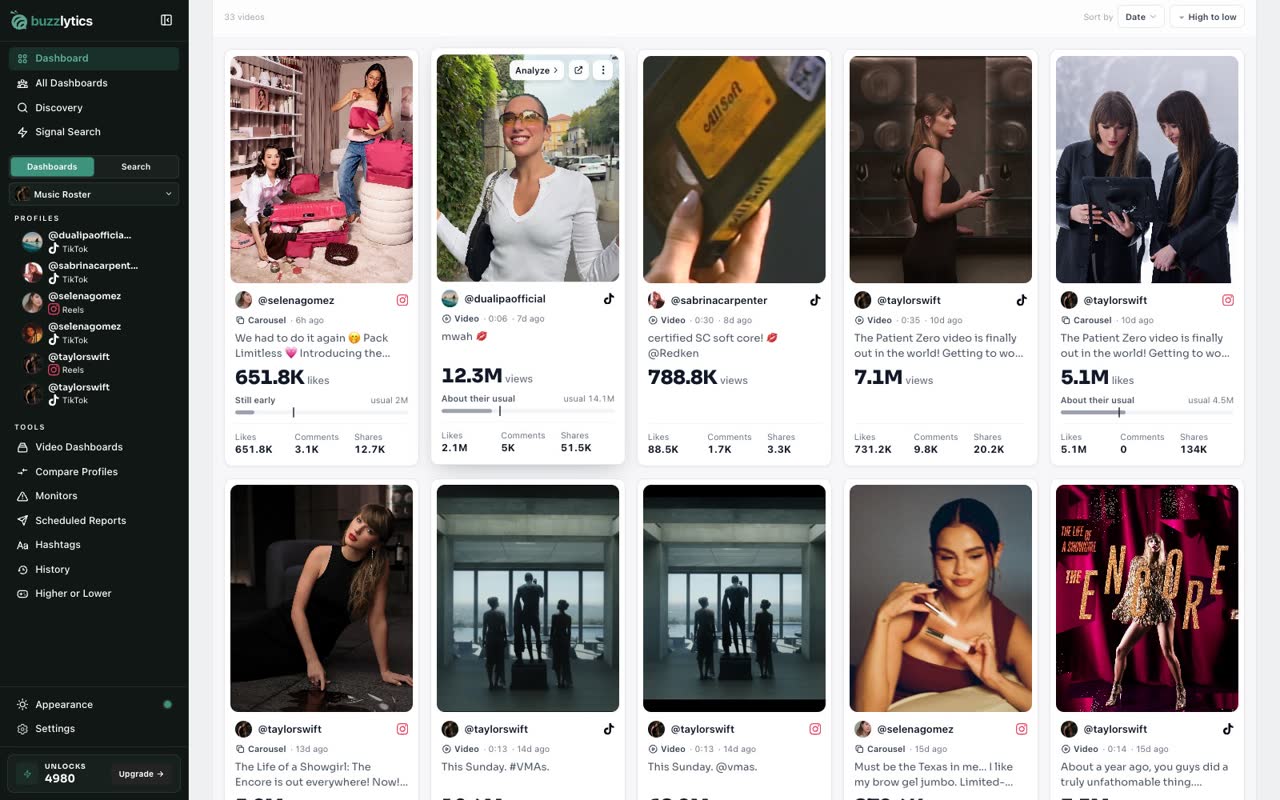
Read a video card
Each card shows the main number, and a bar comparing it with what that creator usually gets.
-
3
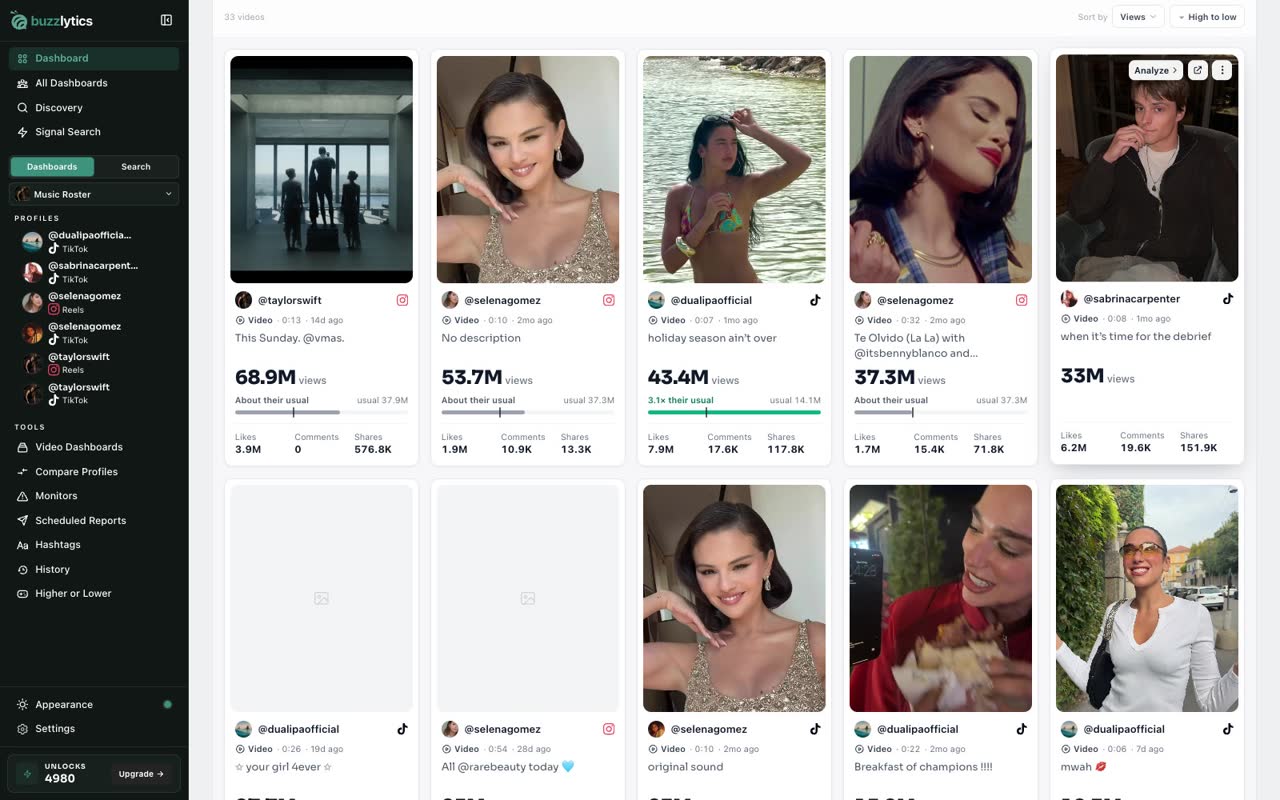
Sort by views
Use Sort by to rank posts by views, likes, comments, shares or engagement.
-
4
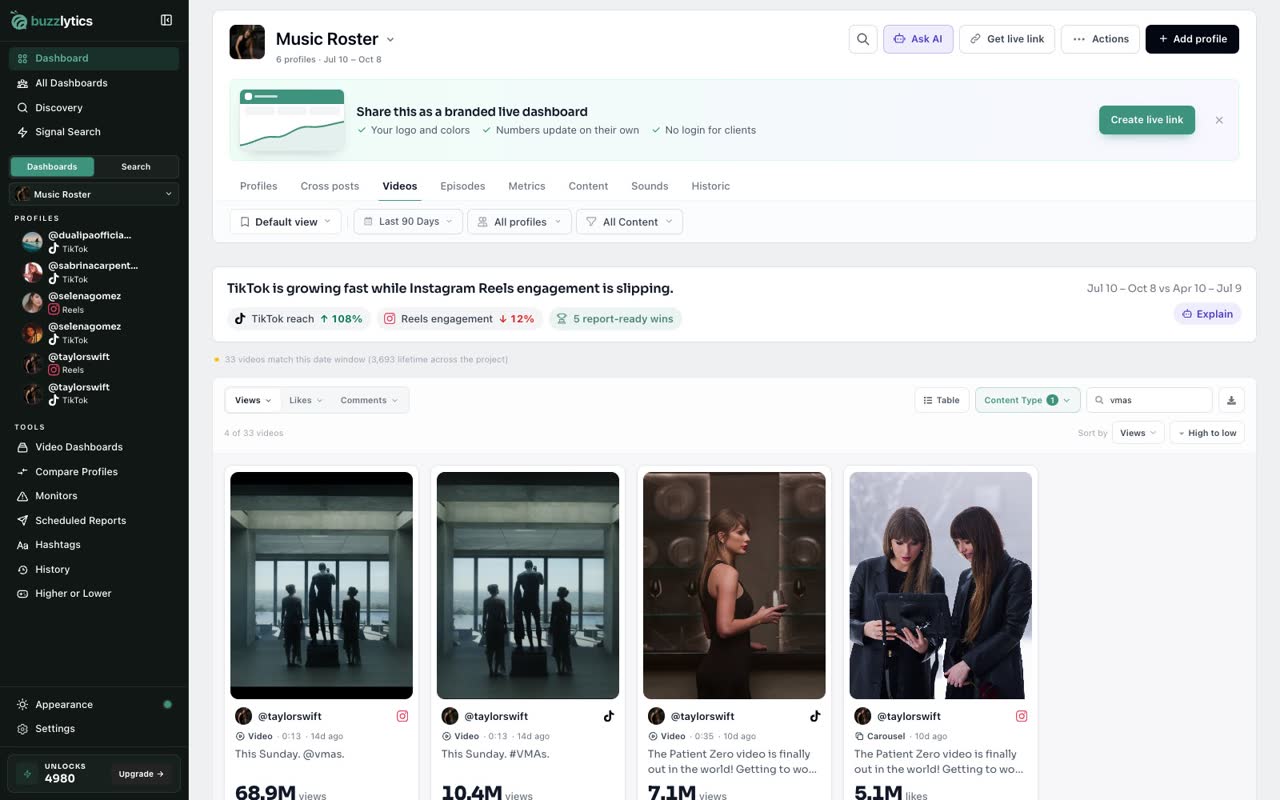
Filter and search
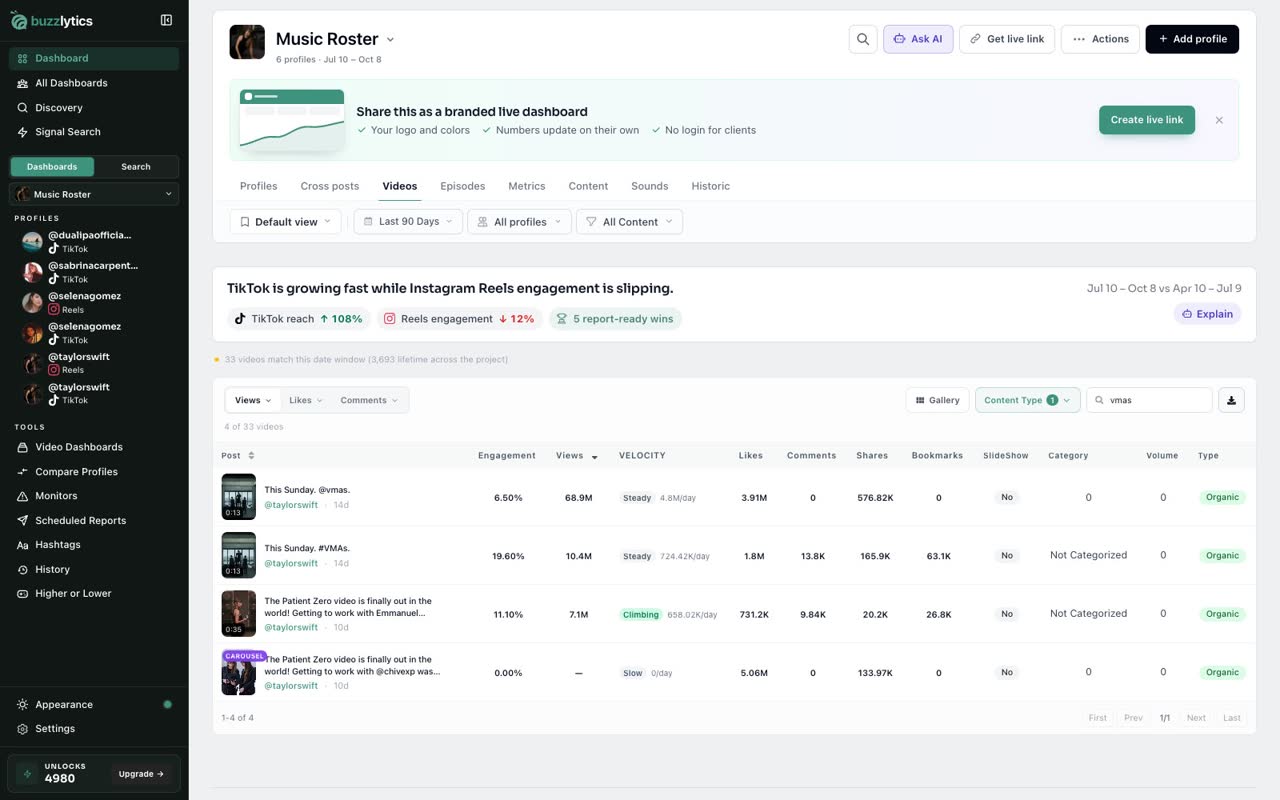
Content Type narrows the list to organic or promoted posts, and the search box finds posts by caption.
-
5
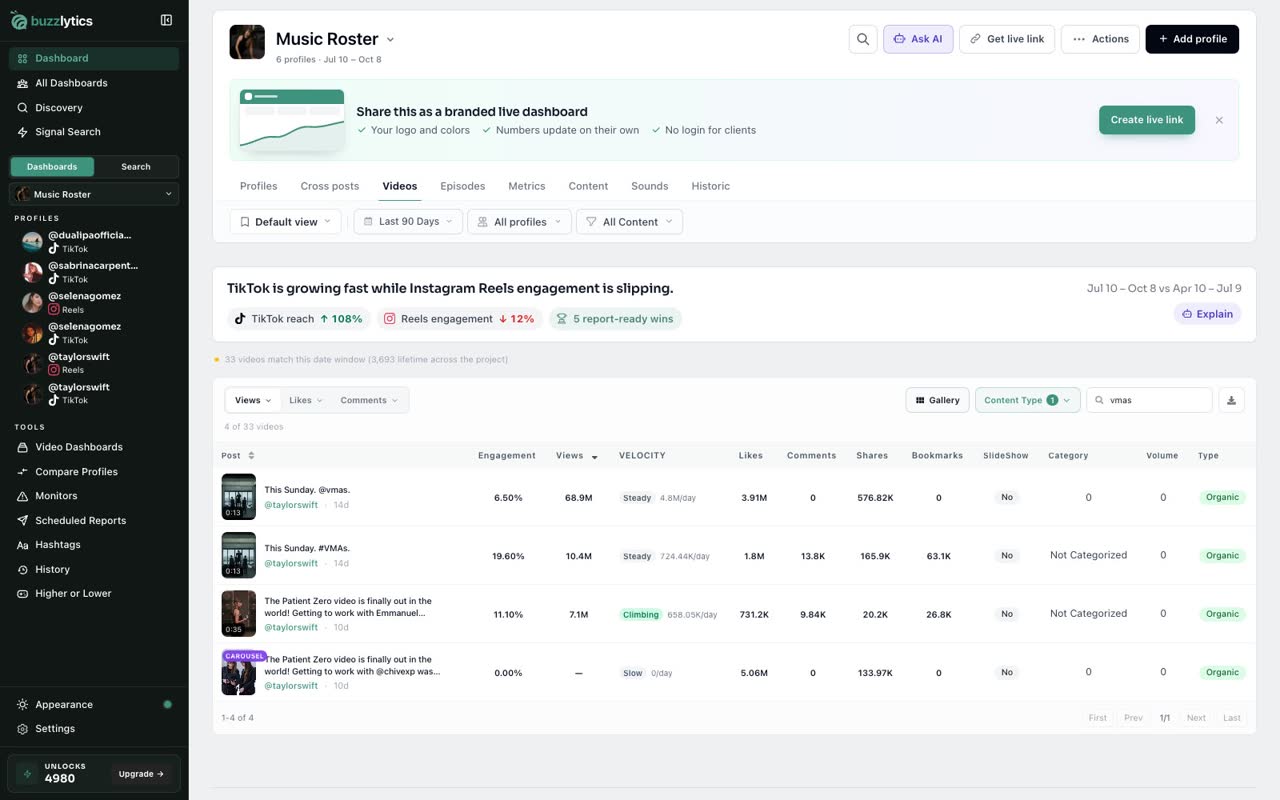
Switch to the table
Prefer rows? Click Table for a compact list with engagement, views, velocity and more in columns.
-
6
Export videos to CSV
Click the download button to export these videos to a CSV, ready for Excel or Google Sheets.
Good to know
- The Videos tab follows the date range, profiles and Content Type filters at the top of the dashboard.
- Export videos to CSV saves exactly the posts you are looking at, filters included.
- Each card compares its number with that creator's usual, so standouts are easy to spot.
Read the full transcript
In this video, you will find the best posts on a dashboard and export them to a spreadsheet.
Click Videos to see every post from every profile on the dashboard, newest first.
Each card shows the main number, and a bar comparing it with what that creator usually gets.
Use Sort by to rank posts by views, likes, comments, shares or engagement.
Content Type narrows the list to organic or promoted posts, and the search box finds posts by caption.
Prefer rows? Click Table for a compact list with engagement, views, velocity and more in columns.
Click the download button to export these videos to a CSV, ready for Excel or Google Sheets.
Next up, metrics, Content, Sounds and Historic.