Share privately with a password or emails
Lock a shared dashboard behind a password, or let only the email addresses you list open it.
Quick steps
- Open Visibility
- Choose Password
- Save the change
- Clients enter the password
- Or pick Specific emails
- Save, and only they get in
Step by step
Prefer reading? Every step shows the screen you’ll see. Click a time to jump the video there.
-
1
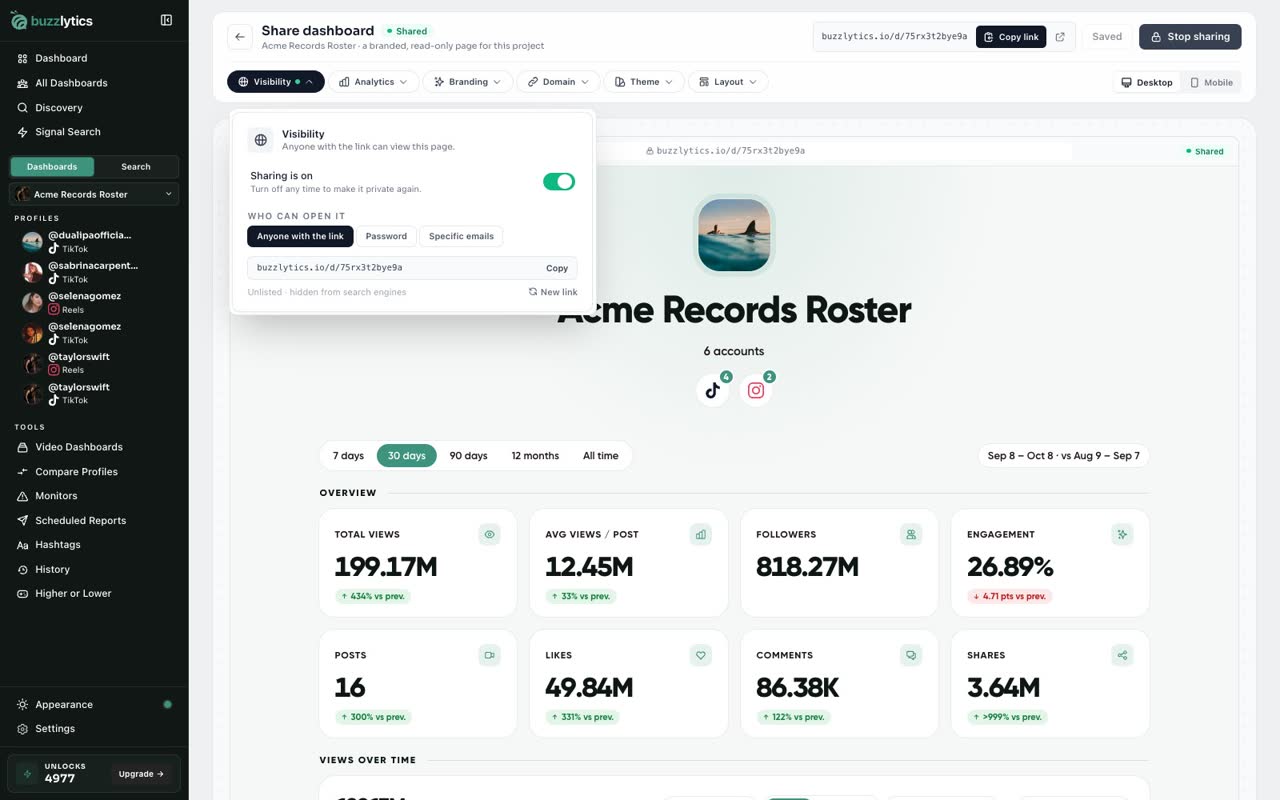
Open Visibility
On the share page, open Visibility. By default, anyone with the link can view.
-
2
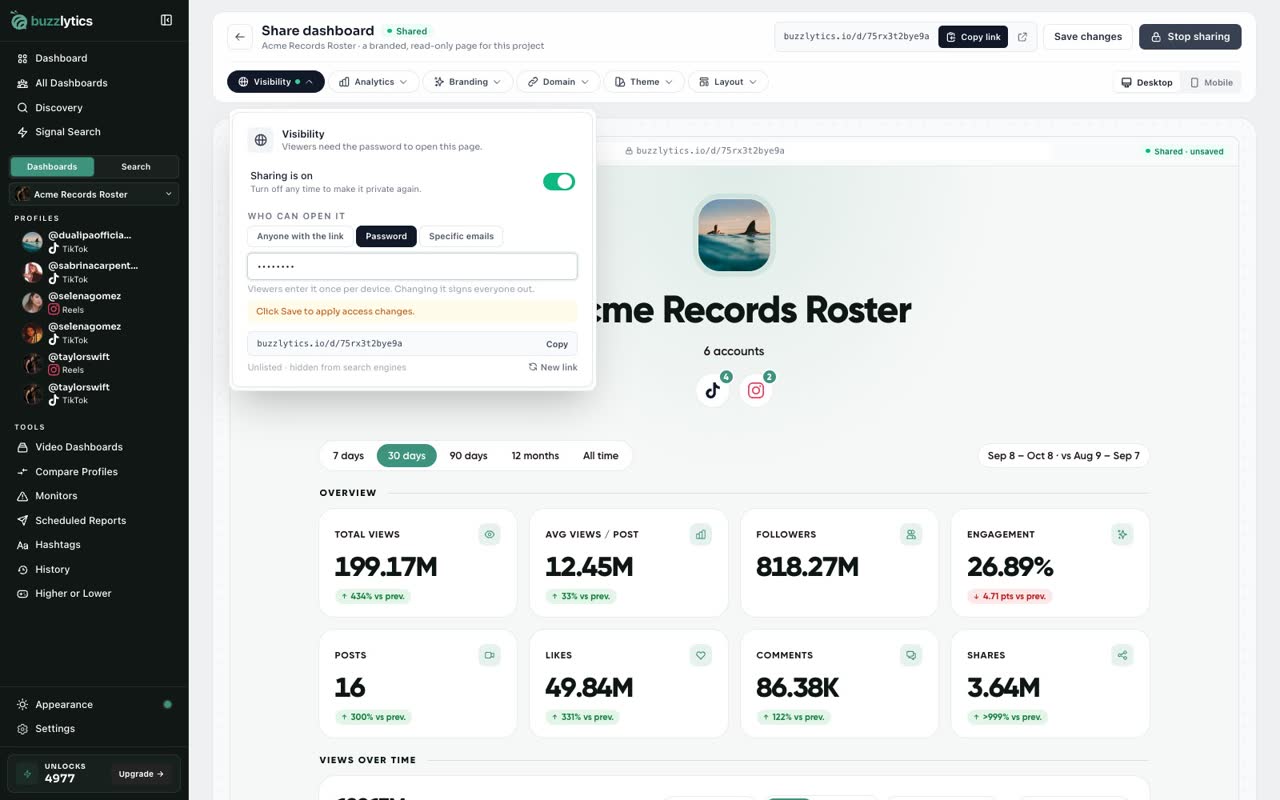
Choose Password
Choose Password, and type one with at least four characters.
-
3
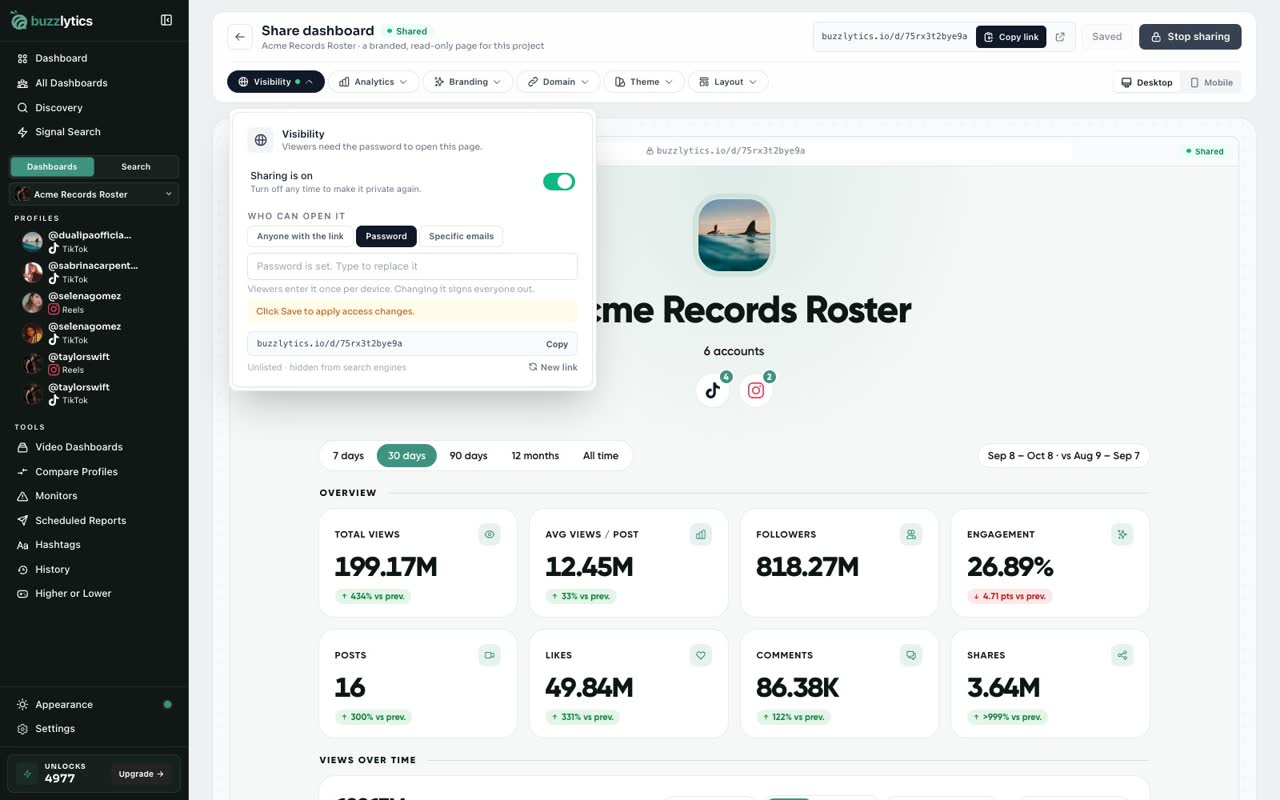
Save the change
Click Save changes. Access changes only apply once you save.
-
4
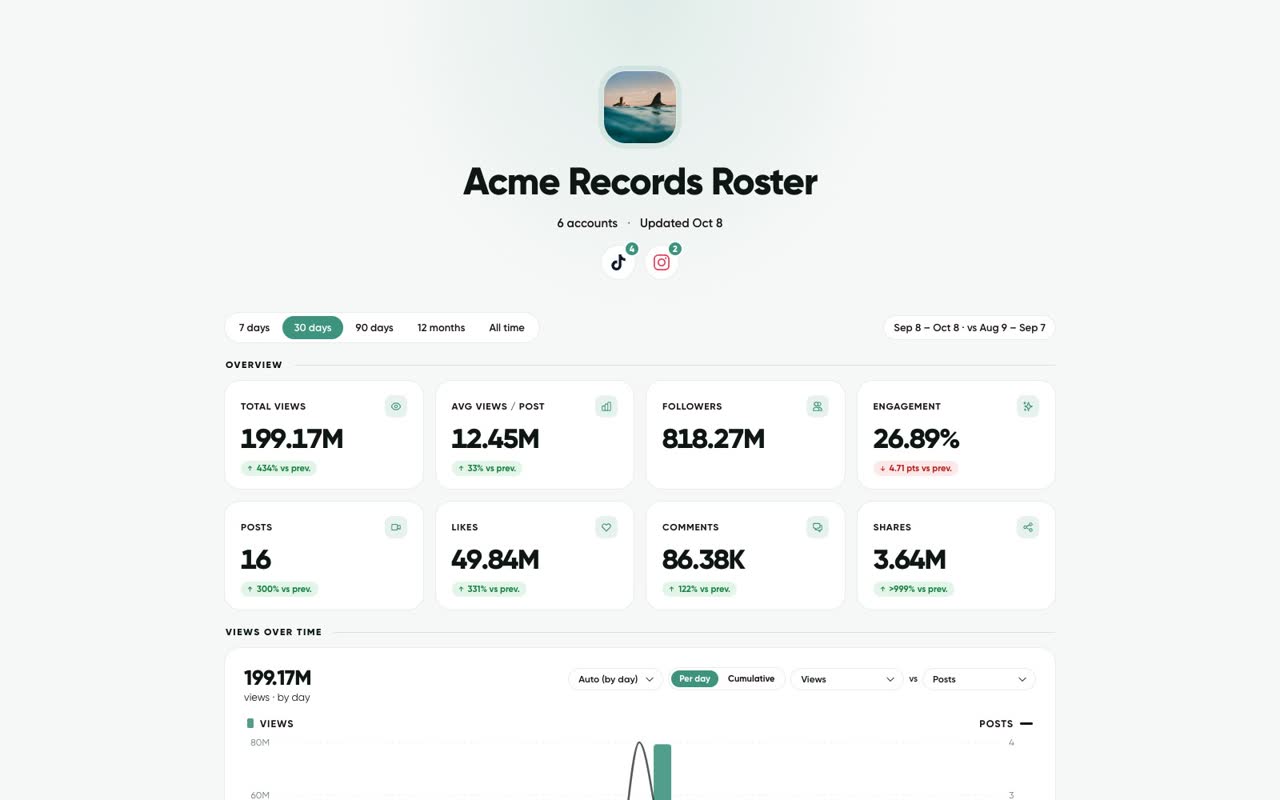
Clients enter the password
Now your client sees a lock screen. They enter the password once on each device.
-
5
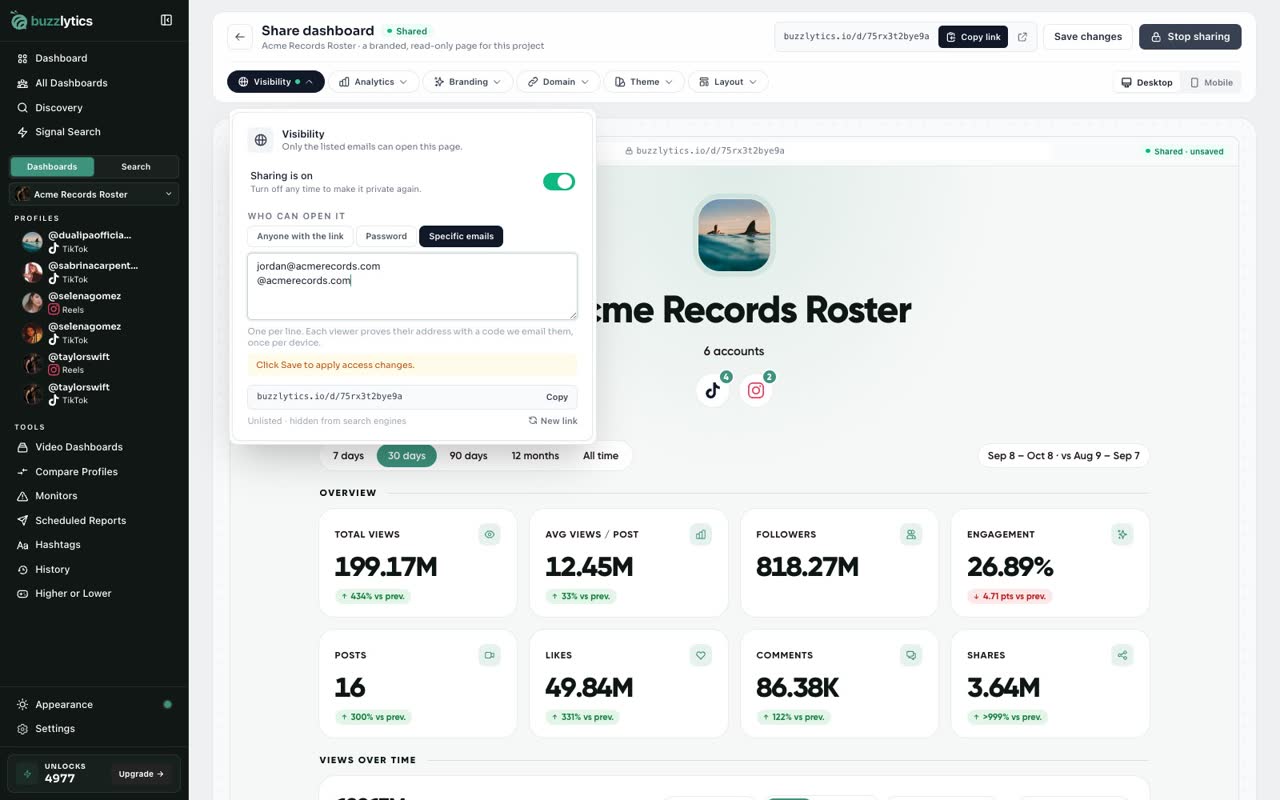
Or pick Specific emails
Prefer named people? Back on the share page, open Visibility, choose Specific emails, and list one address per line.
-
6
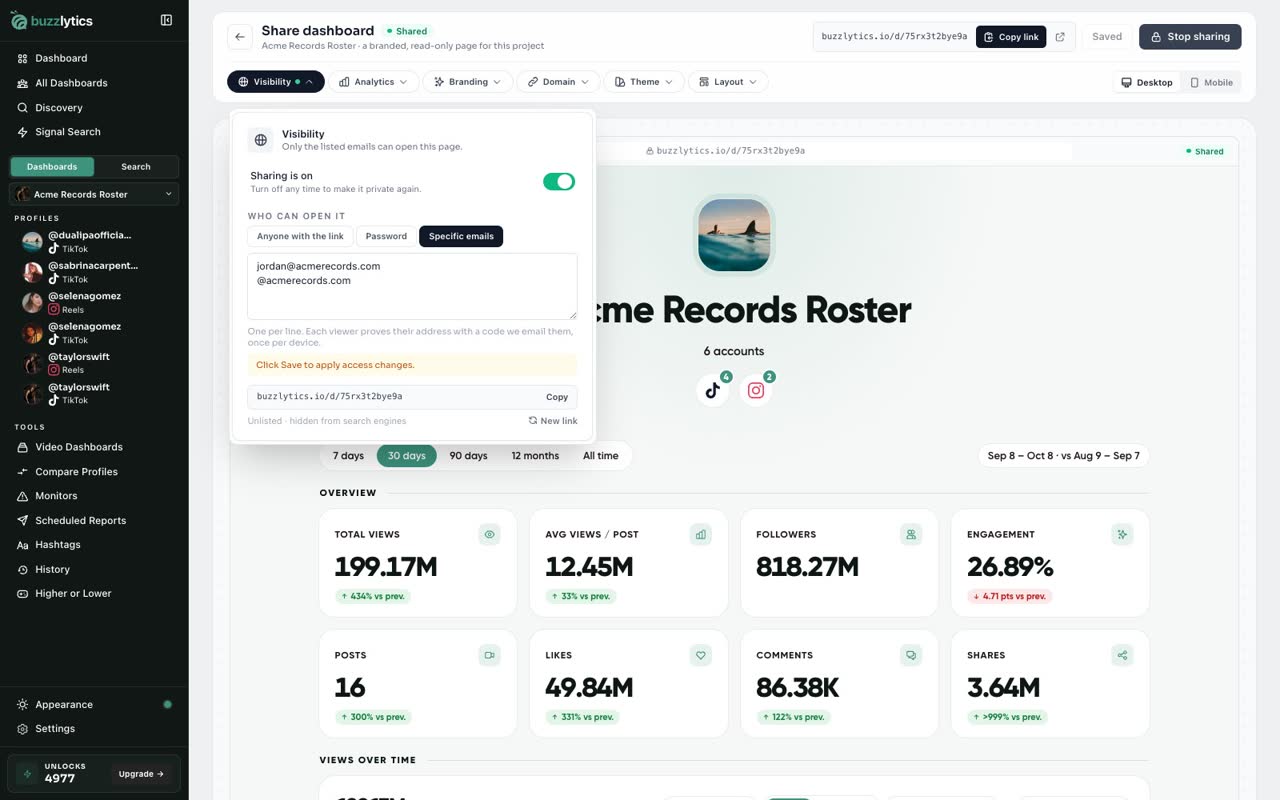
Save, and only they get in
Save again. Each person confirms their email with a one time code before the page opens.
Good to know
- Changing the password signs everyone out, so they need the new one.
- Add @company.com on its own line to let anyone at that company in.
- Email viewers prove their address with a code we email them, once per device.
Read the full transcript
In this video, you will protect a shared dashboard with a password, or limit it to specific emails.
On the share page, open Visibility. By default, anyone with the link can view.
Choose Password, and type one with at least four characters.
Click Save changes. Access changes only apply once you save.
Now your client sees a lock screen. They enter the password once on each device.
Prefer named people? Back on the share page, open Visibility, choose Specific emails, and list one address per line.
Save again. Each person confirms their email with a one time code before the page opens.
Next up, brand your shared dashboard.