Choose what clients see
Pick which blocks, stats, columns and periods appear on the dashboard you share.
Quick steps
- Open Layout
- Turn blocks on or off
- Pick the stats
- Set the period and downloads
- Check it on a phone
- Save changes
Step by step
Prefer reading? Every step shows the screen you’ll see. Click a time to jump the video there.
-
1
Open Layout
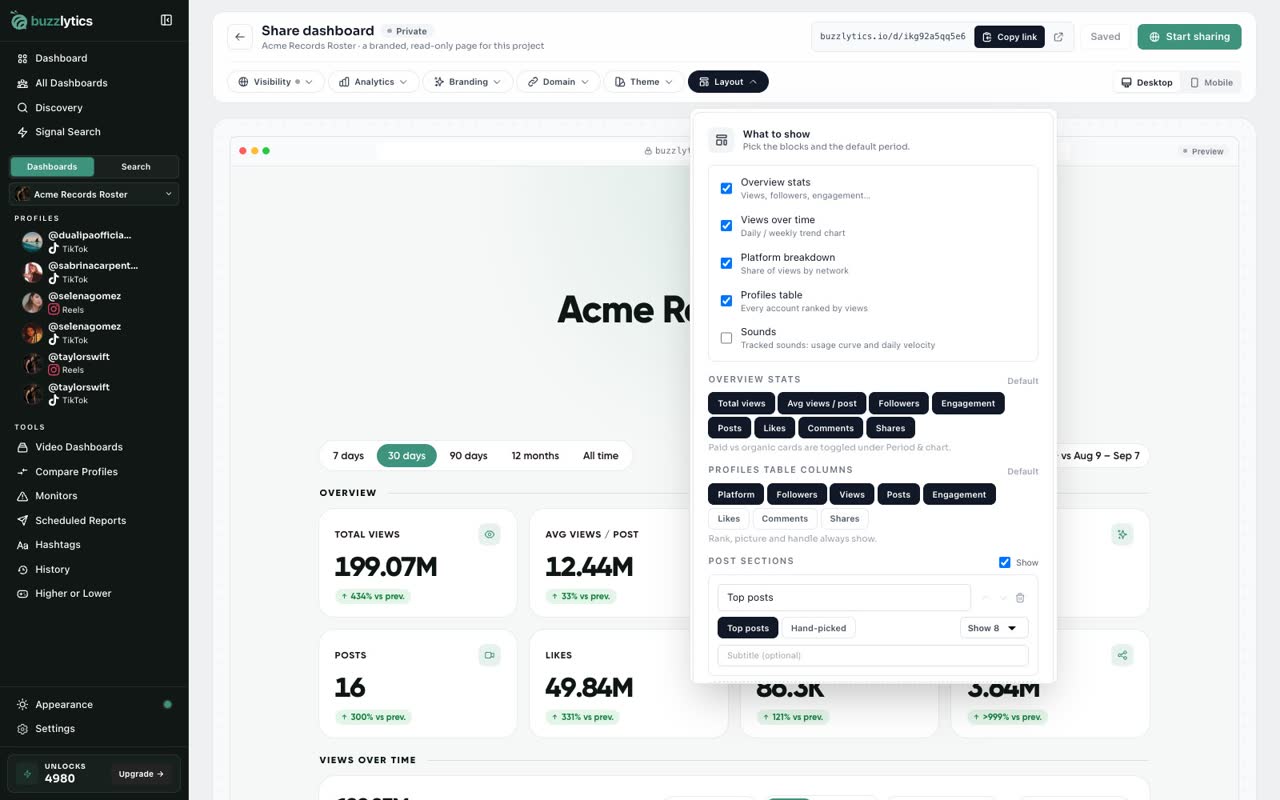
On the share page, open the Layout tab. Every block on the page is listed here.
-
2
Turn blocks on or off
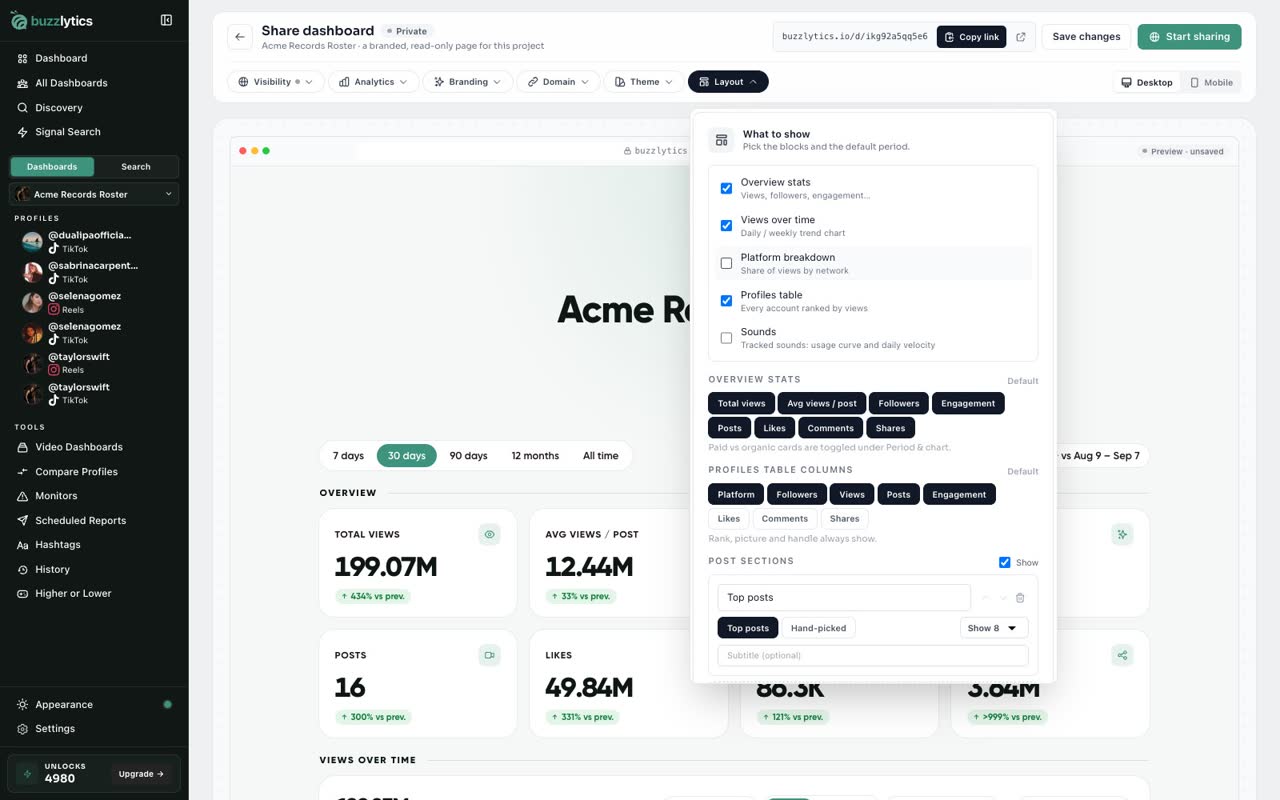
Untick any block you want to hide, like the platform breakdown. The preview updates right away.
-
3
Pick the stats
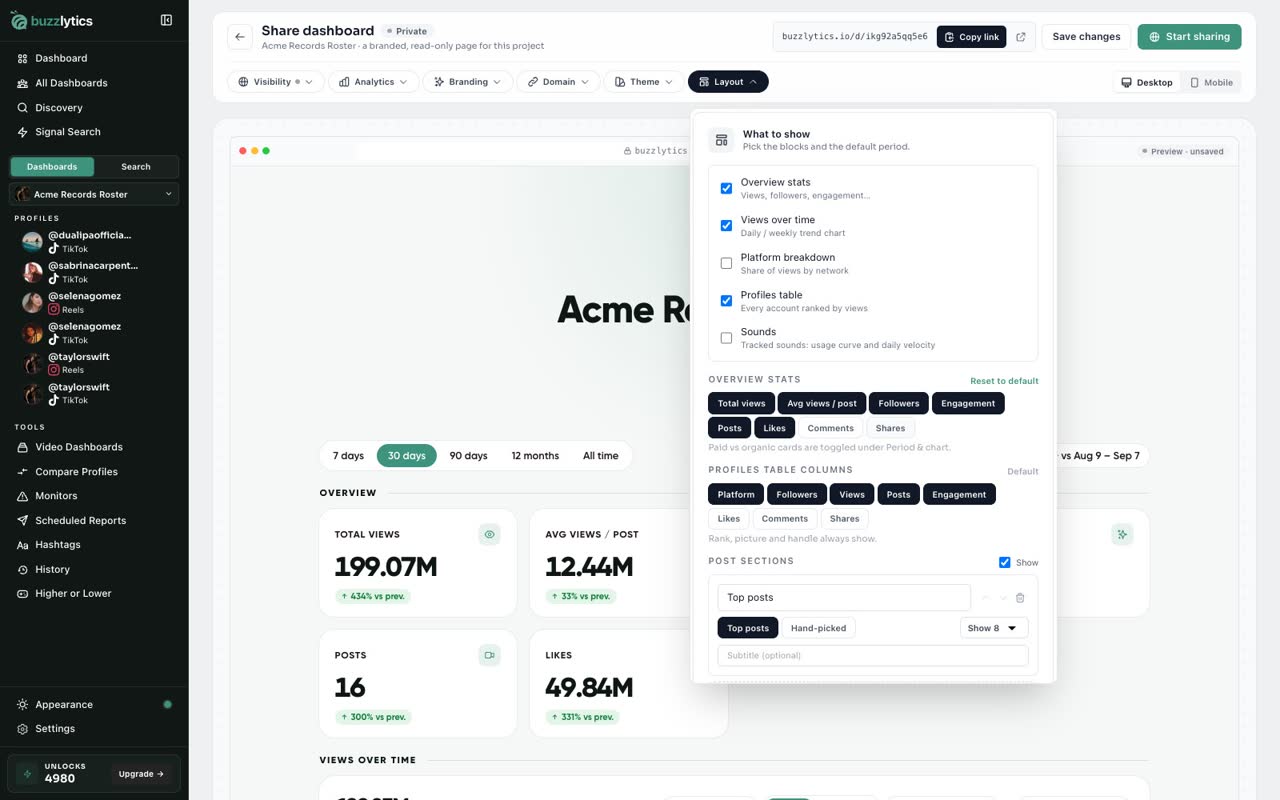
Choose which overview stats and table columns to show. Click a pill to switch it off.
-
4
Set the period and downloads
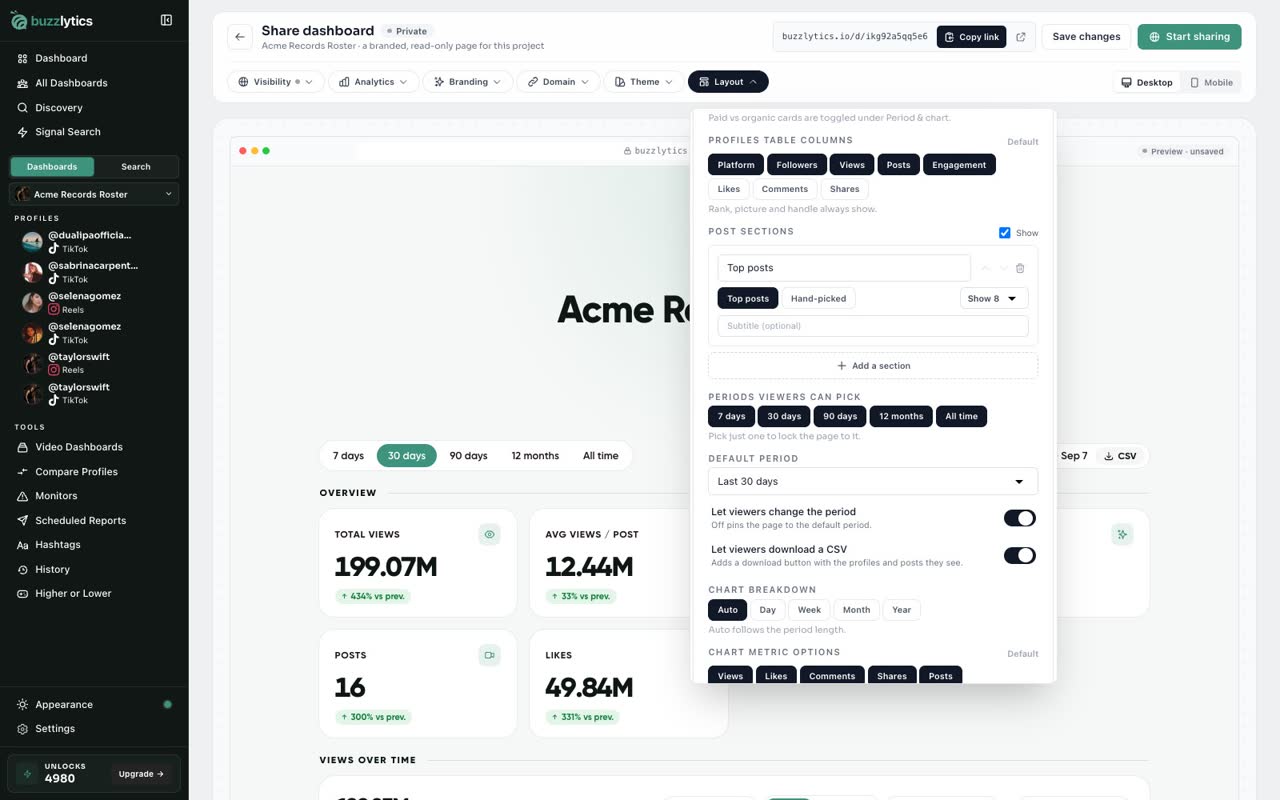
Pick which periods viewers can choose, and decide if they can download a CSV.
-
5
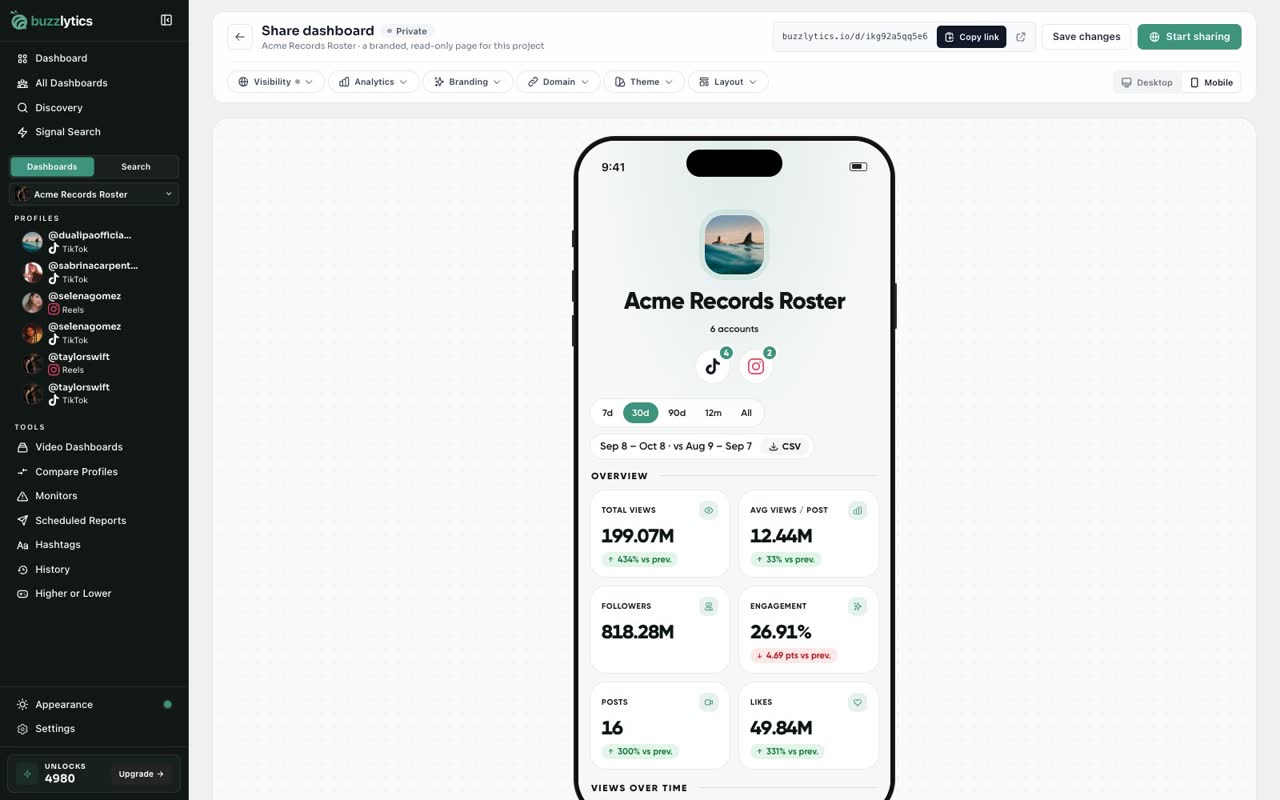
Check it on a phone
Switch to Mobile to see how it looks on your client's phone.
-
6
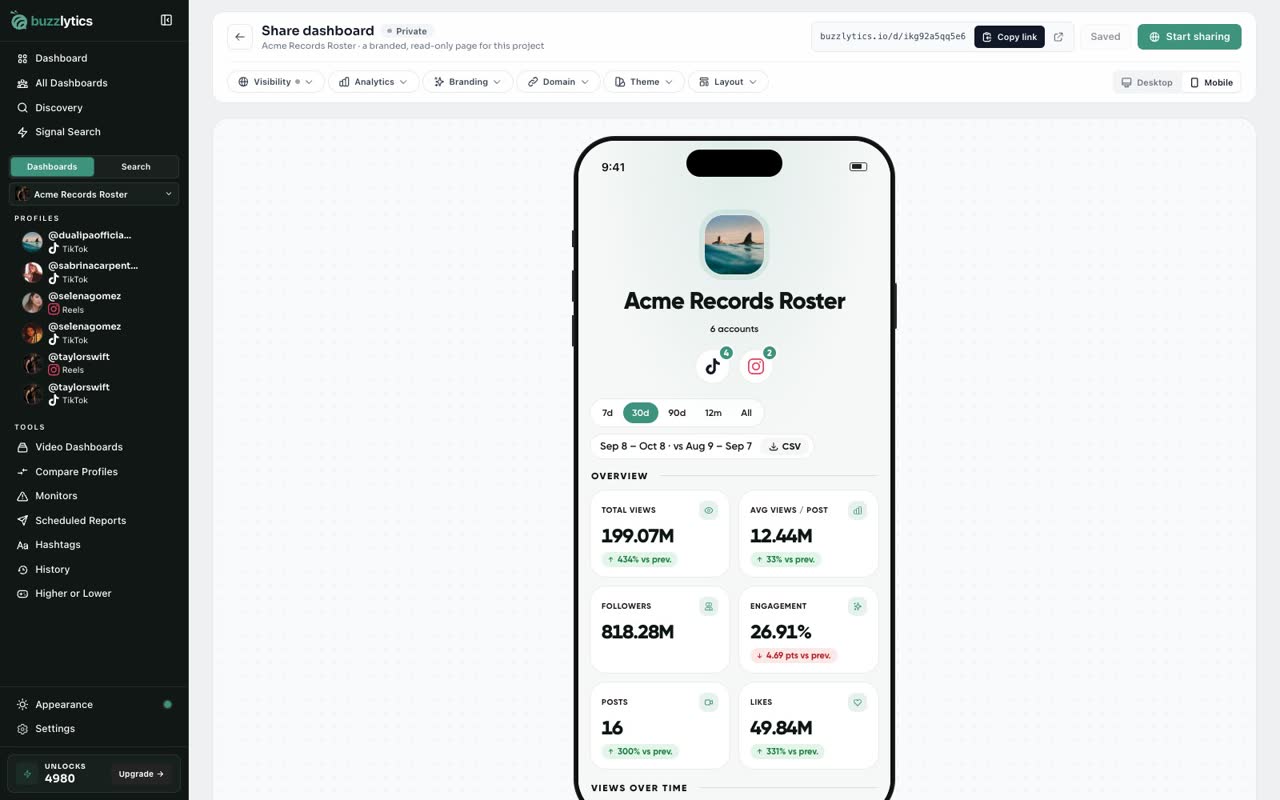
Save changes
When it looks right, click Save changes.
Good to know
- Pick just one period to lock the page to it.
- Hand-picked post sections let you feature the exact posts you want to show off. Use Choose posts.
- Show paid vs organic views works for TikTok only.
Read the full transcript
In this video, you will choose exactly what your client sees on a shared dashboard.
On the share page, open the Layout tab. Every block on the page is listed here.
Untick any block you want to hide, like the platform breakdown. The preview updates right away.
Choose which overview stats and table columns to show. Click a pill to switch it off.
Pick which periods viewers can choose, and decide if they can download a CSV.
Switch to Mobile to see how it looks on your client's phone.
When it looks right, click Save changes.
Next up, see who opened your report.