Build a media kit
Publish a one-page media kit for any creator, with live stats, top posts and your rates.
Quick steps
- Open Media kit
- Set the link and intro
- Add your agency
- Add your rates
- Publish it
- Preview the kit
Step by step
Prefer reading? Every step shows the screen you’ll see. Click a time to jump the video there.
-
1
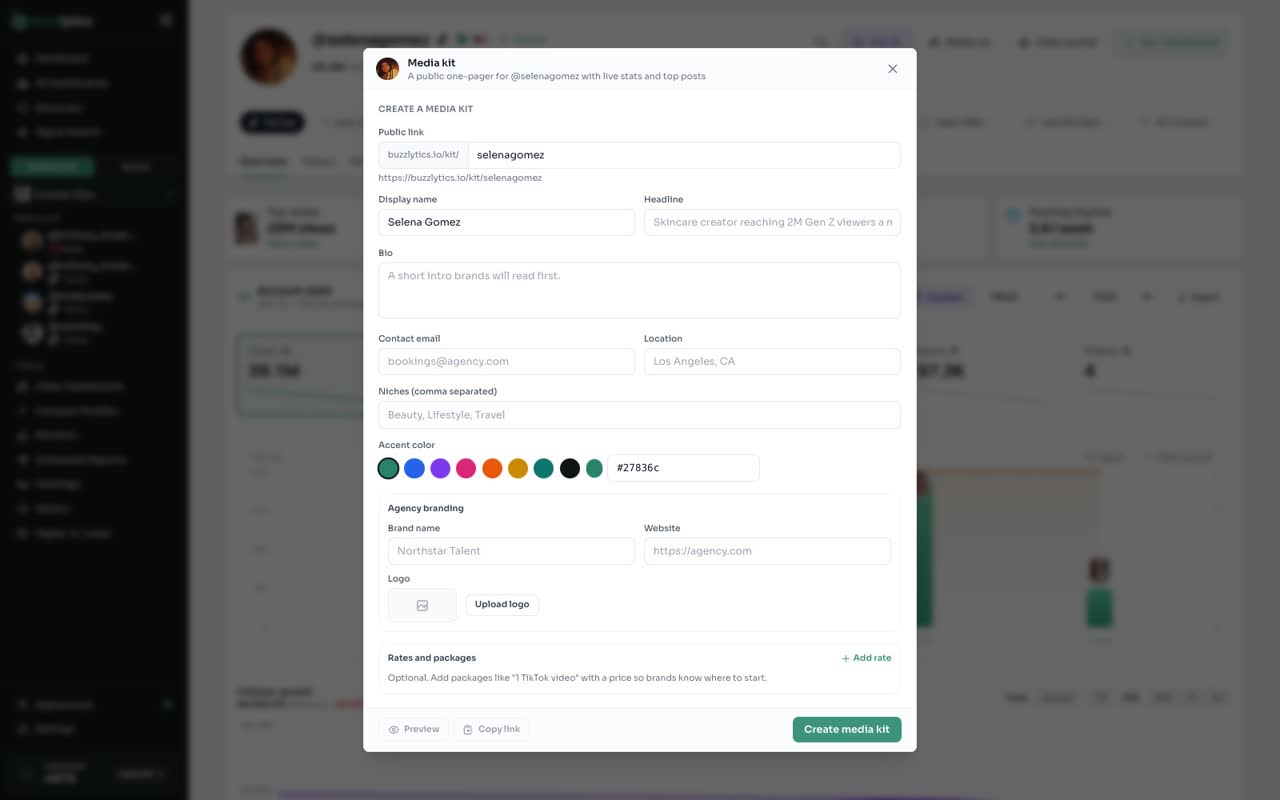
Open Media kit
Open any creator's profile, and click Media kit at the top.
-
2
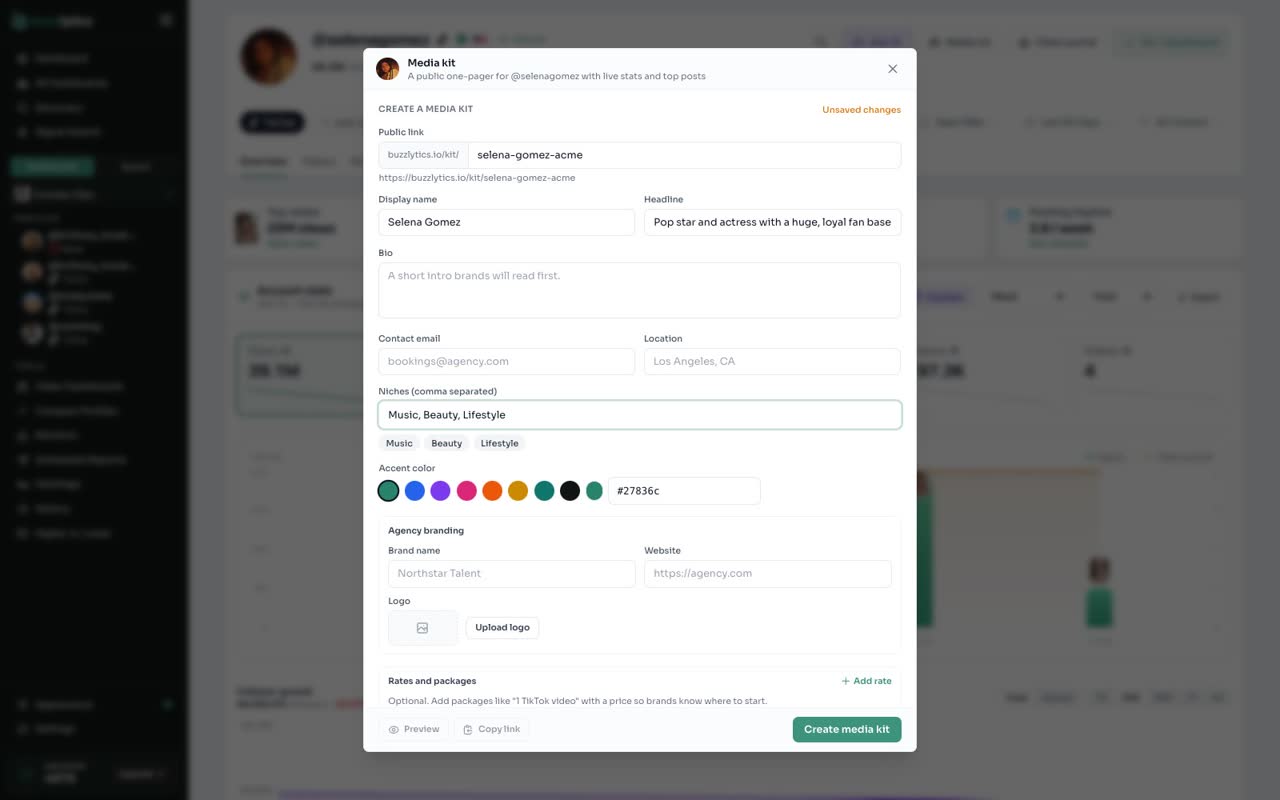
Set the link and intro
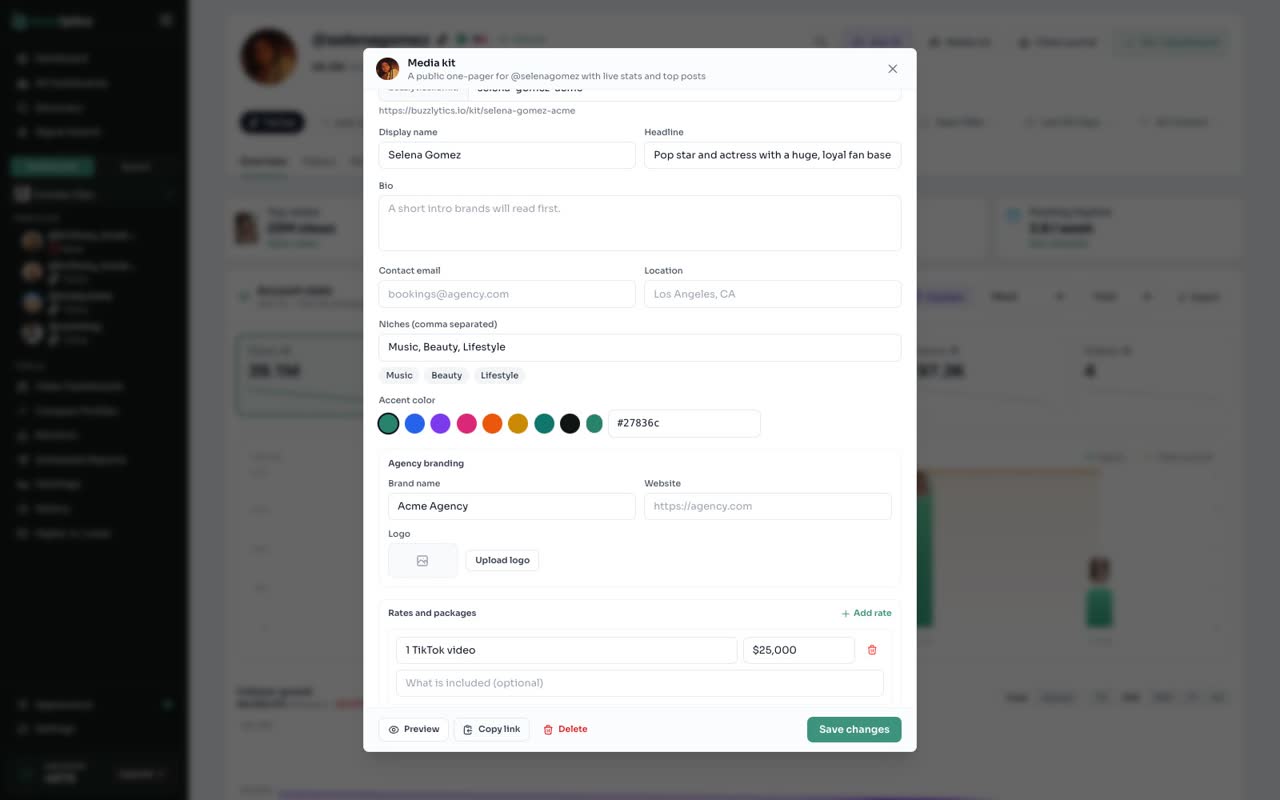
Choose the public link, then add a headline brands will read first.
-
3
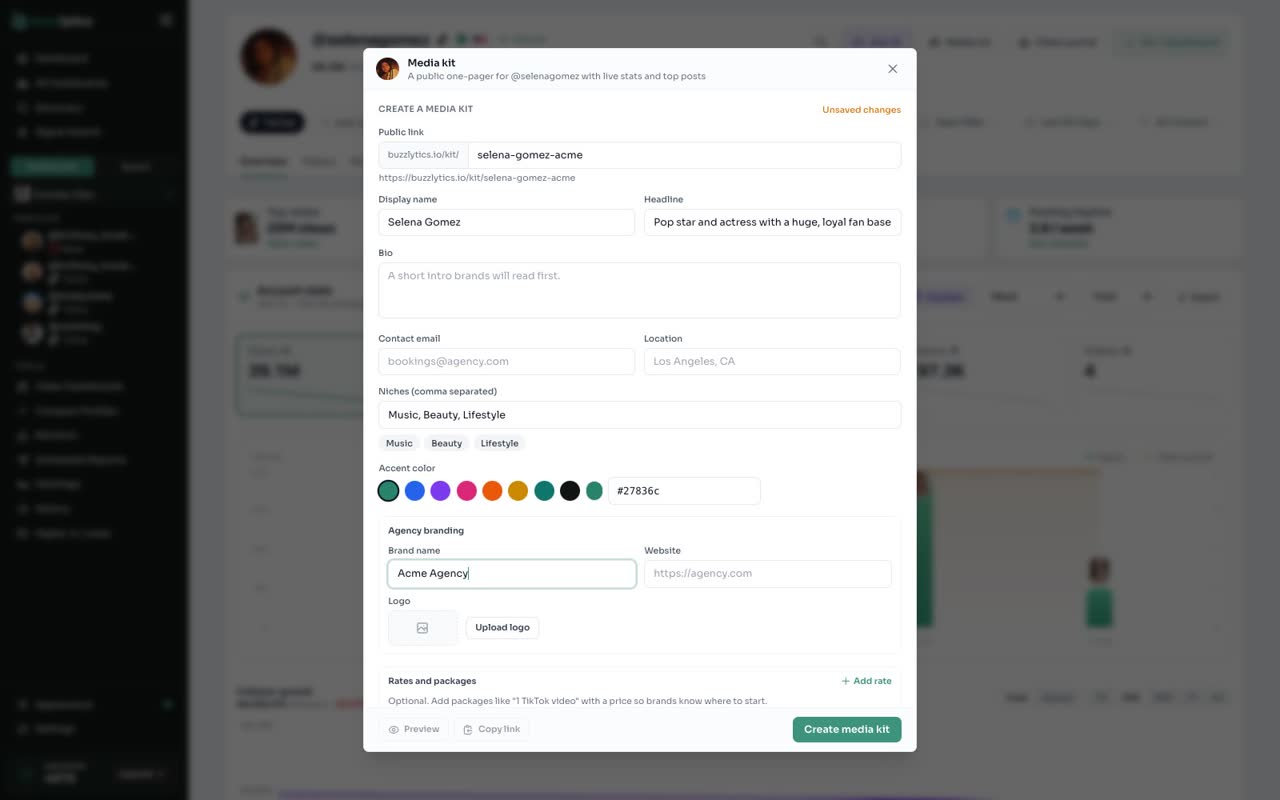
Add your agency
Under Agency branding, add your agency name. You can add your website and logo here too.
-
4
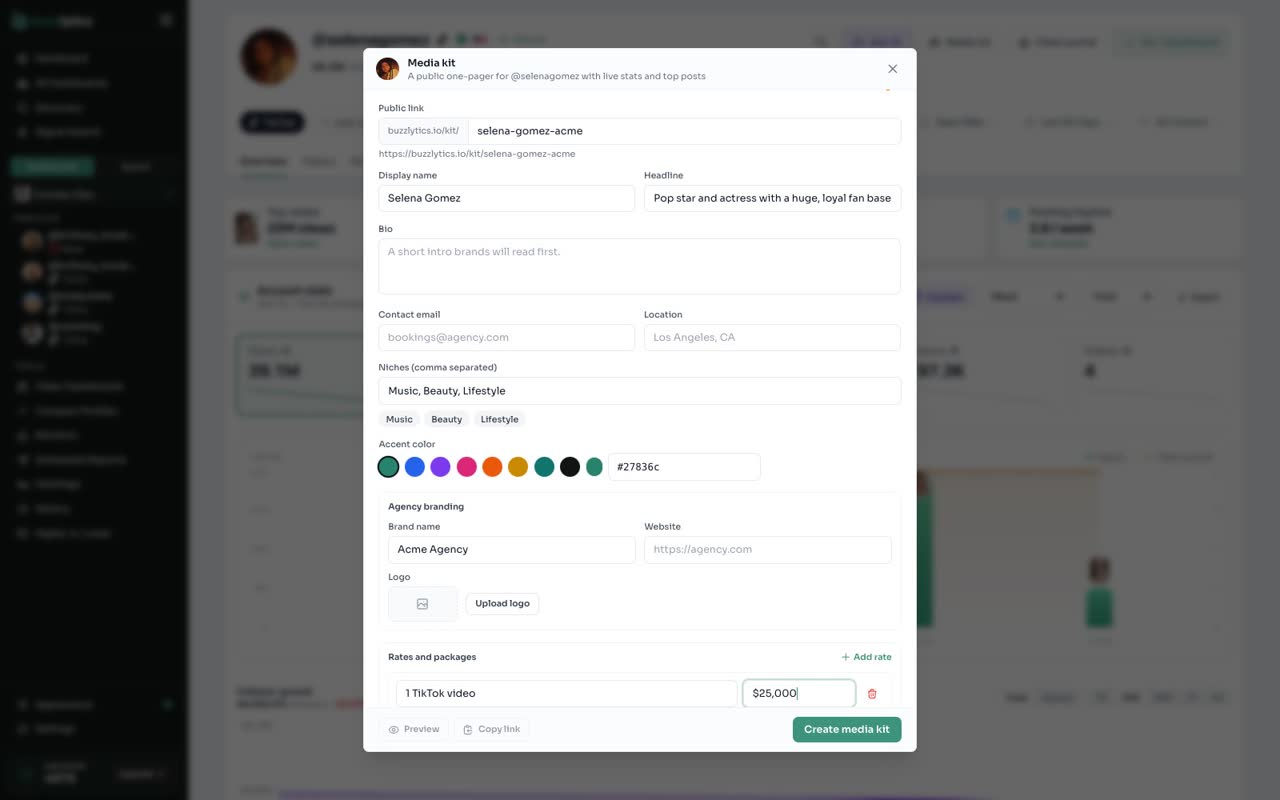
Add your rates
Click Add rate to list packages and prices, so brands know where to start.
-
5
Publish it
Tick Published, then click Create media kit.
-
6
Preview the kit
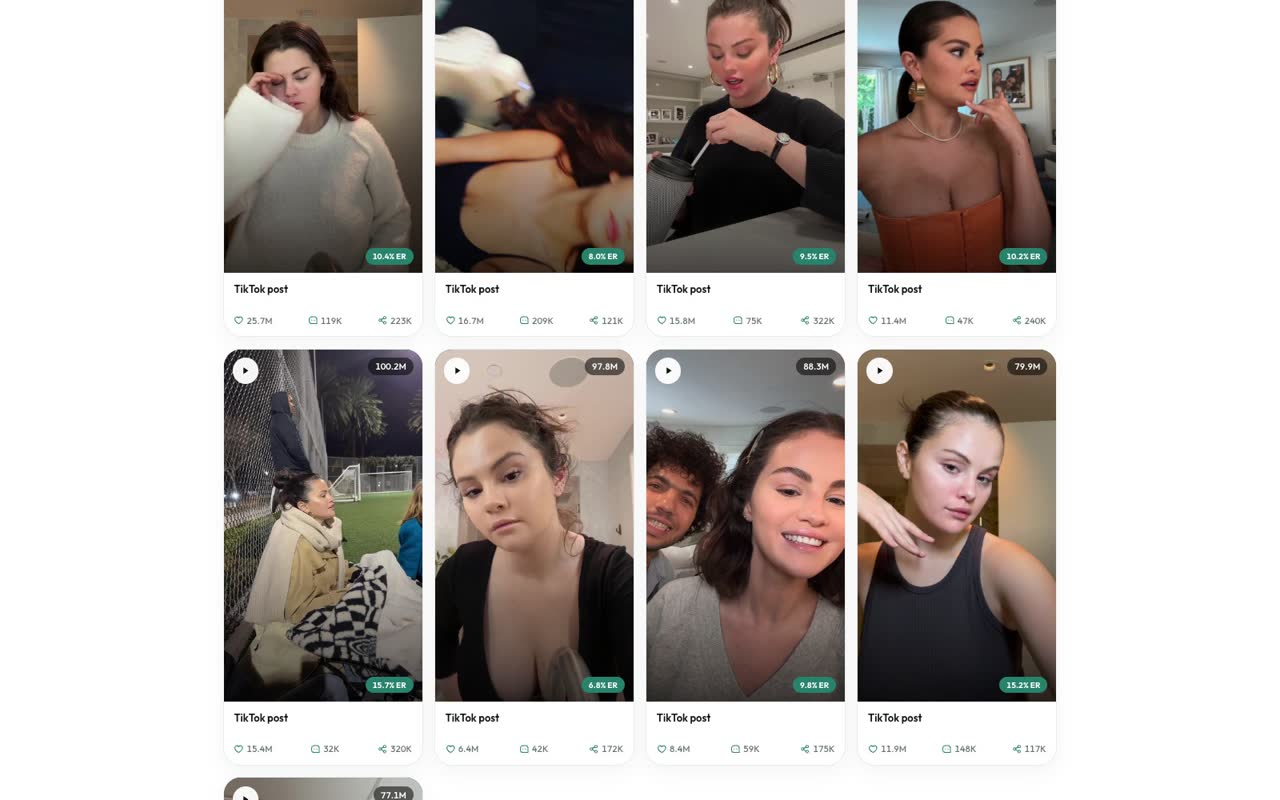
Click Preview to see the public page. Stats and top posts stay live, and you can copy the link to send.
Good to know
- The stats and top posts stay live, so the kit never goes out of date.
- Untick Published to take the page down without losing your work.
- Add your agency logo under Agency branding so brands know who to call.
Read the full transcript
In this video, you will build and publish a media kit for a creator.
Open any creator's profile, and click Media kit at the top.
Choose the public link, then add a headline brands will read first.
Under Agency branding, add your agency name. You can add your website and logo here too.
Click Add rate to list packages and prices, so brands know where to start.
Tick Published, then click Create media kit.
Click Preview to see the public page. Stats and top posts stay live, and you can copy the link to send.
Next up, client portals.