Track posts with Video Dashboards
Build a live report from individual post links instead of whole profiles, mixing TikTok, Instagram, YouTube and more.
Quick steps
- Create a Video Dashboard
- Paste post links
- Add them
- Or pick posts from a profile
- Select the posts you want
- One live report
Step by step
Prefer reading? Every step shows the screen you’ll see. Click a time to jump the video there.
-
1
Create a Video Dashboard
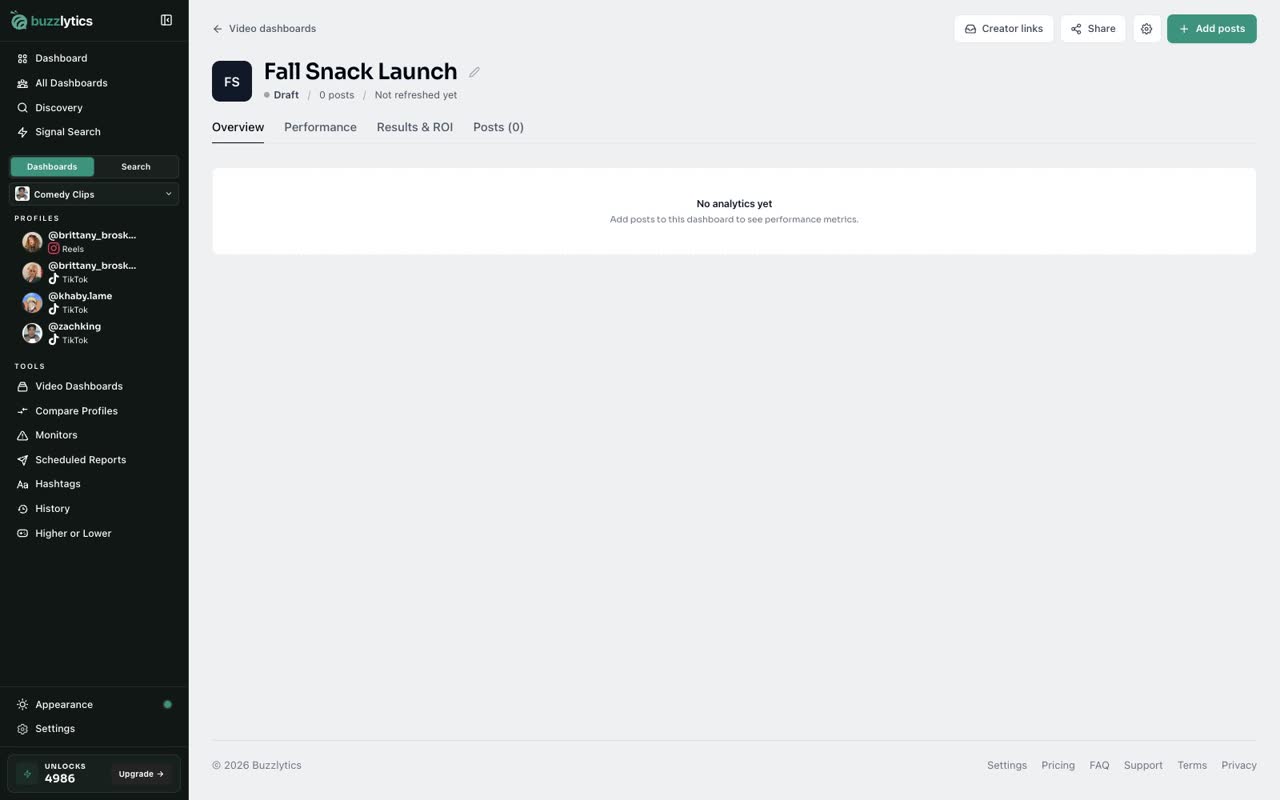
Open Video Dashboards and click New Video Dashboard. Give it a name, like the campaign it reports on.
-
2
Paste post links
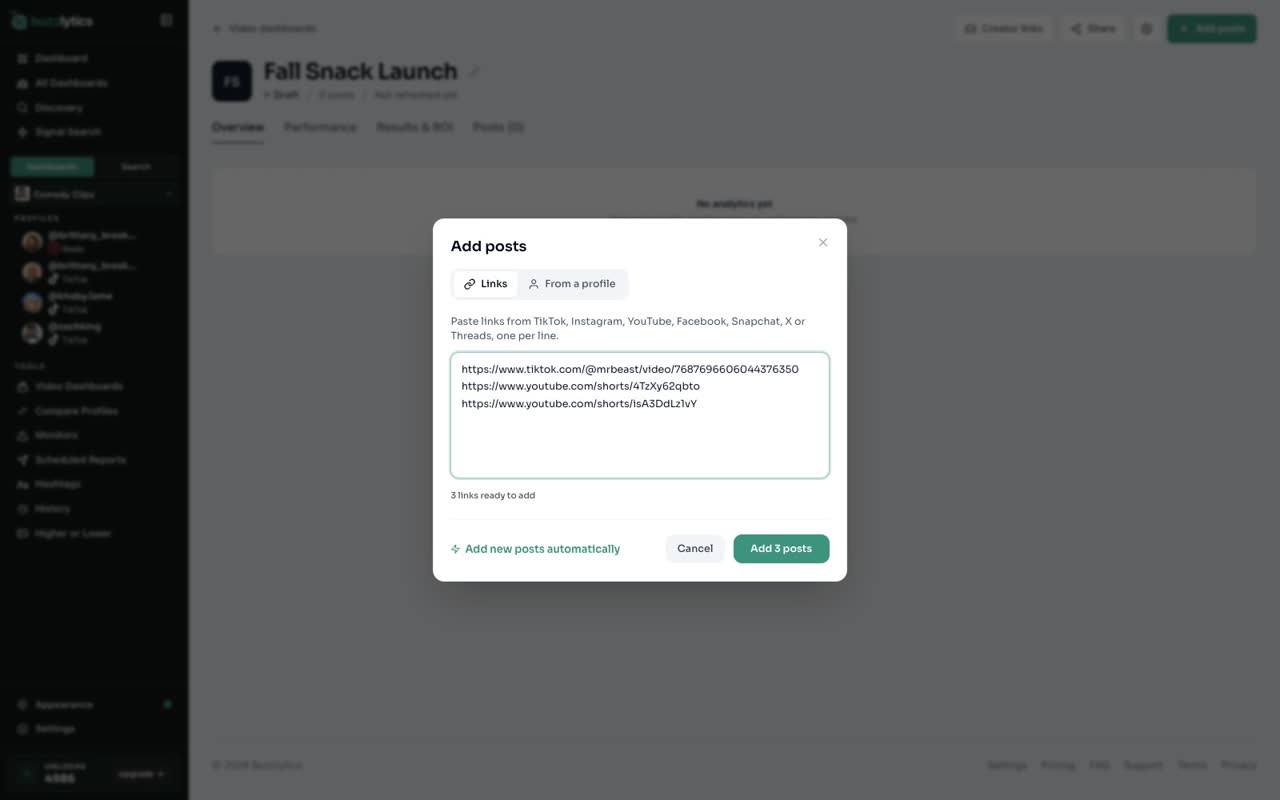
Click Add posts. On the Links tab, paste the posts you want to track, one per line, from any platform.
-
3
Add them
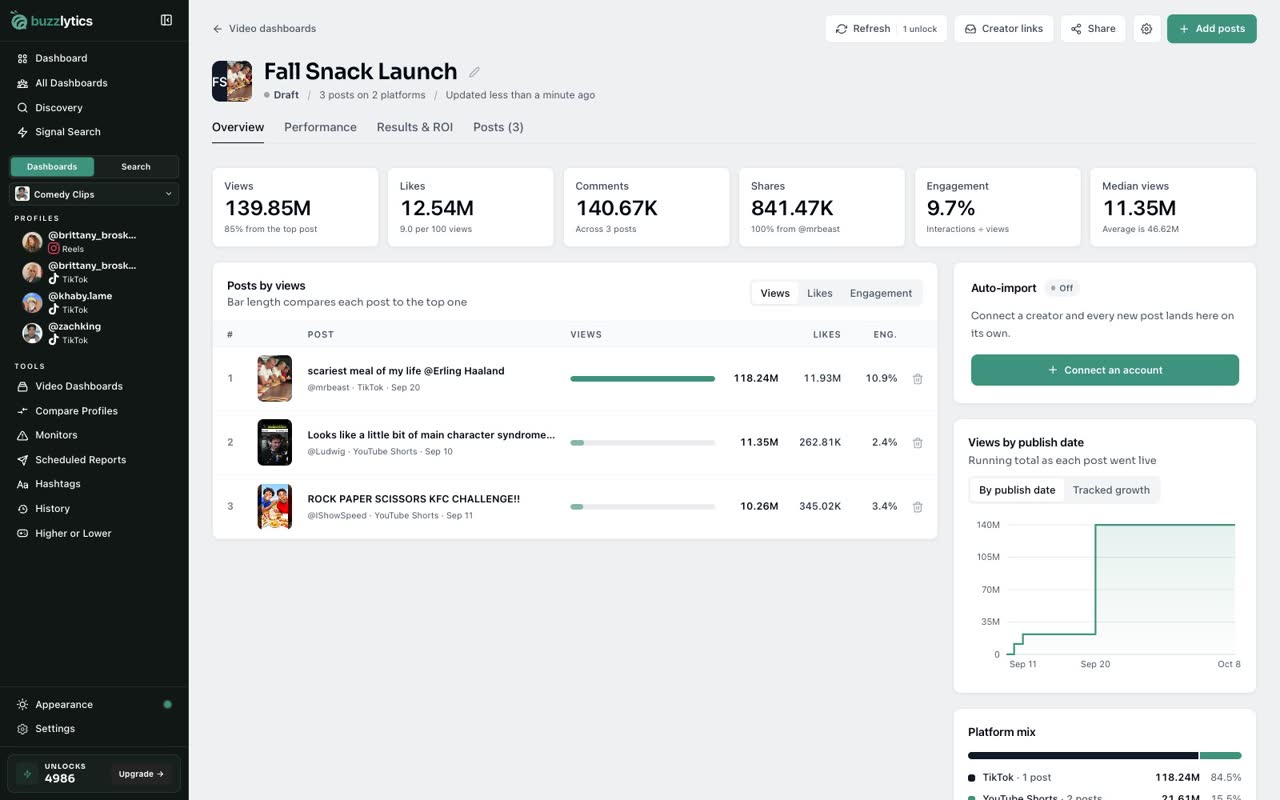
Click Add, and Buzzlytics pulls in the views, likes and comments for each post.
-
4
Or pick posts from a profile
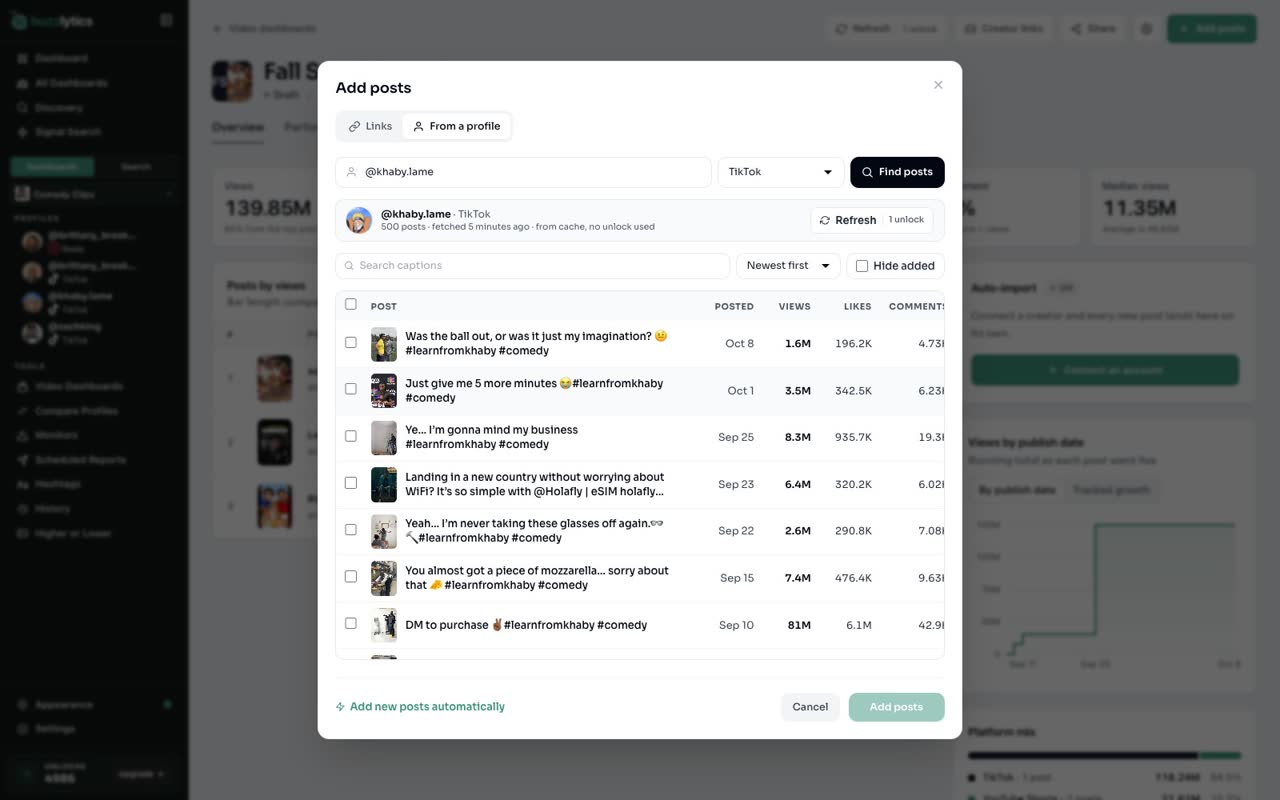
To add more, open Add posts again and switch to From a profile. Pick an account you track, or type any handle.
-
5
Select the posts you want
Tick the posts that belong to this campaign, then click Add.
-
6
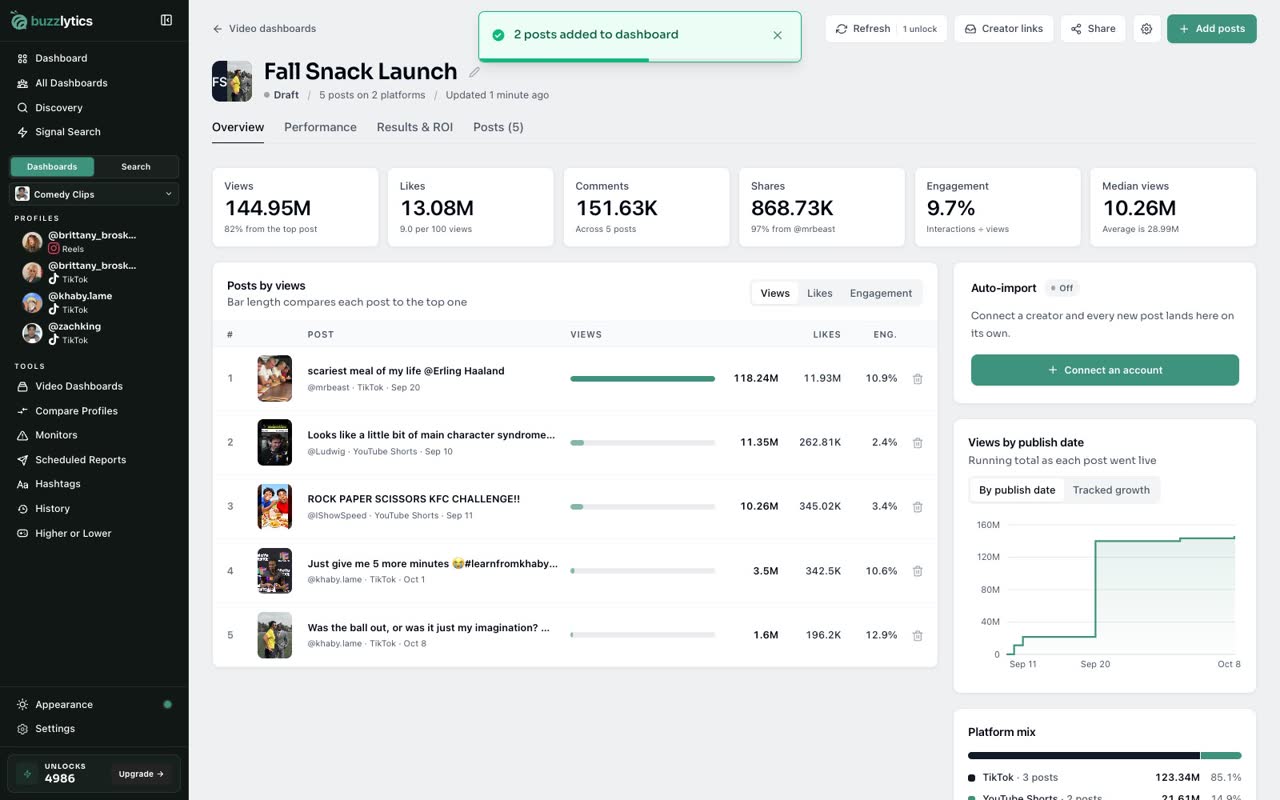
One live report
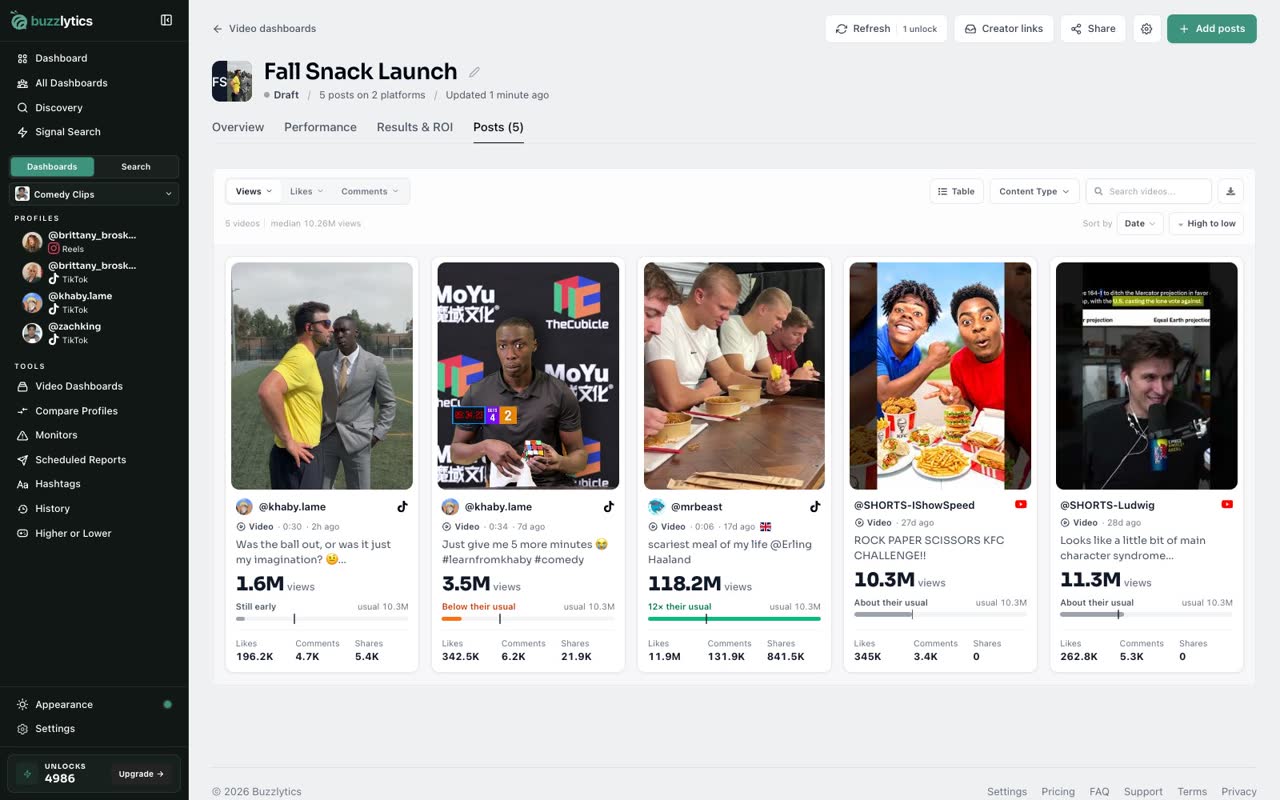
Now every post sits in one report, with totals across platforms. Open the Posts tab to see each one.
Good to know
- A Video Dashboard holds up to 200 posts.
- Refreshing a Video Dashboard uses 1 unlock for every 20 posts.
- You can also add a post from any video card with Add to video dashboard.
Read the full transcript
In this video, you will build a Video Dashboard that tracks only the posts from your campaign.
Open Video Dashboards and click New Video Dashboard. Give it a name, like the campaign it reports on.
Click Add posts. On the Links tab, paste the posts you want to track, one per line, from any platform.
Click Add, and Buzzlytics pulls in the views, likes and comments for each post.
To add more, open Add posts again and switch to From a profile. Pick an account you track, or type any handle.
Tick the posts that belong to this campaign, then click Add.
Now every post sits in one report, with totals across platforms. Open the Posts tab to see each one.
Next up, auto-import new posts.