See who opened your report
Check how often your shared dashboard was opened, and by how many people.
Quick steps
- Open your live link
- Open Analytics
- Impressions and visitors
- Views per visitor and all time
- Change the window
Step by step
Prefer reading? Every step shows the screen you’ll see. Click a time to jump the video there.
-
1
Open your live link
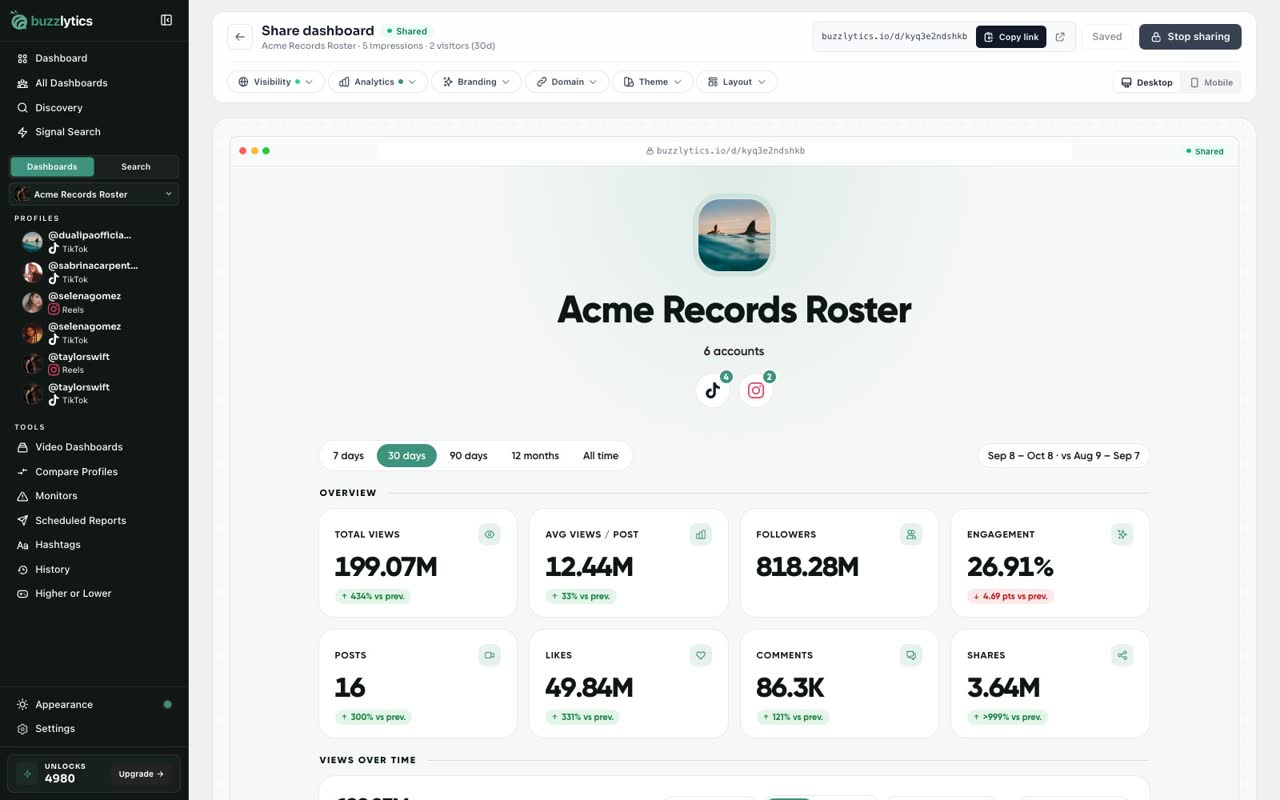
Once a dashboard is shared, its button reads Live link. Click it to open the share page.
-
2
Open Analytics
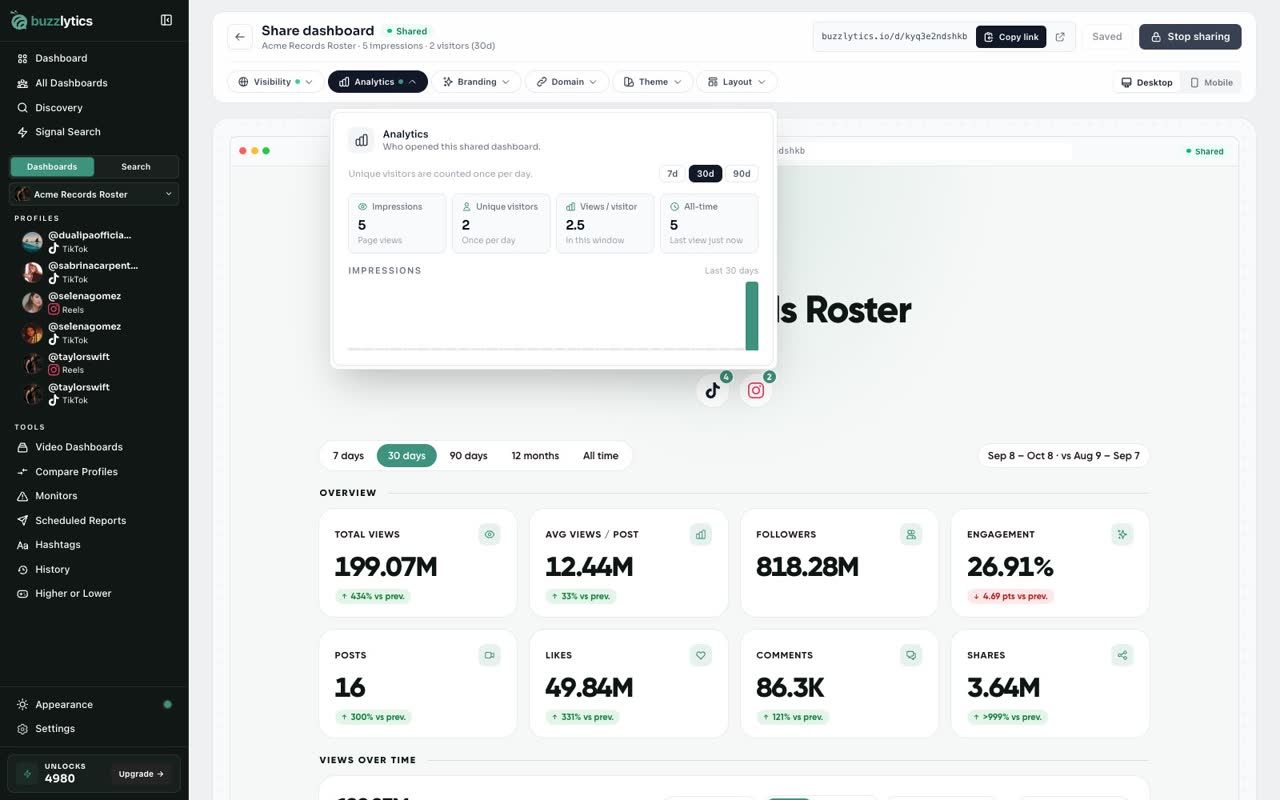
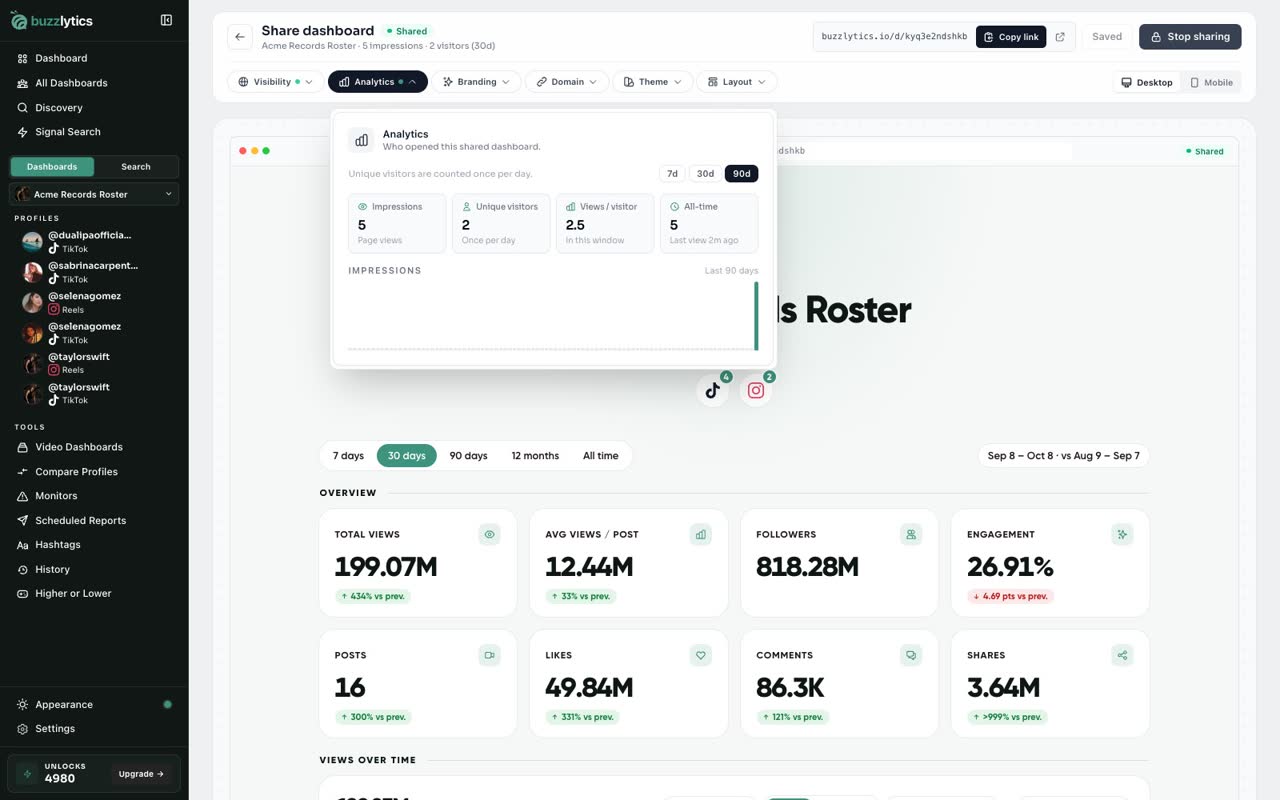
Open the Analytics tab to see who opened this shared dashboard.
-
3
Impressions and visitors
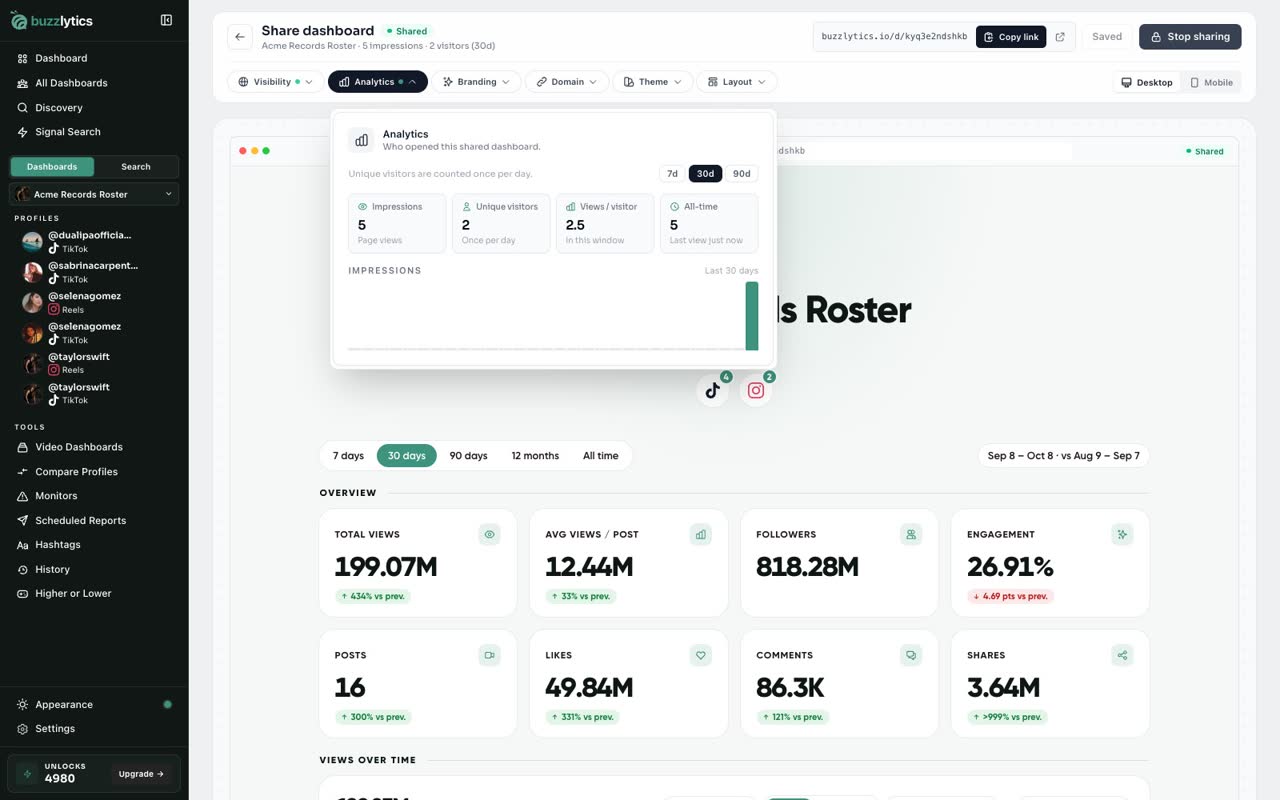
Impressions counts every time the page was opened. Unique visitors counts each person once per day.
-
4
Views per visitor and all time
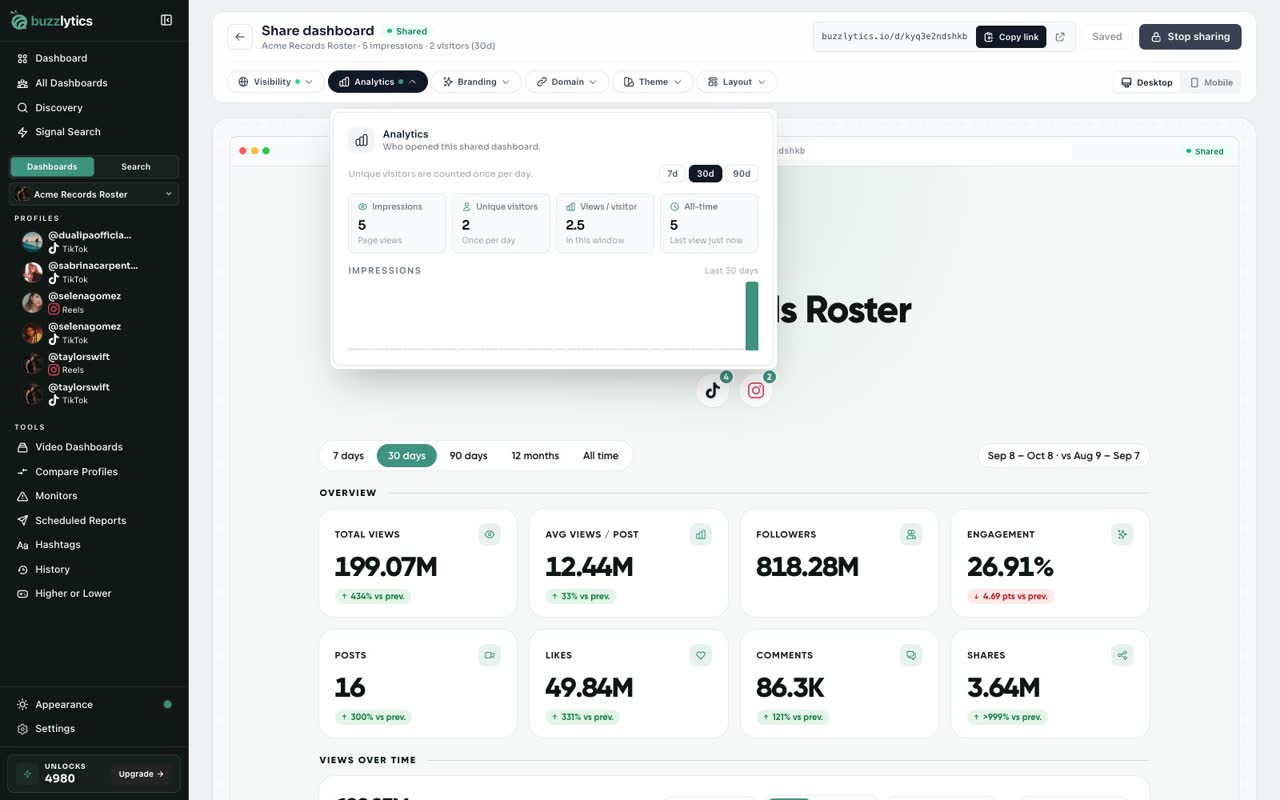
Views per visitor shows how often people come back, and All-time shows when it was last opened.
-
5
Change the window
Switch between 7, 30 and 90 days. The chart shows impressions day by day.
Good to know
- Unique visitors are counted once per day, so a client who checks every morning counts once each day.
- Link previews from Slack, iMessage and search bots are not counted.
- No names or IP addresses are stored. You see counts, not identities.
Read the full transcript
In this video, you will see how many times your shared dashboard was opened.
Once a dashboard is shared, its button reads Live link. Click it to open the share page.
Open the Analytics tab to see who opened this shared dashboard.
Impressions counts every time the page was opened. Unique visitors counts each person once per day.
Views per visitor shows how often people come back, and All-time shows when it was last opened.
Switch between 7, 30 and 90 days. The chart shows impressions day by day.
Next up, use your own domain.