Link a creator's other channels
Connect the same creator's TikTok, Instagram, YouTube and other accounts so you can read them together on one profile.
Quick steps
- Click Add channel
- Pick the platform
- Find their account
- Switch between channels
- Compare the channels
- Unlink any time
Step by step
Prefer reading? Every step shows the screen you’ll see. Click a time to jump the video there.
-
1
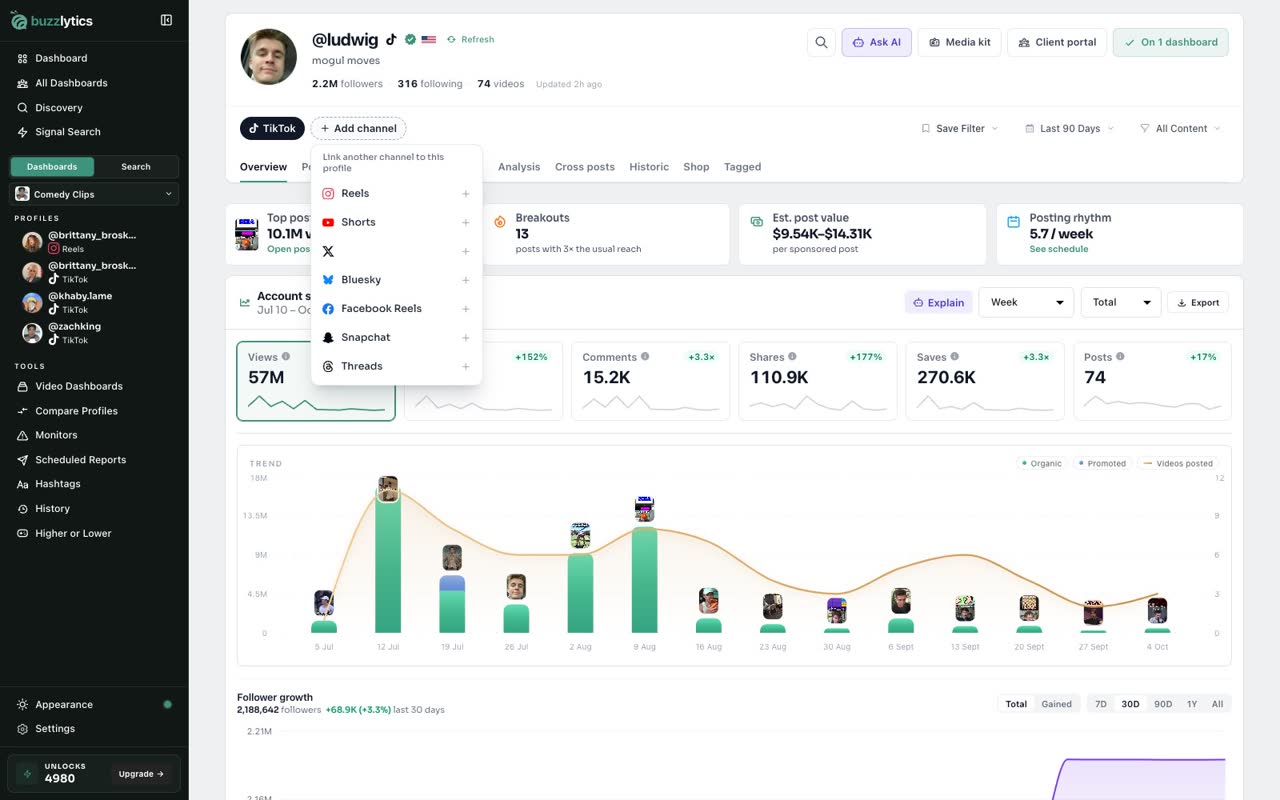
Click Add channel
On any profile, click Add channel to link the same creator on another platform.
-
2
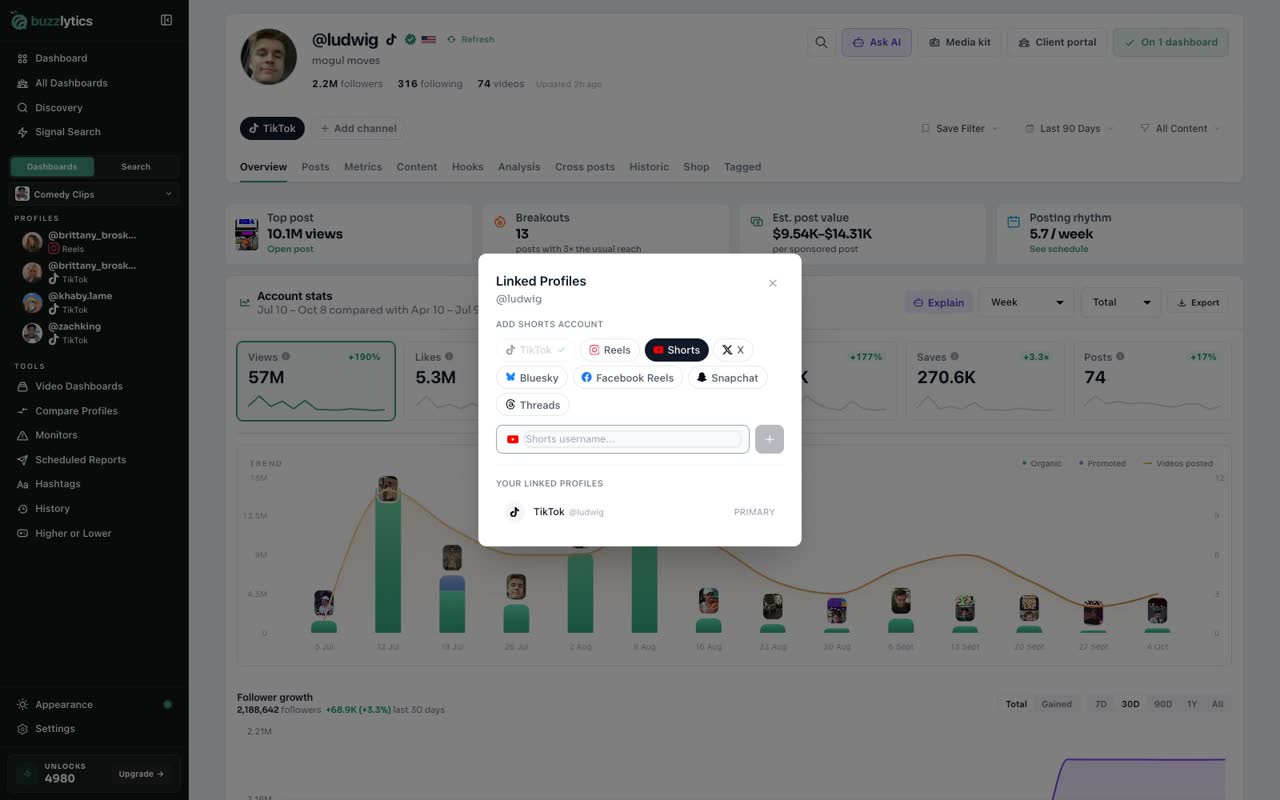
Pick the platform
Pick the platform you want to add. Here, it is their YouTube Shorts channel.
-
3
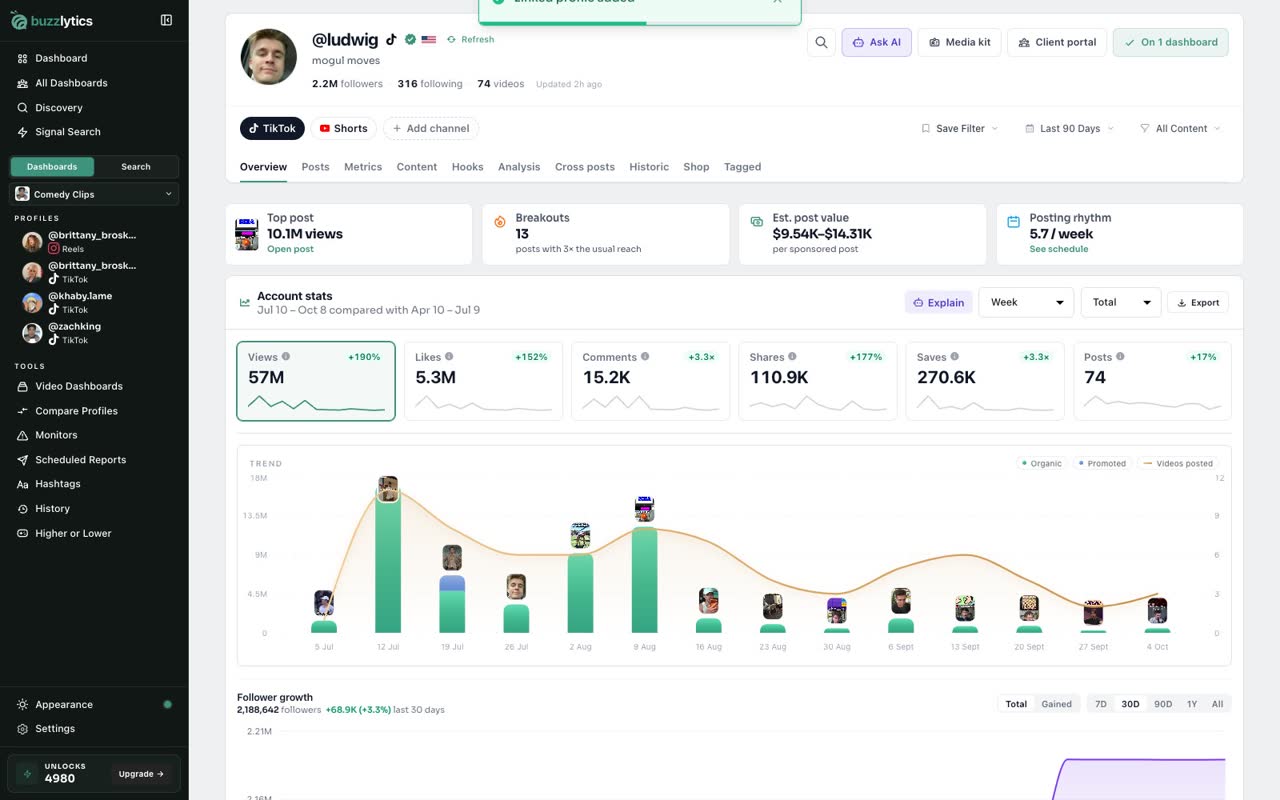
Find their account
Type their username, then choose the right account from the list.
-
4
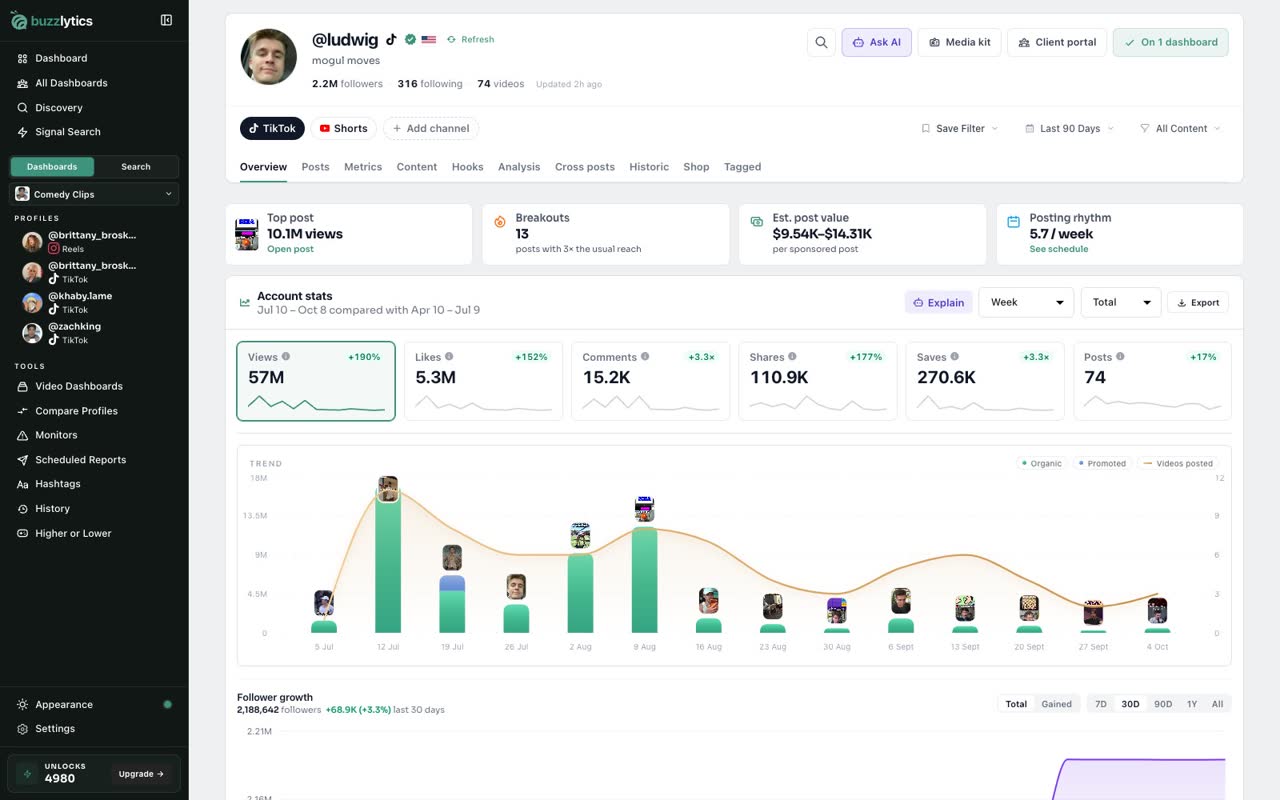
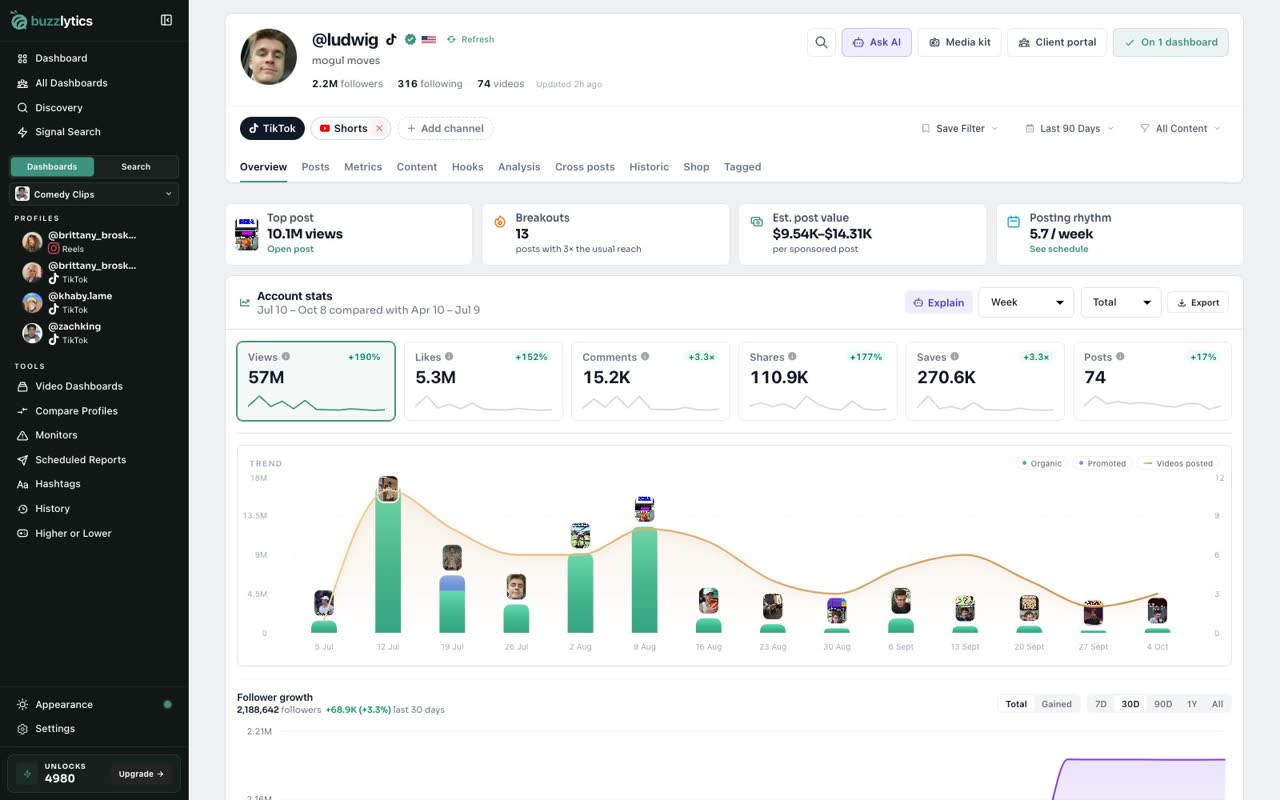
Switch between channels
Each linked channel now has its own button at the top. Click one to see that platform's numbers.
-
5
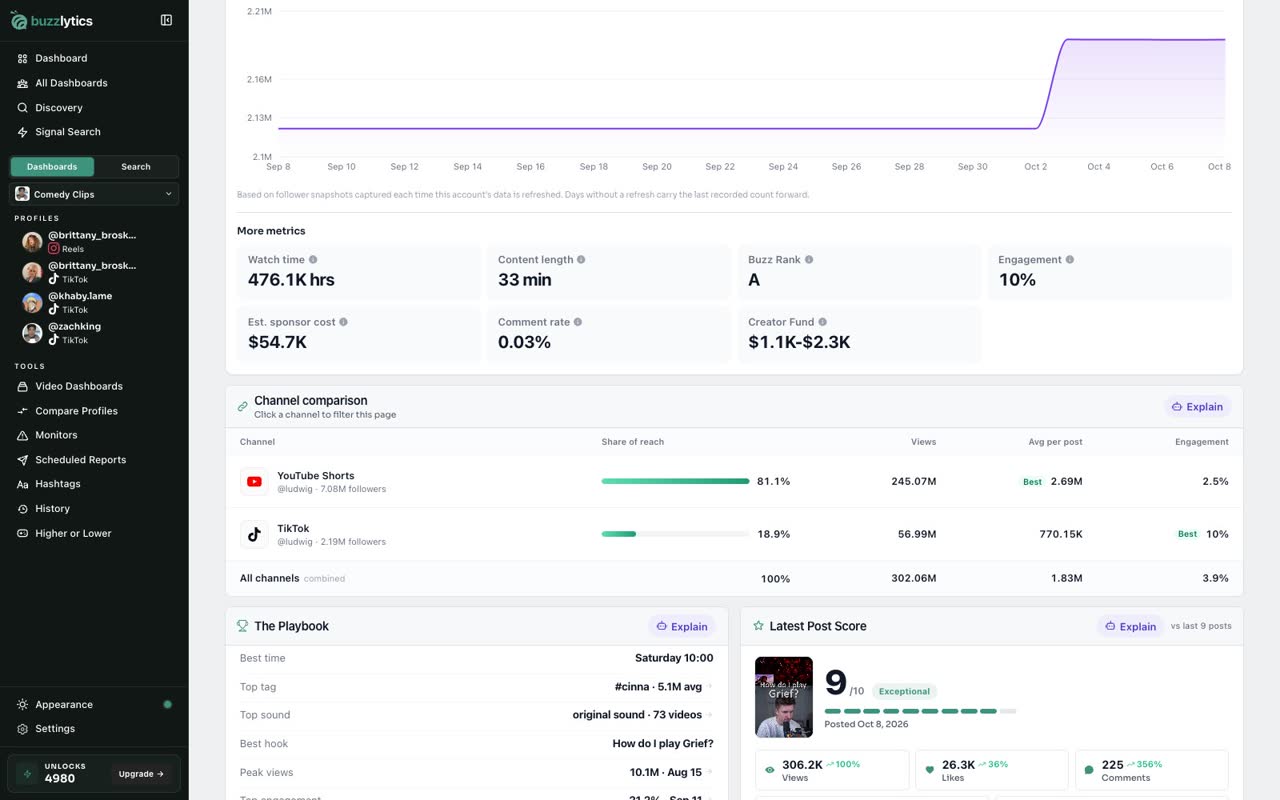
Compare the channels
On the Overview tab, Channel comparison puts their platforms side by side, with views, average per post and engagement.
-
6
Unlink any time
To remove a link, hover the channel and click the small x.
Good to know
- You can link Reels, Shorts, X, Bluesky, Facebook Reels, Snapchat and Threads to one profile.
- Links are saved to your account, so the profile shows the same channels next time you open it.
Read the full transcript
In this video, you will link a creator's other platforms to their profile.
On any profile, click Add channel to link the same creator on another platform.
Pick the platform you want to add. Here, it is their YouTube Shorts channel.
Type their username, then choose the right account from the list.
Each linked channel now has its own button at the top. Click one to see that platform's numbers.
On the Overview tab, Channel comparison puts their platforms side by side, with views, average per post and engagement.
To remove a link, hover the channel and click the small x.
Next up, profile tools.