Bulk add creators with a CSV
Add a whole roster at once from a spreadsheet, or copy creators over from another dashboard.
Quick steps
- Start from the roster builder
- Import a CSV
- Check the list
- Copy from another dashboard
- Pick the profiles
- Add them all at once
- Your roster is live
Step by step
Prefer reading? Every step shows the screen you’ll see. Click a time to jump the video there.
-
1
Start from the roster builder
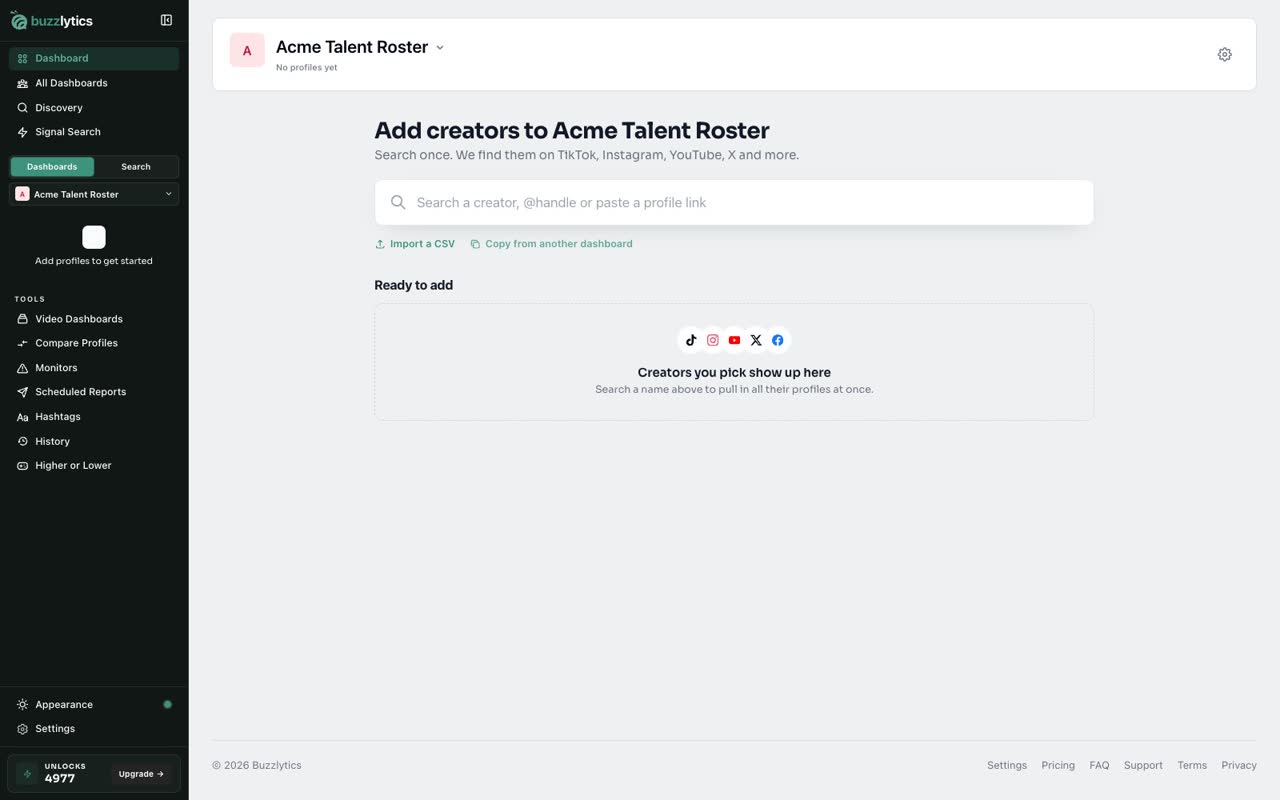
Open a dashboard and choose Add profile. Under the search box you will find Import a CSV and Copy from another dashboard.
-
2
Import a CSV
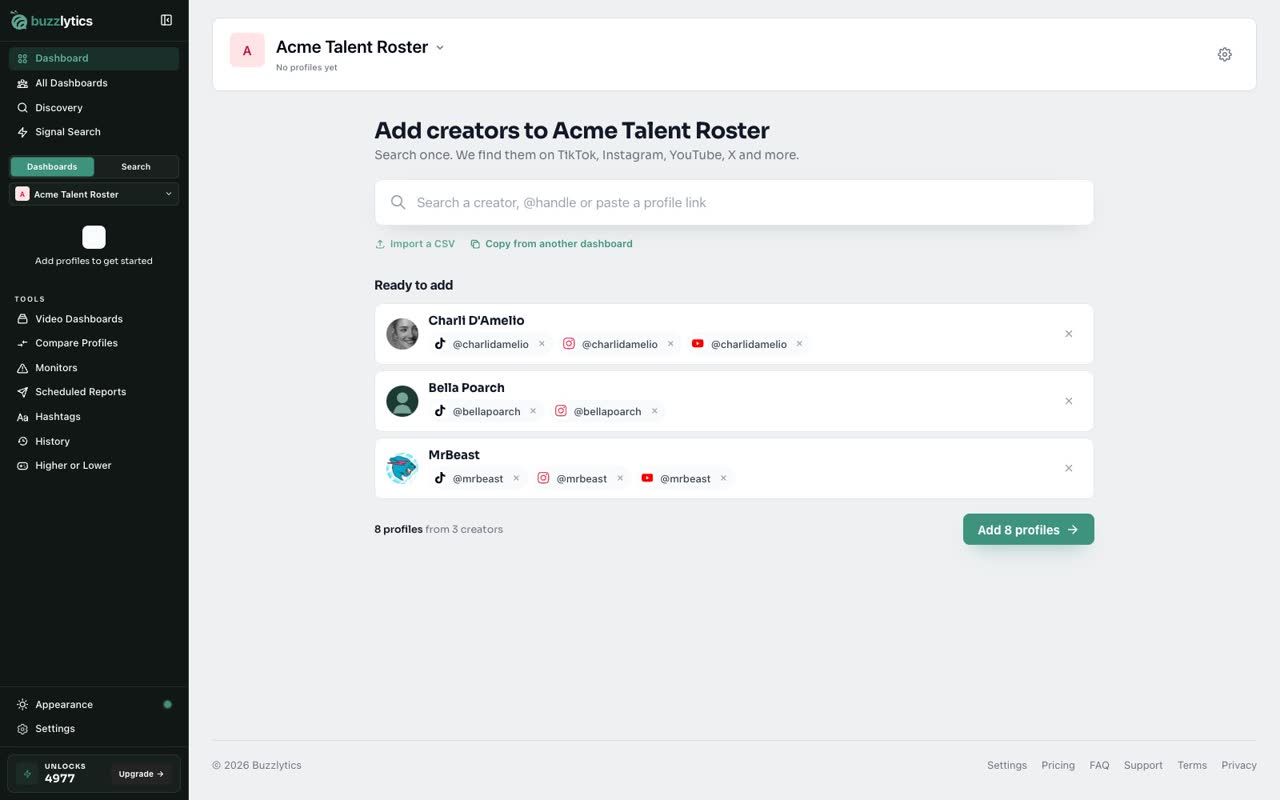
Click Import a CSV and pick your file. A header row like Name, TikTok and Instagram works, with handles or profile links.
-
3
Check the list
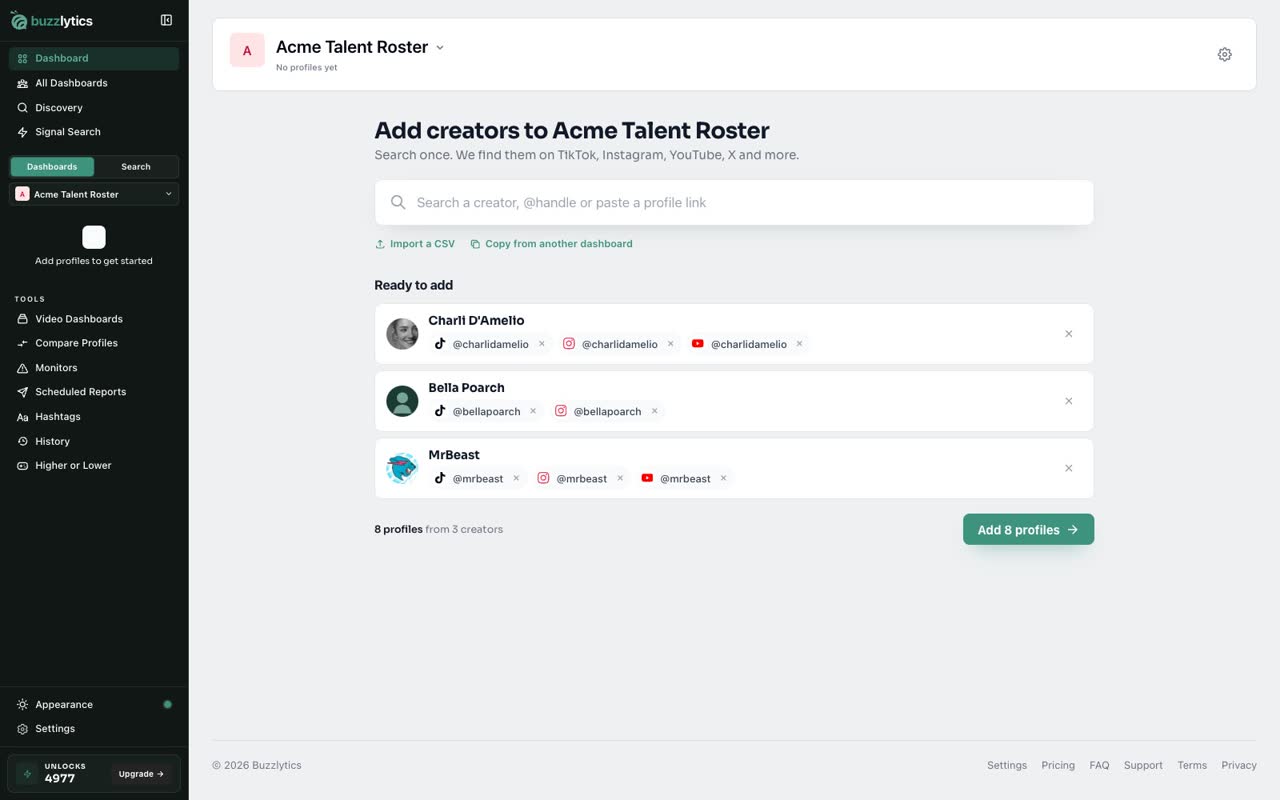
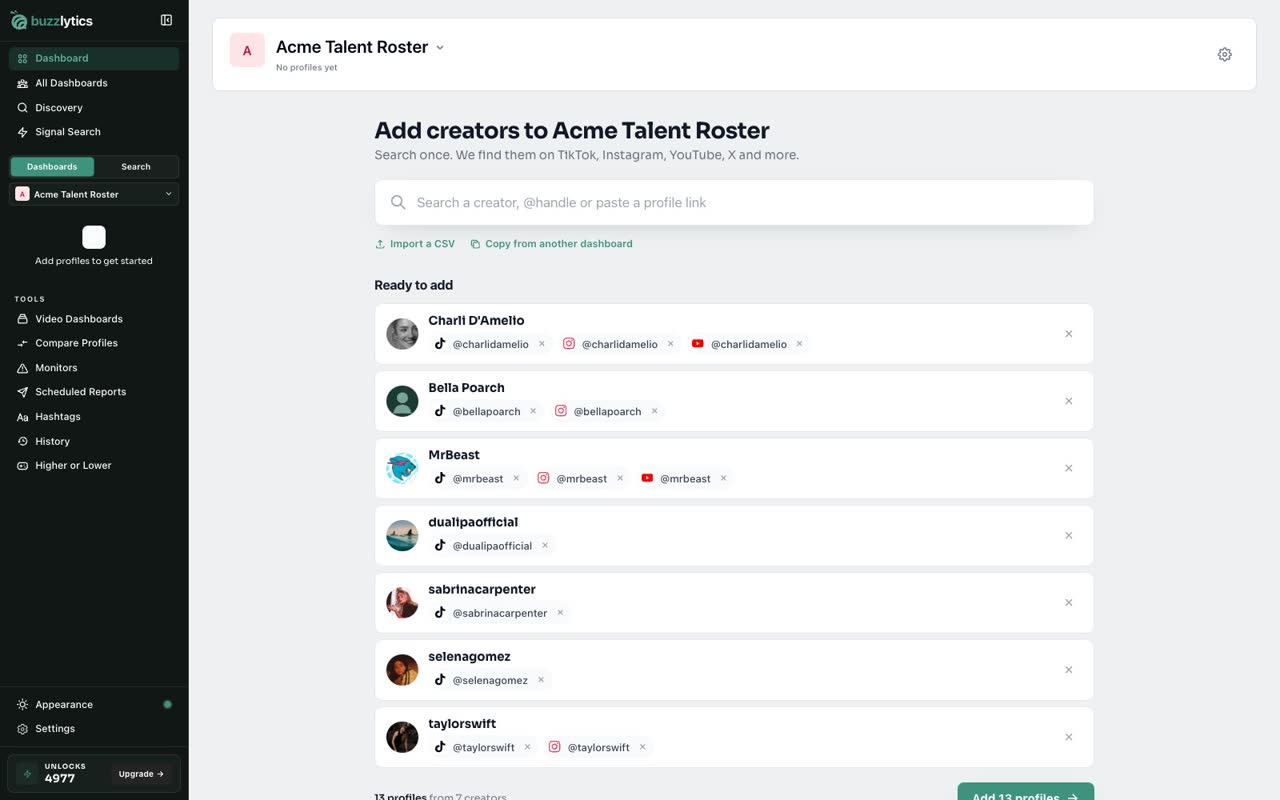
Every row lands in Ready to add, matched to the right accounts on each platform. Remove anything you do not want.
-
4
Copy from another dashboard
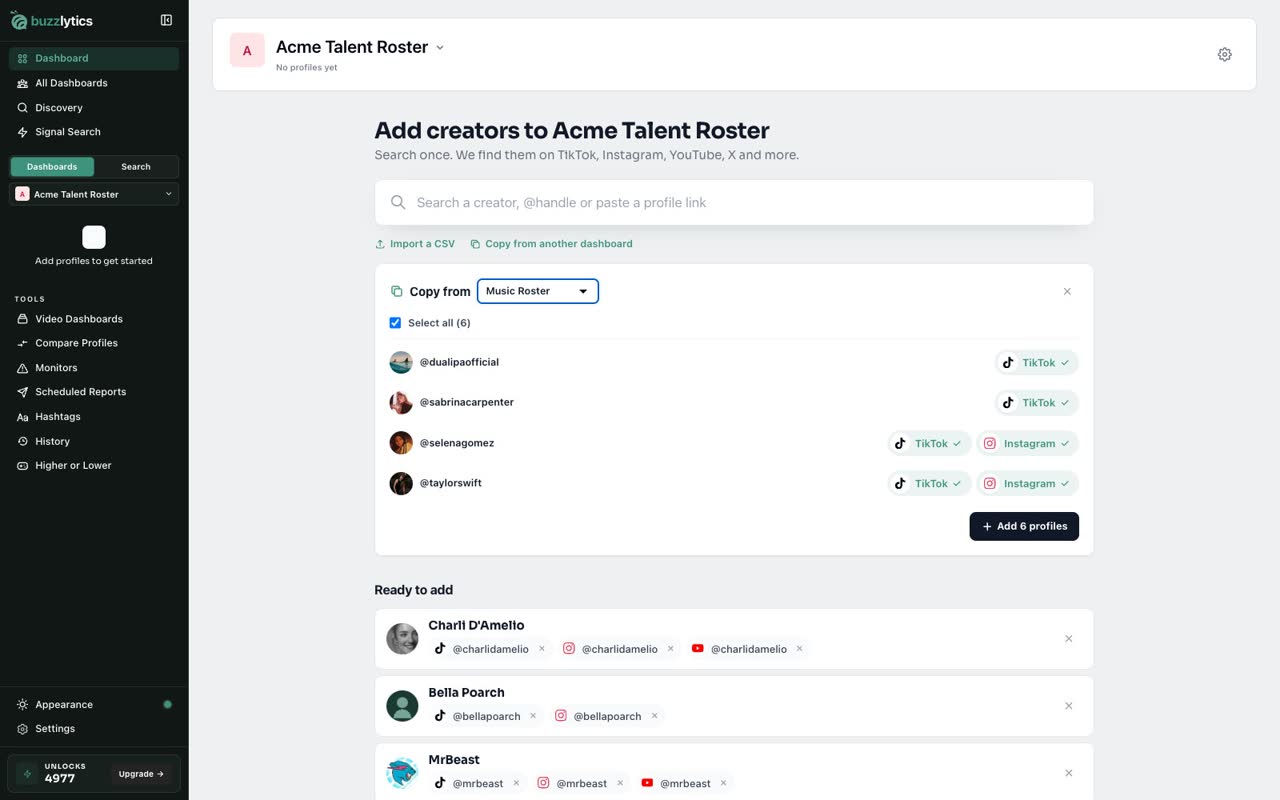
To reuse a roster, choose Copy from another dashboard and pick which one to copy from.
-
5
Pick the profiles
Everything new is picked for you. Tap a platform to leave it out, then add them to the list.
-
6
Add them all at once
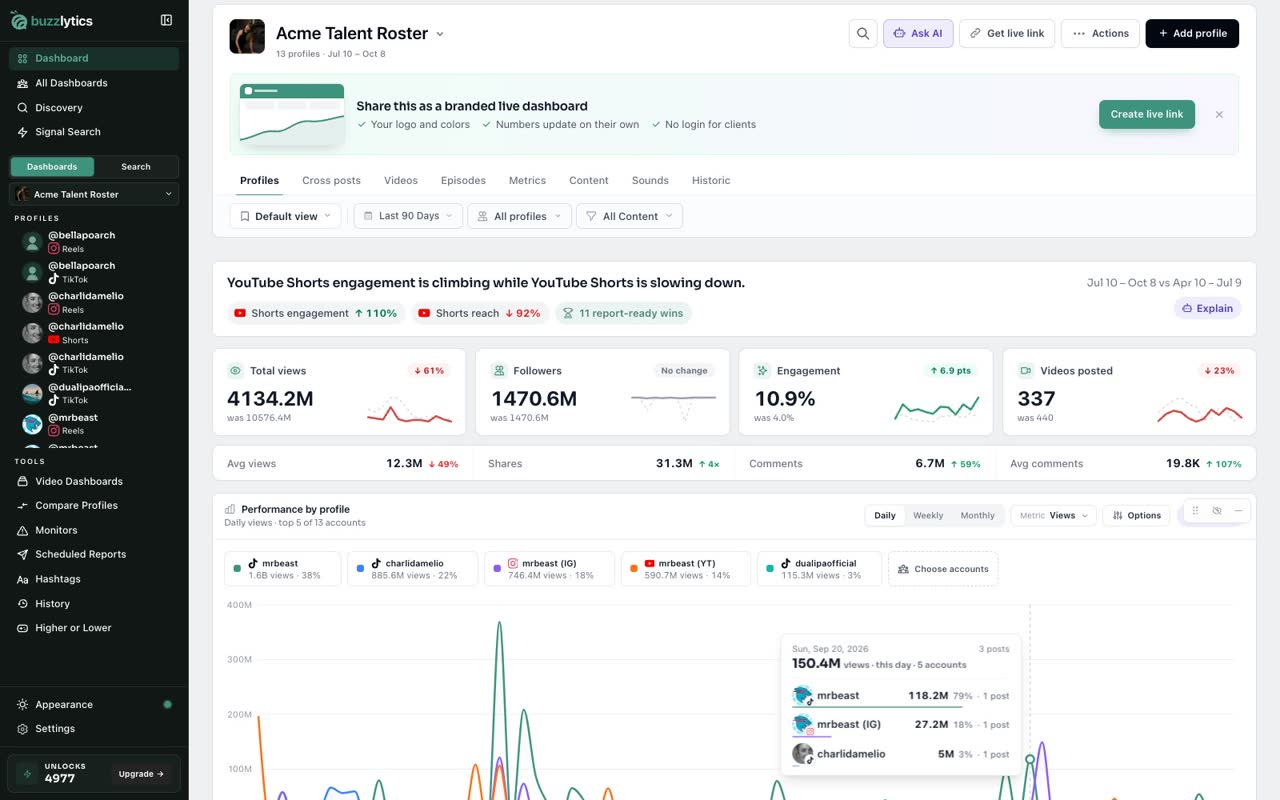
When the list looks right, add them. Every profile joins the dashboard in one go.
-
7
Your roster is live
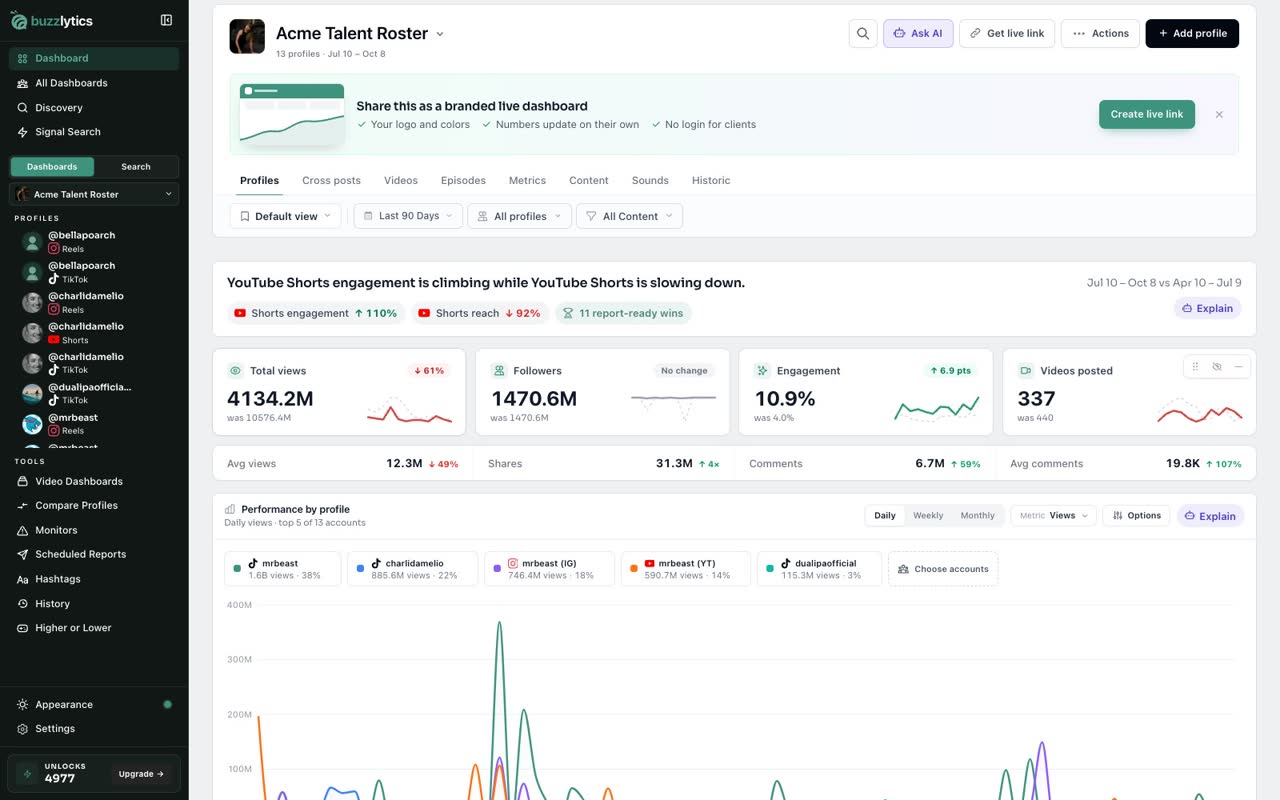
That is it. Your whole roster is on the dashboard, and the numbers fill in right away.
Good to know
- Use a header row like Name, TikTok, Instagram, YouTube. Handles or full profile links both work.
- Creators Buzzlytics already knows are free to add. A brand new account uses 1 unlock to check.
- Copy from another dashboard skips anything that is already on this one.
Read the full transcript
In this video, you will add a whole roster at once, from a CSV file or from another dashboard.
Open a dashboard and choose Add profile. Under the search box you will find Import a CSV and Copy from another dashboard.
Click Import a CSV and pick your file. A header row like Name, TikTok and Instagram works, with handles or profile links.
Every row lands in Ready to add, matched to the right accounts on each platform. Remove anything you do not want.
To reuse a roster, choose Copy from another dashboard and pick which one to copy from.
Everything new is picked for you. Tap a platform to leave it out, then add them to the list.
When the list looks right, add them. Every profile joins the dashboard in one go.
That is it. Your whole roster is on the dashboard, and the numbers fill in right away.
Next up, read the Profiles tab.