Keep your data fresh
See when each profile was last checked, and update one profile or the whole dashboard in a click.
Quick steps
- Find the Profiles table
- Filter to what needs an update
- Update everything at once
- Update one profile
- Fresh numbers land in place
Step by step
Prefer reading? Every step shows the screen you’ll see. Click a time to jump the video there.
-
1
Find the Profiles table
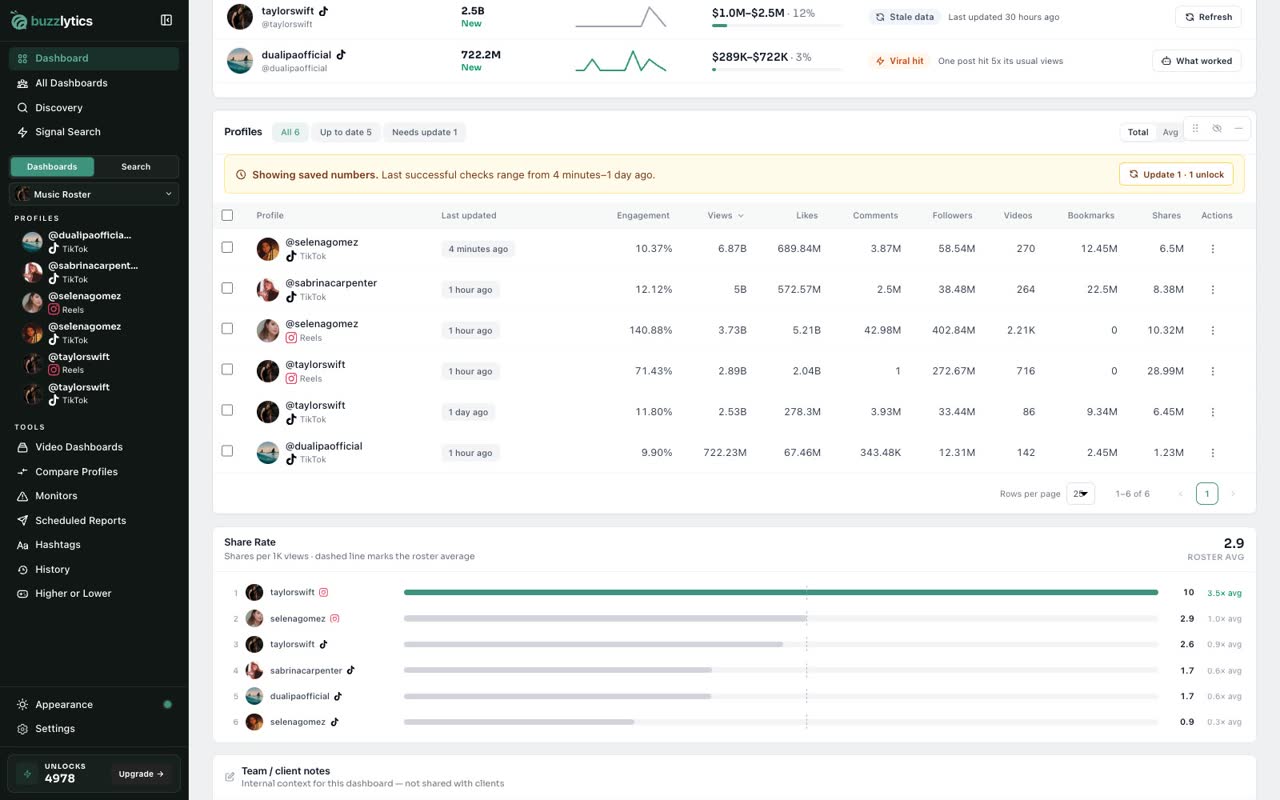
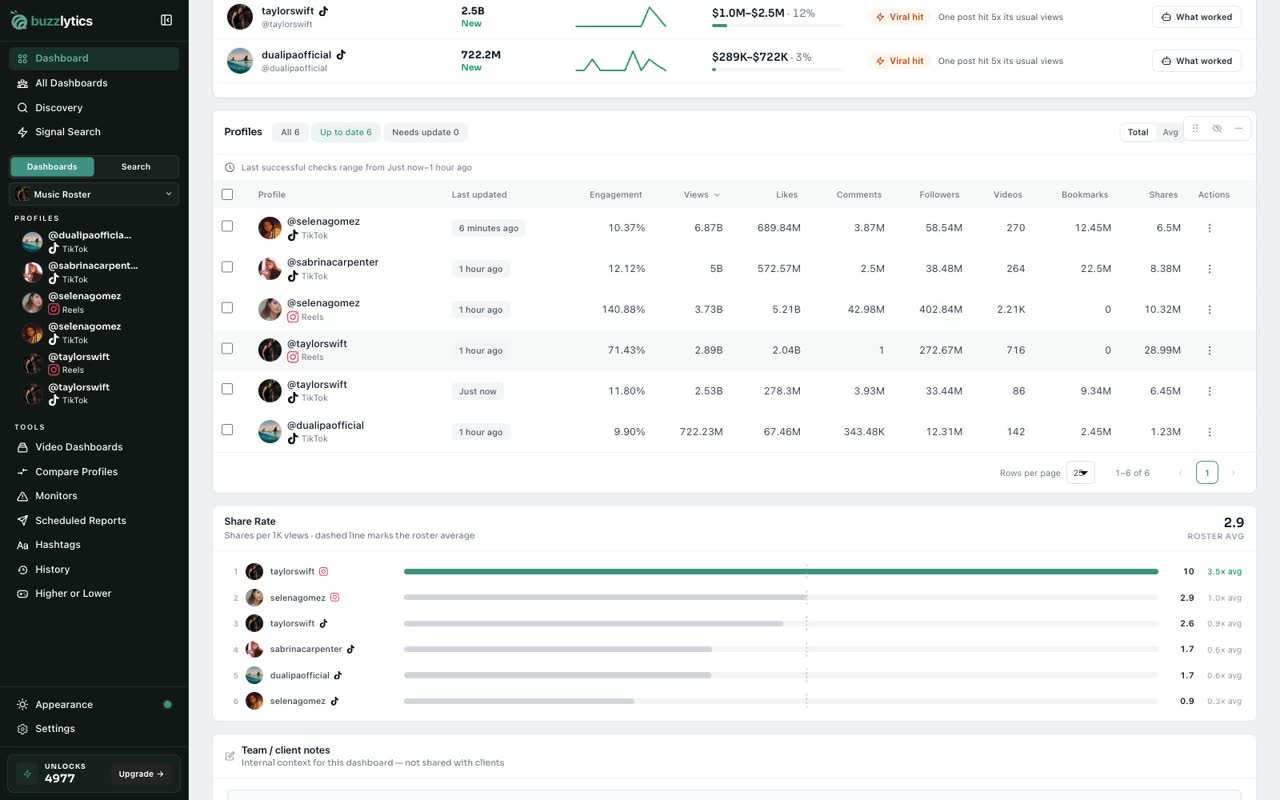
Open a dashboard and scroll down to the Profiles table. The bar on top tells you when your numbers were last checked.
-
2
Filter to what needs an update
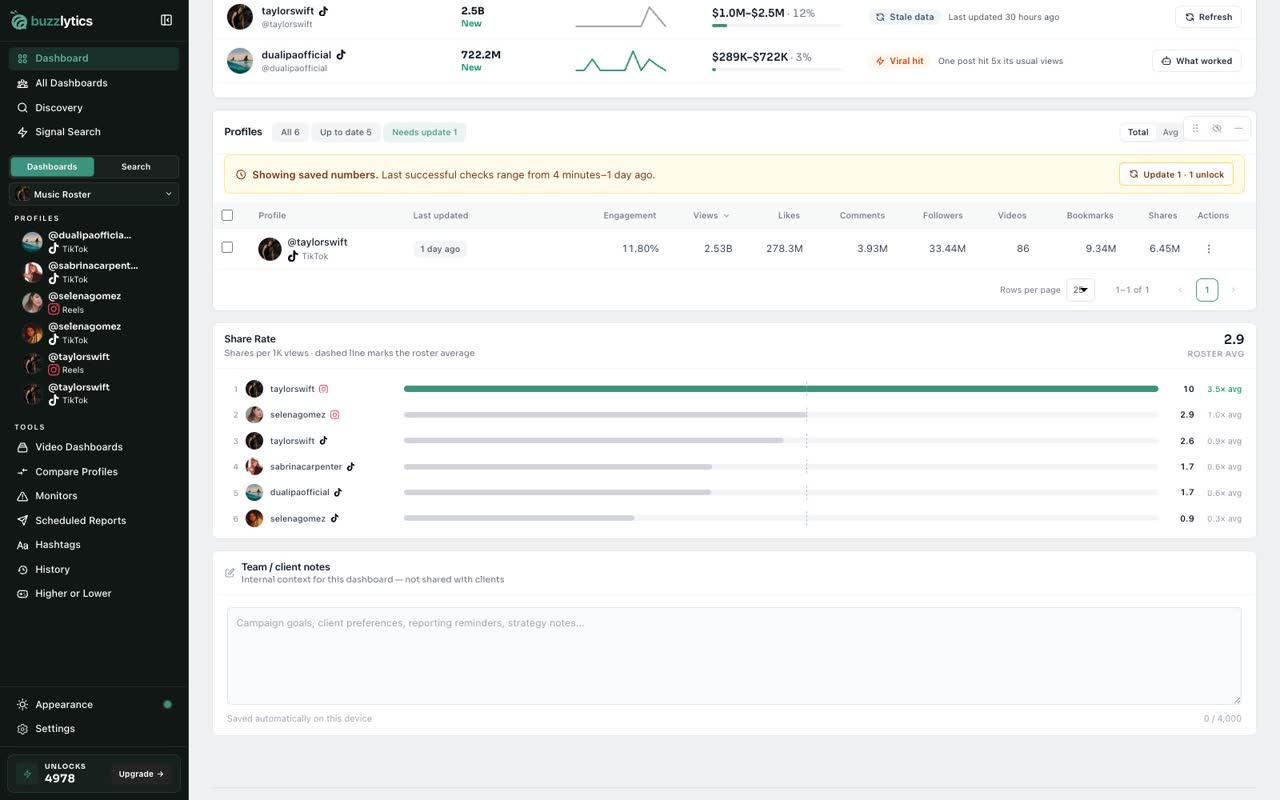
Click Needs update to list only the profiles that have not been checked in the last 24 hours.
-
3
Update everything at once
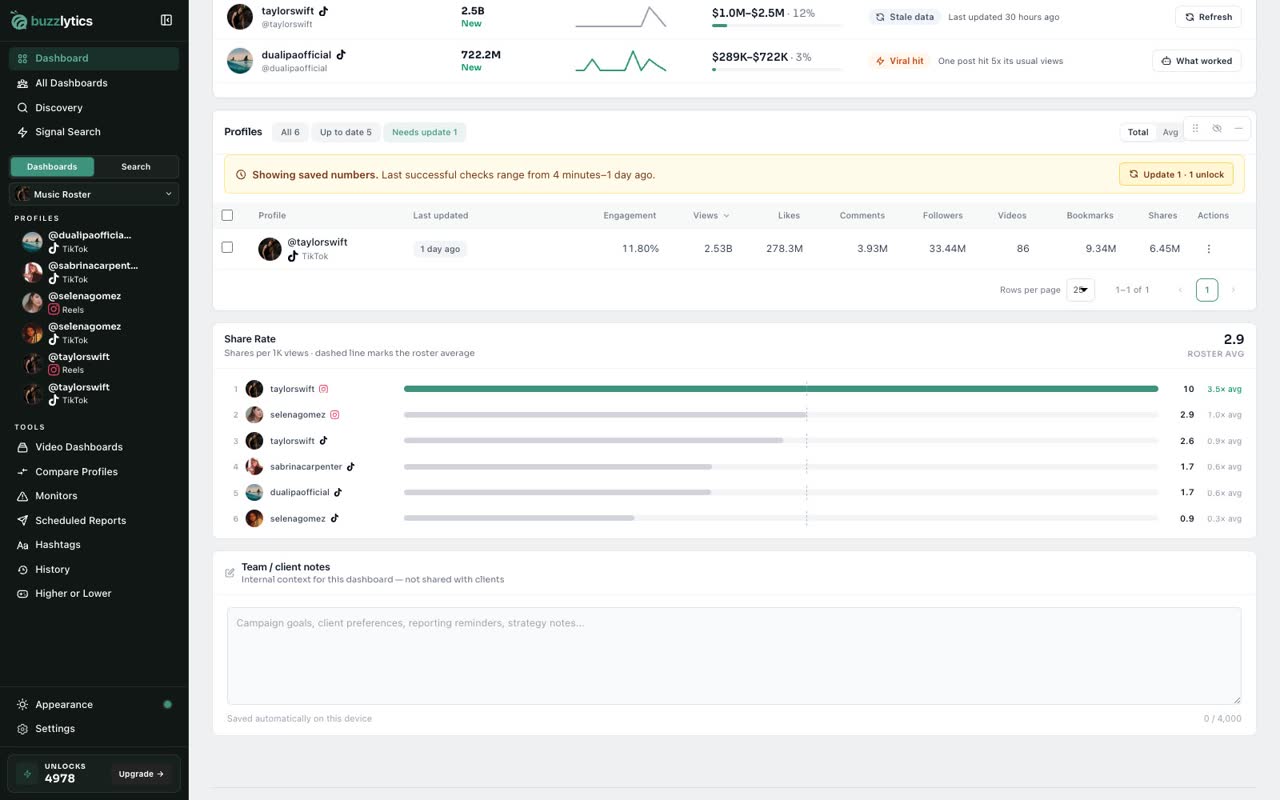
The Update button on the bar refreshes everything that is out of date. It shows how many unlocks it will use before you click.
-
4
Update one profile
Or hover a row and click Update now to refresh just that profile. Each update uses 1 unlock.
-
5
Fresh numbers land in place
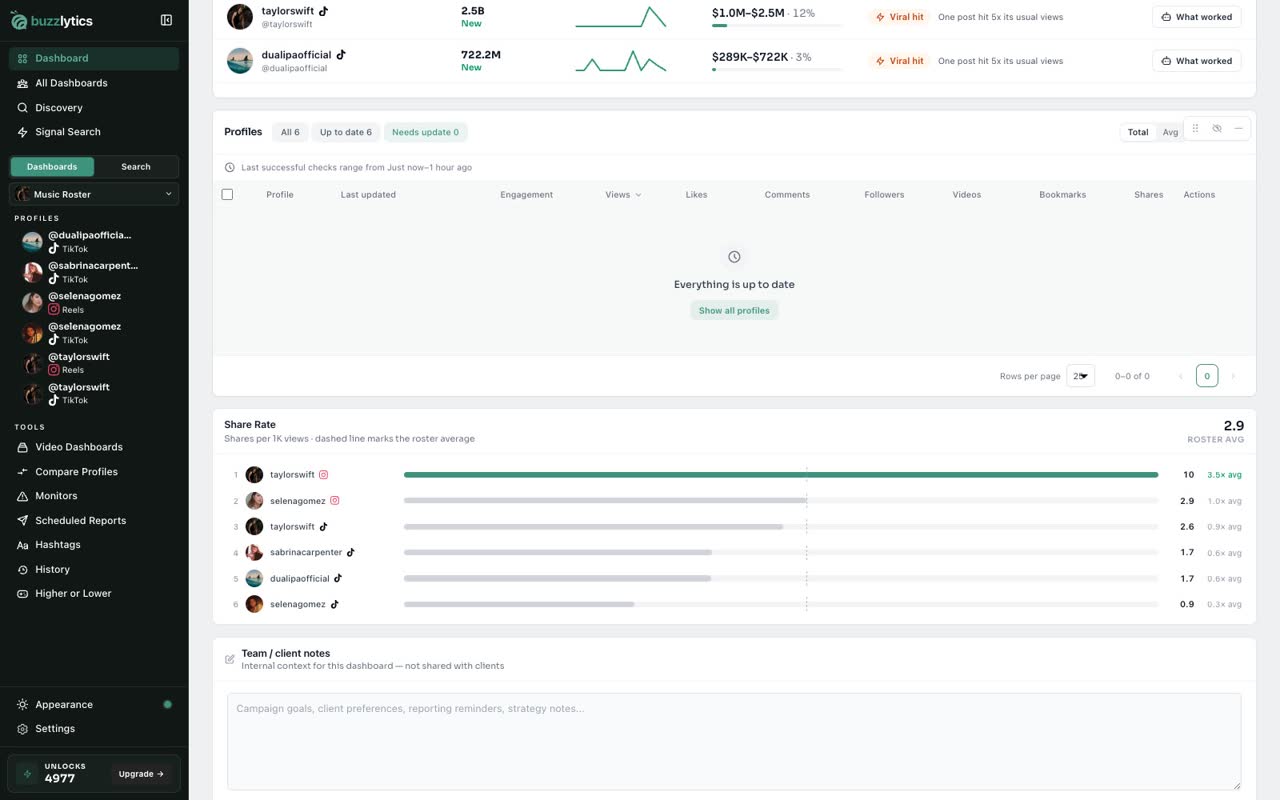
When the update finishes, the profile moves to Up to date with its new numbers.
Good to know
- Each profile update uses 1 unlock.
- Profiles not checked in the last 24 hours count as Needs update.
- Turn on auto-refresh to keep a dashboard fresh without clicking.
Read the full transcript
In this video, you will see how fresh your numbers are and update them.
Open a dashboard and scroll down to the Profiles table. The bar on top tells you when your numbers were last checked.
Click Needs update to list only the profiles that have not been checked in the last 24 hours.
The Update button on the bar refreshes everything that is out of date. It shows how many unlocks it will use before you click.
Or hover a row and click Update now to refresh just that profile. Each update uses 1 unlock.
When the update finishes, the profile moves to Up to date with its new numbers.
Next up, turn on auto-refresh.