Schedule reports by email or Slack
Send a PDF report of any creators to your inbox or your client's, every day, week or month.
Quick steps
- Create report
- Name it and add creators
- Pick the schedule
- Set the report period
- Choose who gets it
- Save the schedule
Step by step
Prefer reading? Every step shows the screen you’ll see. Click a time to jump the video there.
-
1
Create report
Open Scheduled Reports in the sidebar, and click Create report.
-
2
Name it and add creators
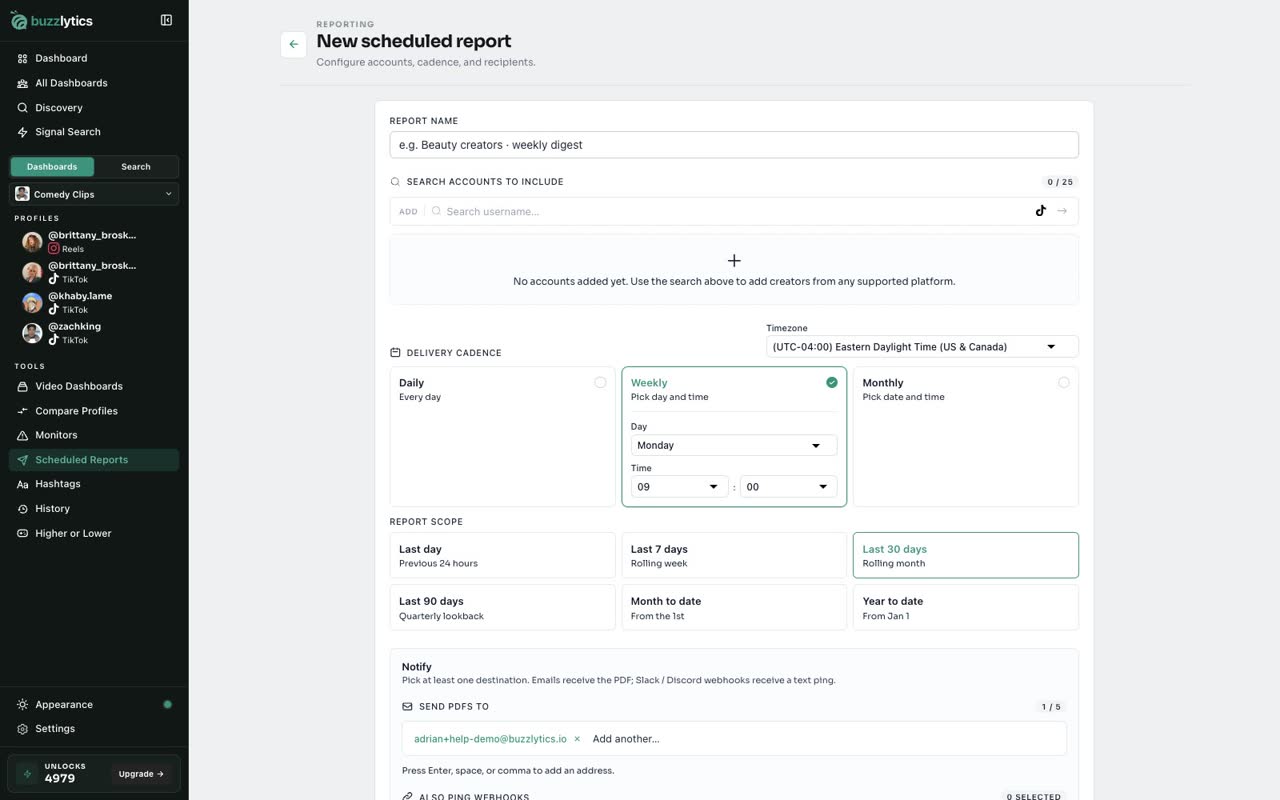
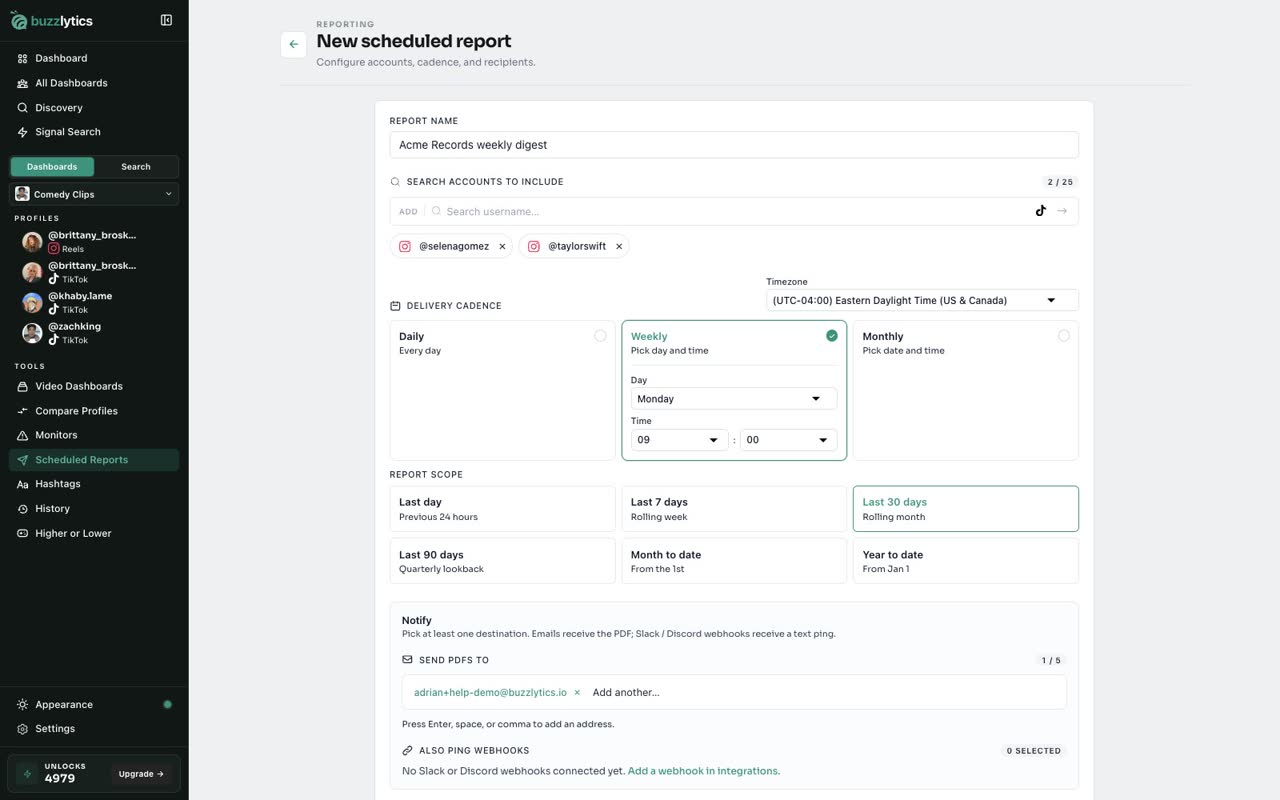
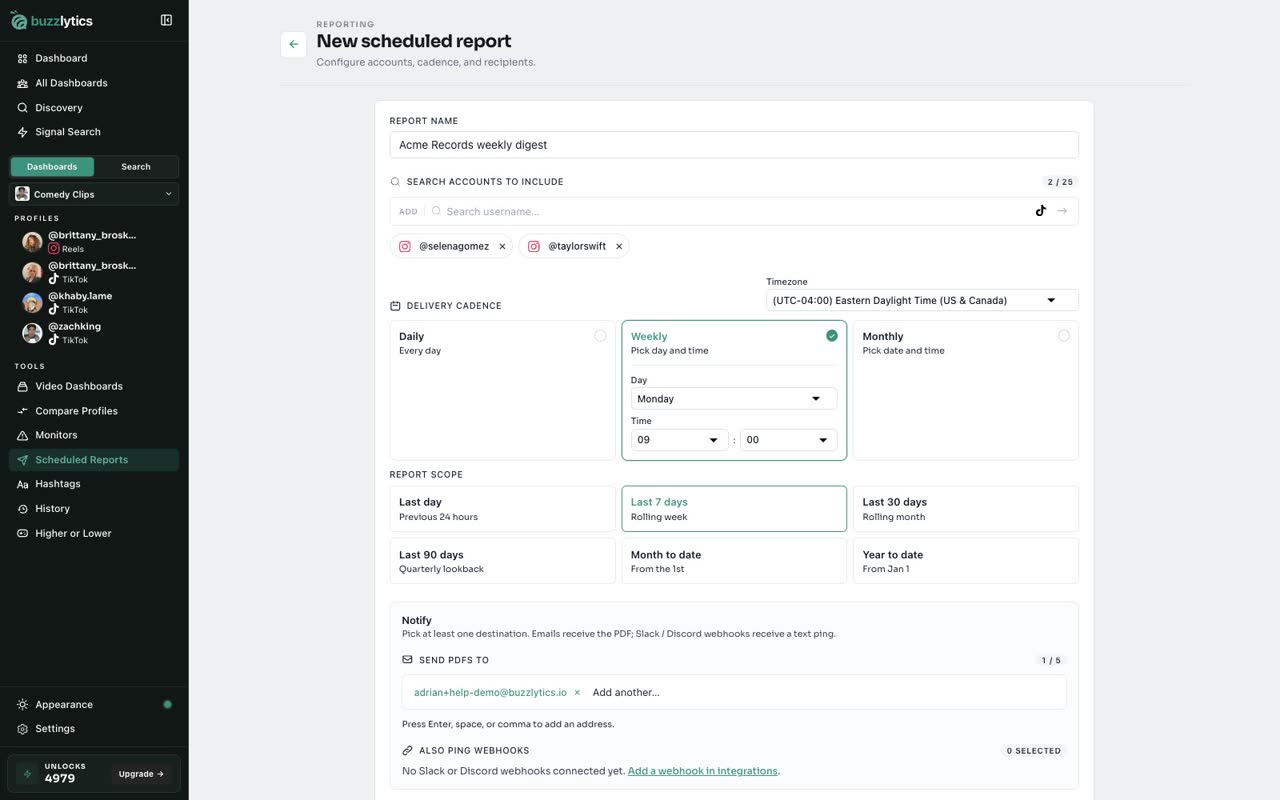
Give the report a name, then search for each creator to include. You can add up to 25 from any platform.
-
3
Pick the schedule
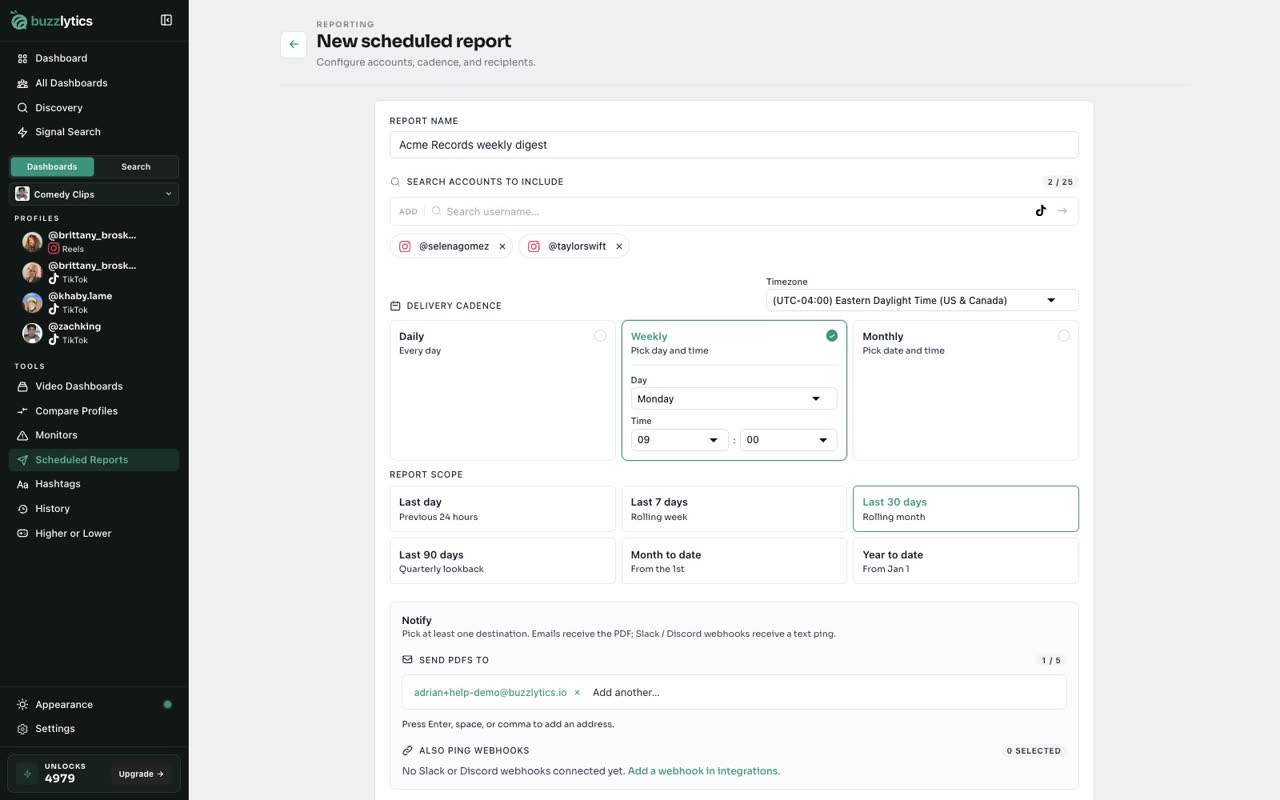
Choose Daily, Weekly or Monthly, then the day and time it should arrive.
-
4
Set the report period
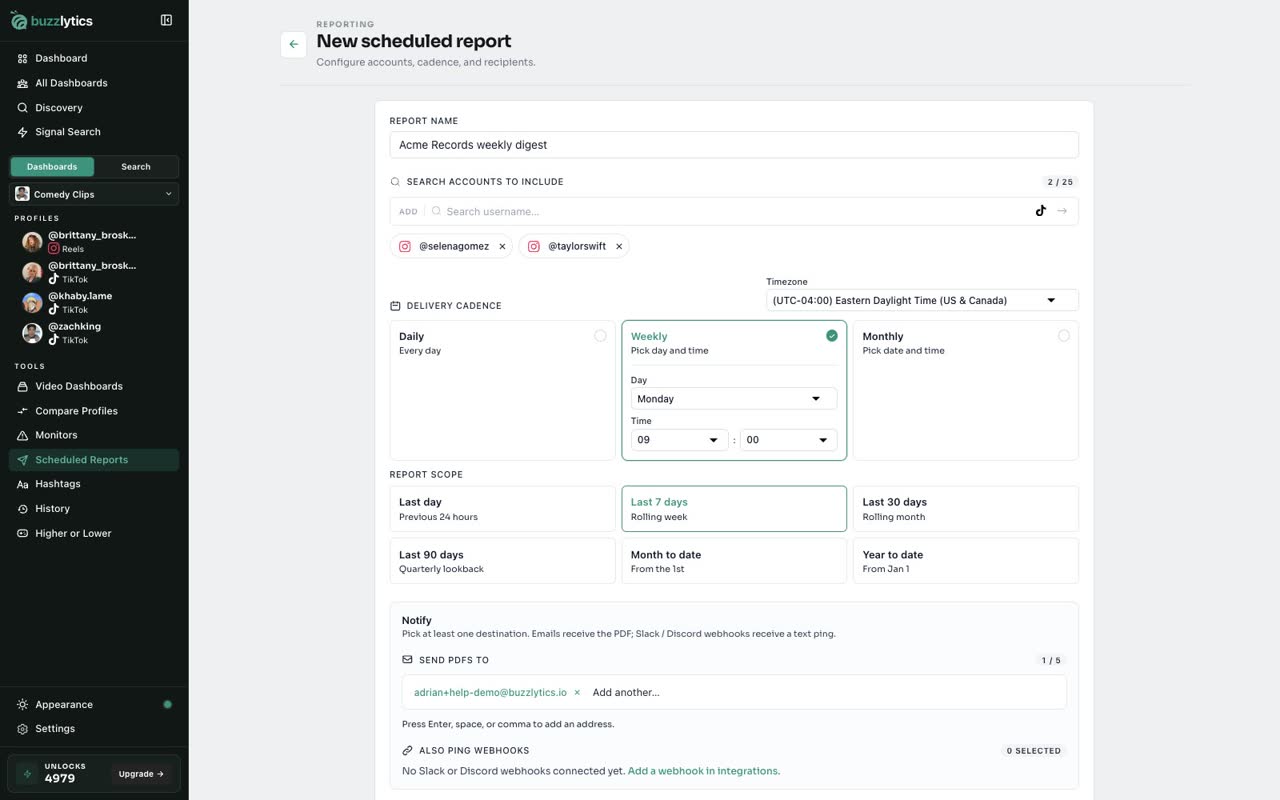
Then pick what each report covers, like the last 7 days.
-
5
Choose who gets it
Your email is already added. Type more addresses and press Enter, up to five. To ping Slack or Discord too, add a webhook in Integrations first.
-
6
Save the schedule
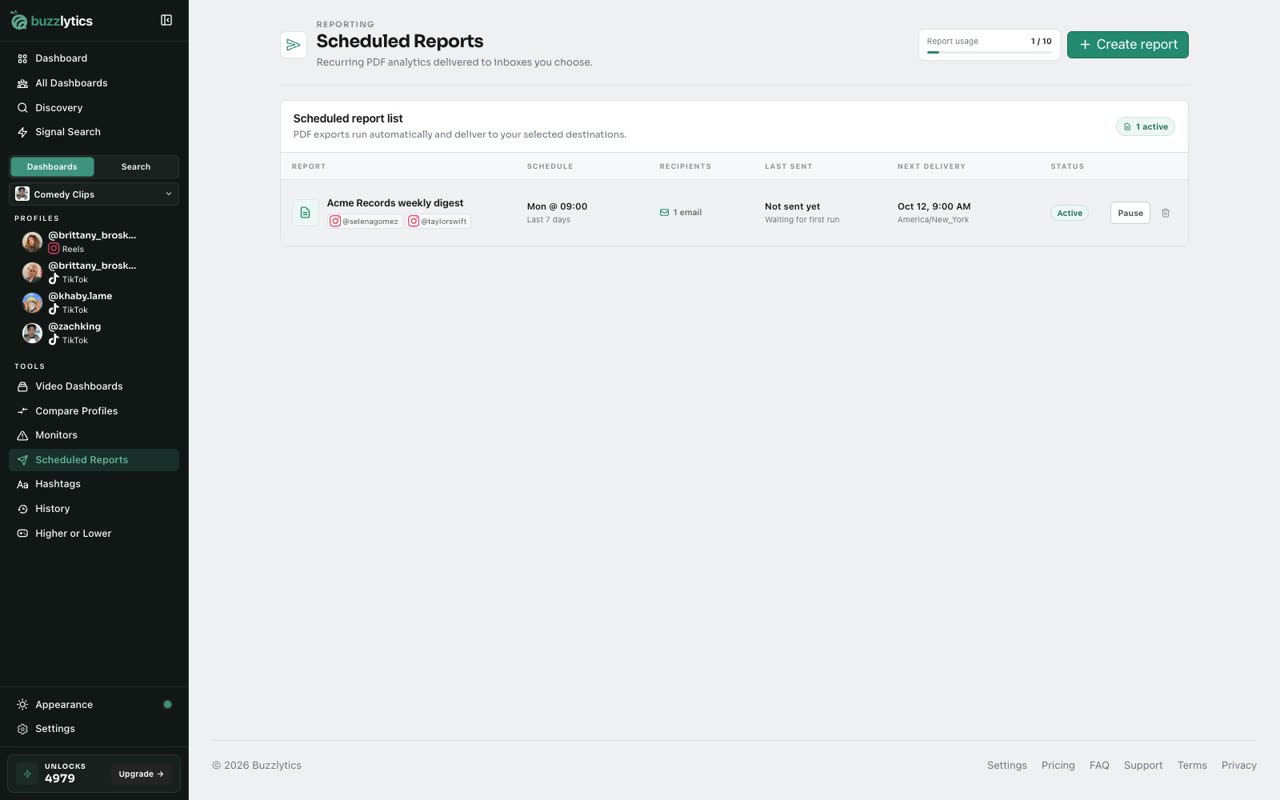
Click Create report. It shows in your list with the next delivery time.
Good to know
- Emails get the PDF. Slack and Discord webhooks get a short text ping.
- Times use the timezone you pick on the form, or the one in your account settings.
- Starter includes 5 scheduled reports, Growth 10 and Scale 20.
Read the full transcript
In this video, you will set up a report that emails itself on a schedule.
Open Scheduled Reports in the sidebar, and click Create report.
Give the report a name, then search for each creator to include. You can add up to 25 from any platform.
Choose Daily, Weekly or Monthly, then the day and time it should arrive.
Then pick what each report covers, like the last 7 days.
Your email is already added. Type more addresses and press Enter, up to five. To ping Slack or Discord too, add a webhook in Integrations first.
Click Create report. It shows in your list with the next delivery time.
Next up, build a media kit.