PDF reports and the AI report writer
Write a client-ready summary with AI, and download a branded PDF report of any dashboard.
Quick steps
- Open Reports
- Write client summary
- Generate the summary
- Edit, then copy
- Export PDF
Step by step
Prefer reading? Every step shows the screen you’ll see. Click a time to jump the video there.
-
1
Open Reports
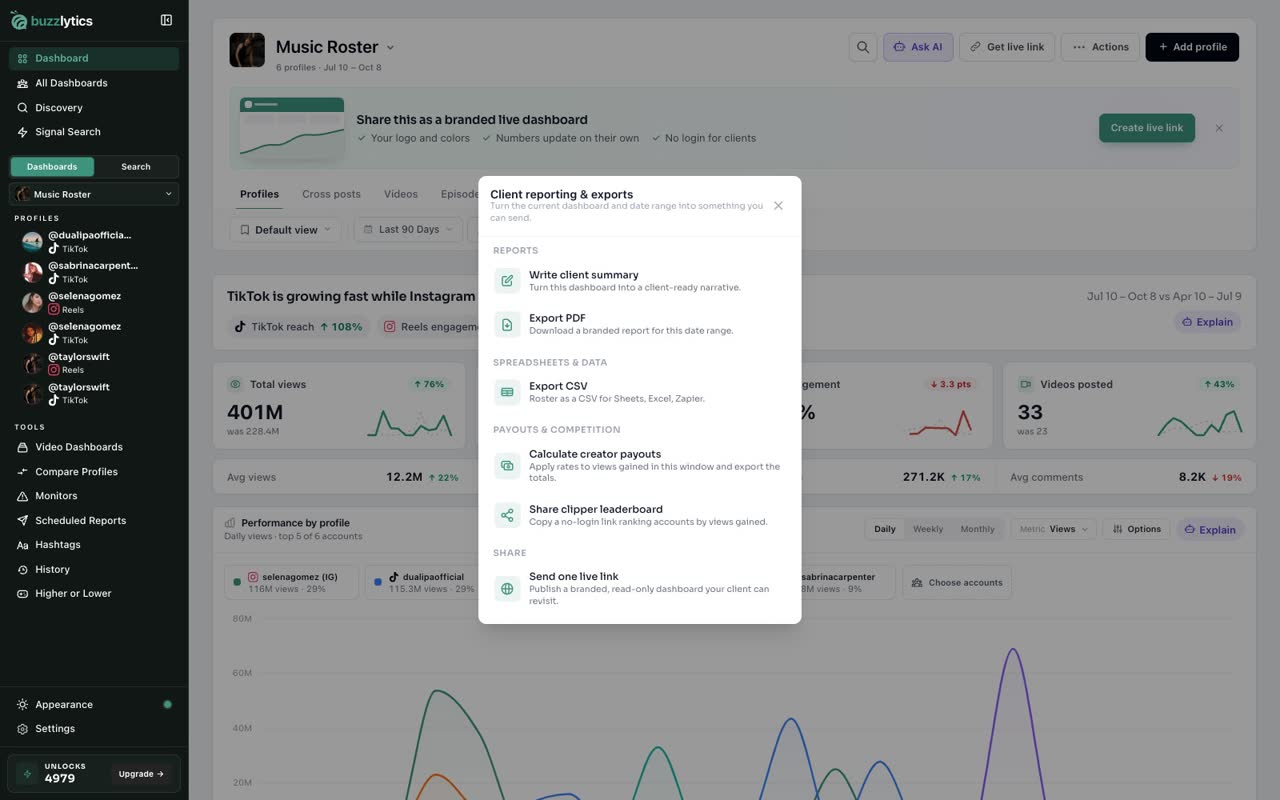
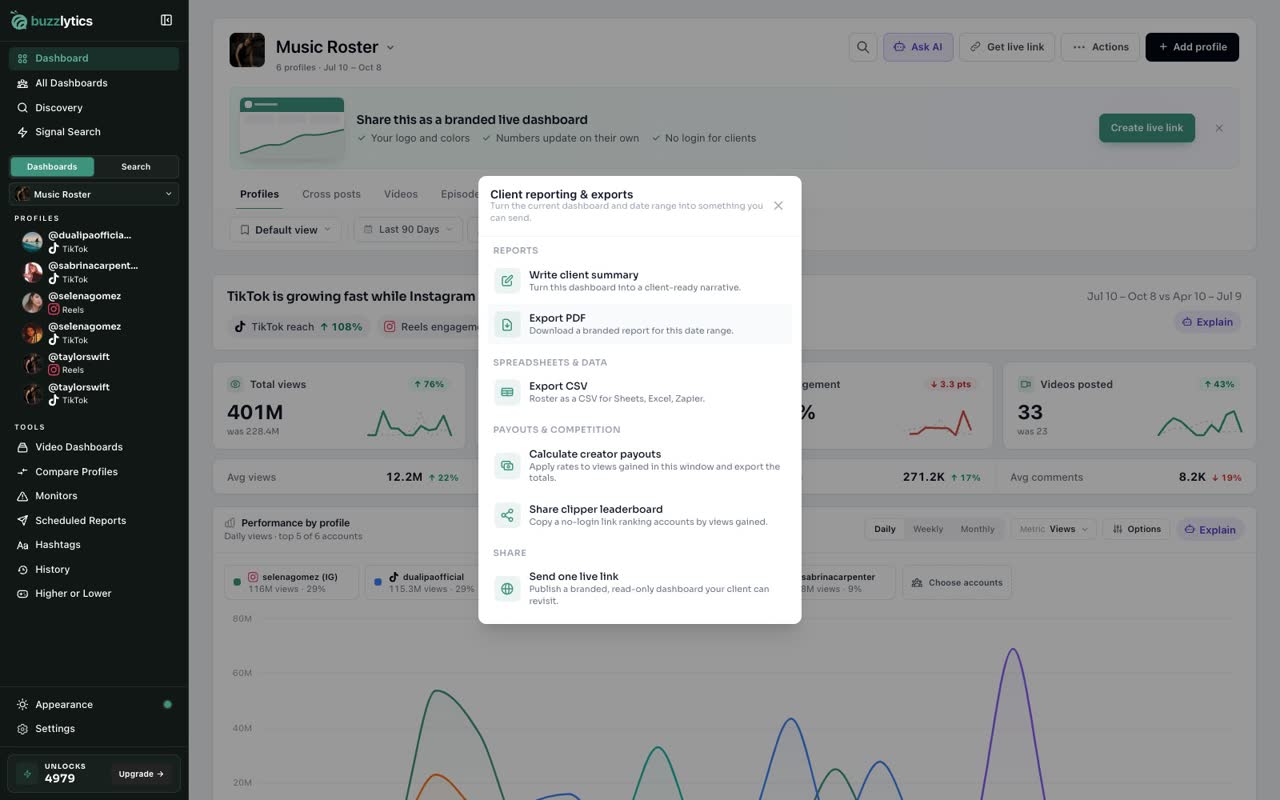
On your dashboard, click Actions, then Reports. Everything you can send a client lives here.
-
2
Write client summary
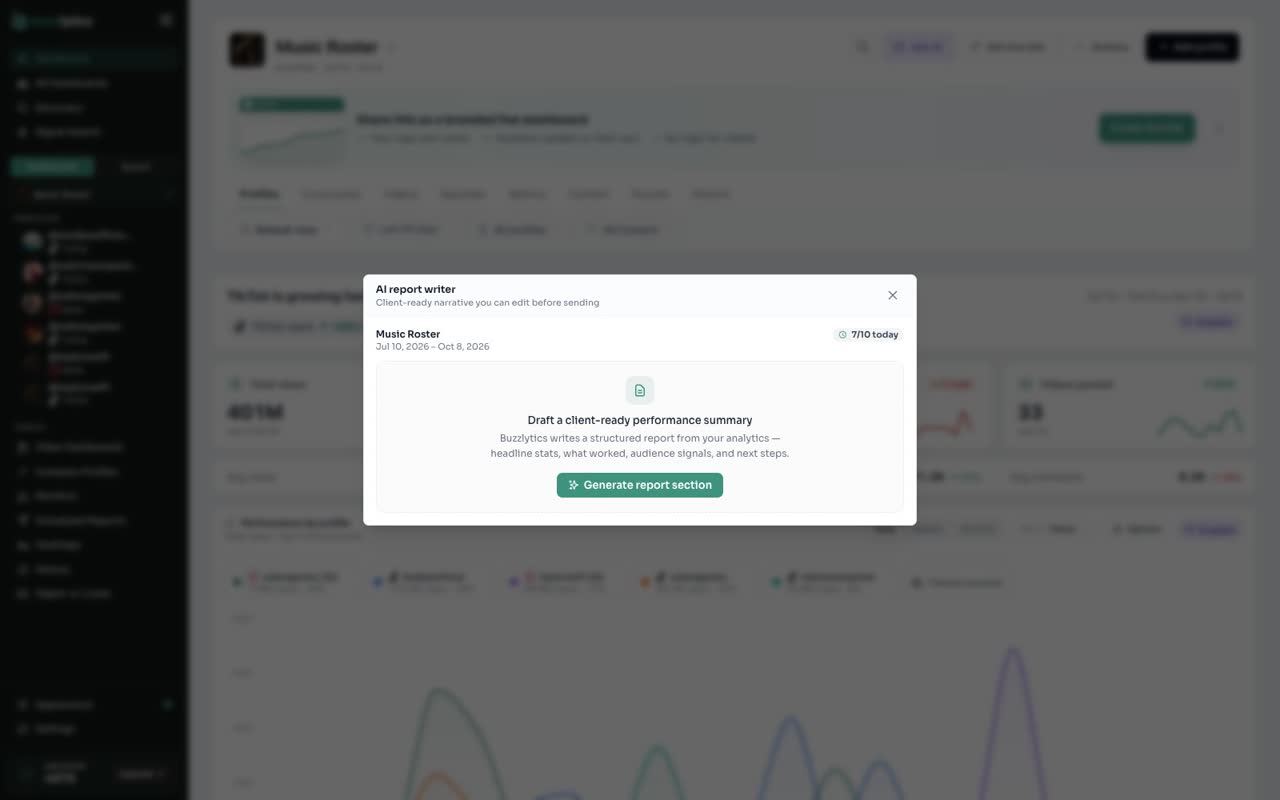
Click Write client summary to open the AI report writer.
-
3
Generate the summary
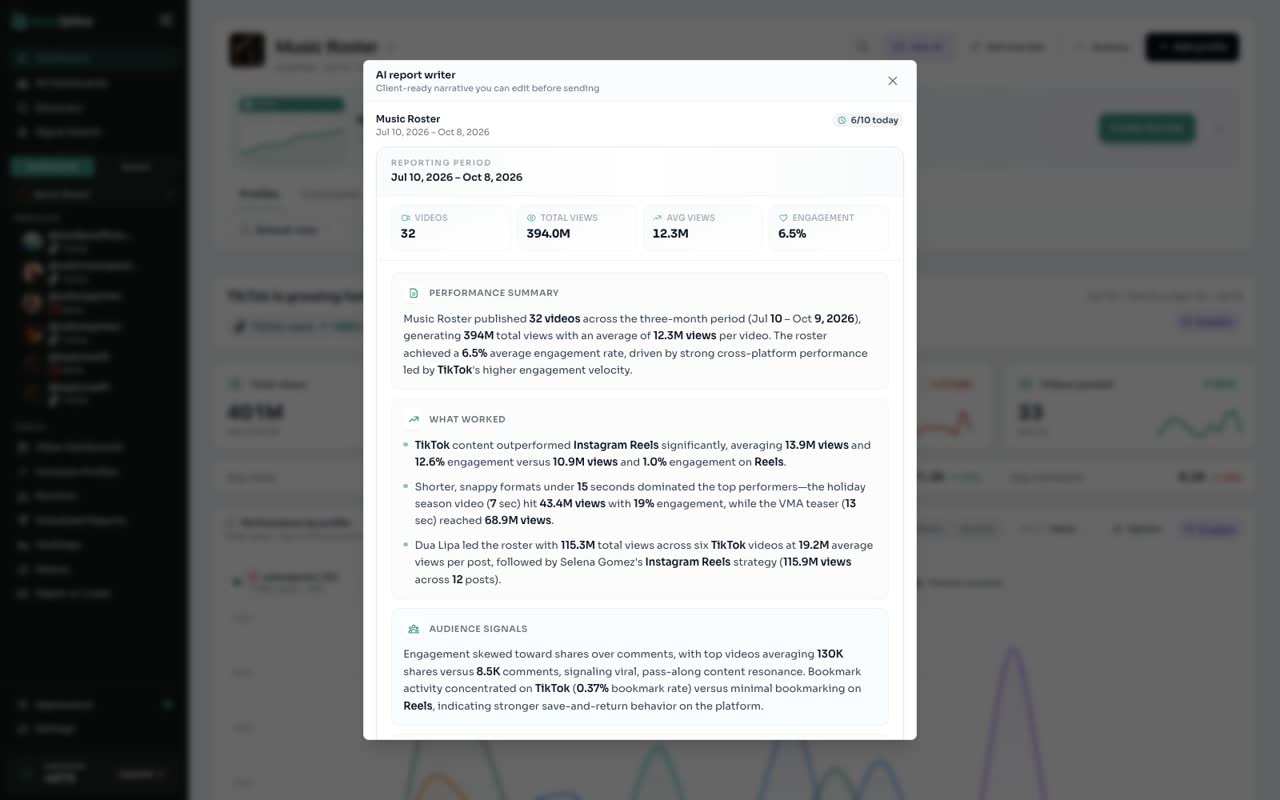
Click Generate report section, then Confirm. It reads your numbers and writes a summary, what worked, audience signals and next steps.
-
4
Edit, then copy
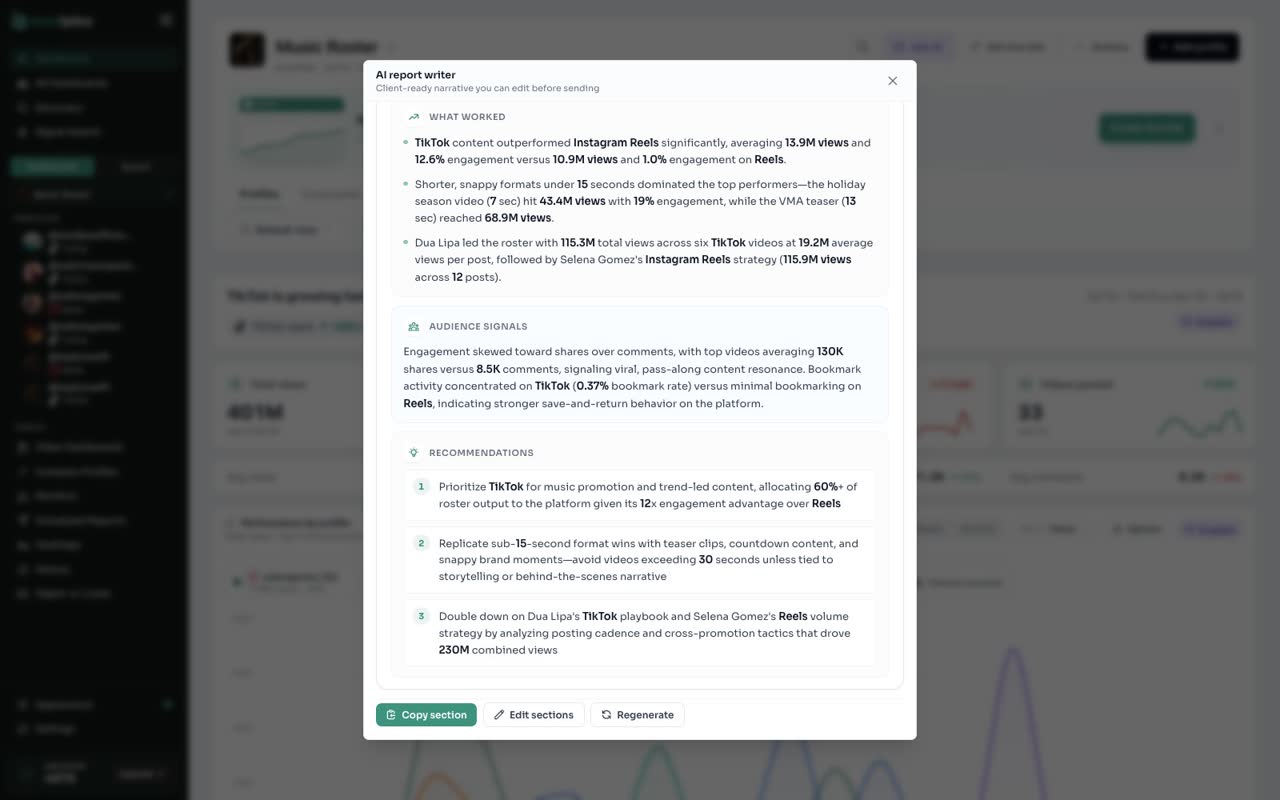
Click Edit sections to change any wording. Then Copy section, and paste it into your client email.
-
5
Export PDF
For a branded PDF, go back to Reports and click Export PDF. It downloads for the date range on screen.
Good to know
- Both use the date range set on the dashboard, so pick the period first.
- The report writer has a daily limit, shown at the top of the writer. It resets at midnight UTC.
- Want reports sent for you? Set up a scheduled report and the PDF arrives by email.
Read the full transcript
In this video, you will write a client summary with AI, and export a PDF report.
On your dashboard, click Actions, then Reports. Everything you can send a client lives here.
Click Write client summary to open the AI report writer.
Click Generate report section, then Confirm. It reads your numbers and writes a summary, what worked, audience signals and next steps.
Click Edit sections to change any wording. Then Copy section, and paste it into your client email.
For a branded PDF, go back to Reports and click Export PDF. It downloads for the date range on screen.
Next up, export to Google Sheets and Notion.