Video quick view
Click any video to see how it did against the creator's usual post, what stands out, and how its views grew.
Quick steps
- Open a video
- Compared with their usual post
- What stands out
- Views over time
- Save the video
- Flip through posts
Step by step
Prefer reading? Every step shows the screen you’ll see. Click a time to jump the video there.
-
1
Open a video
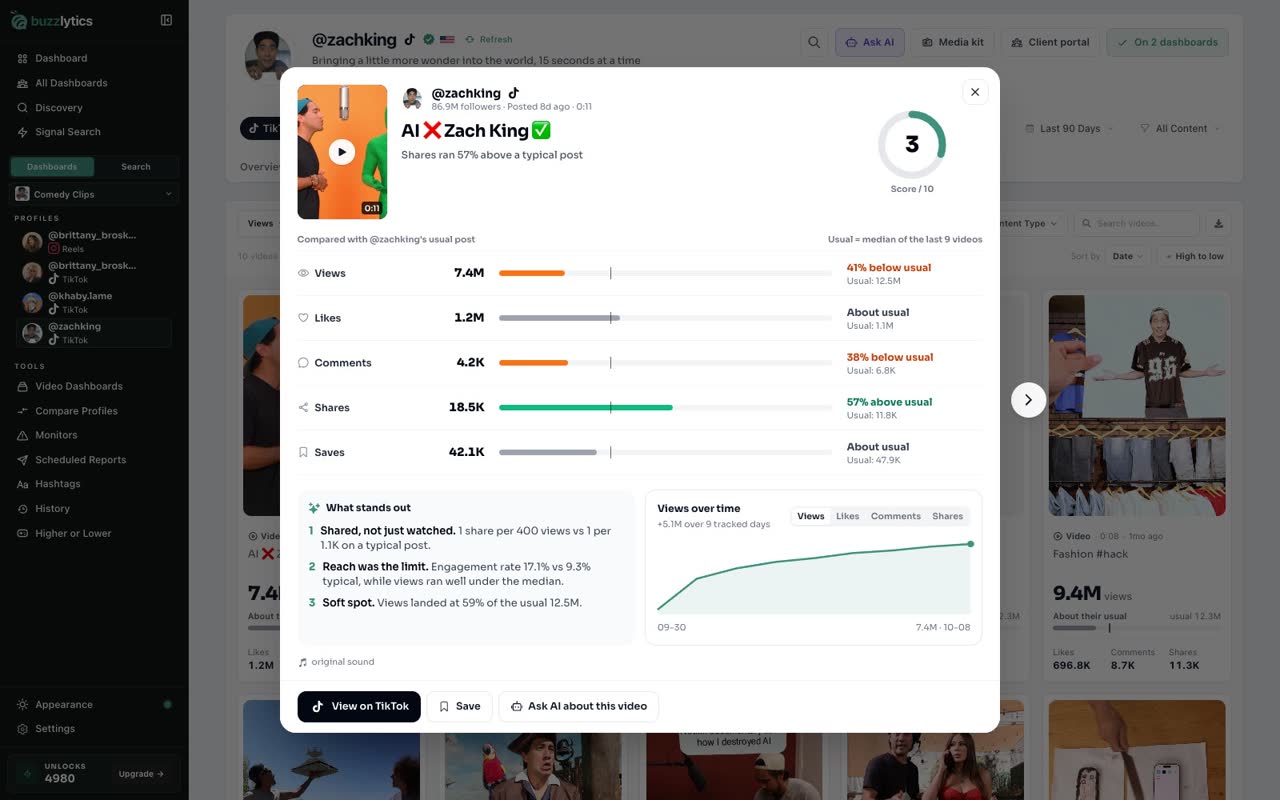
Go to the Videos tab and click any video. It opens in quick view, right on top of the profile.
-
2
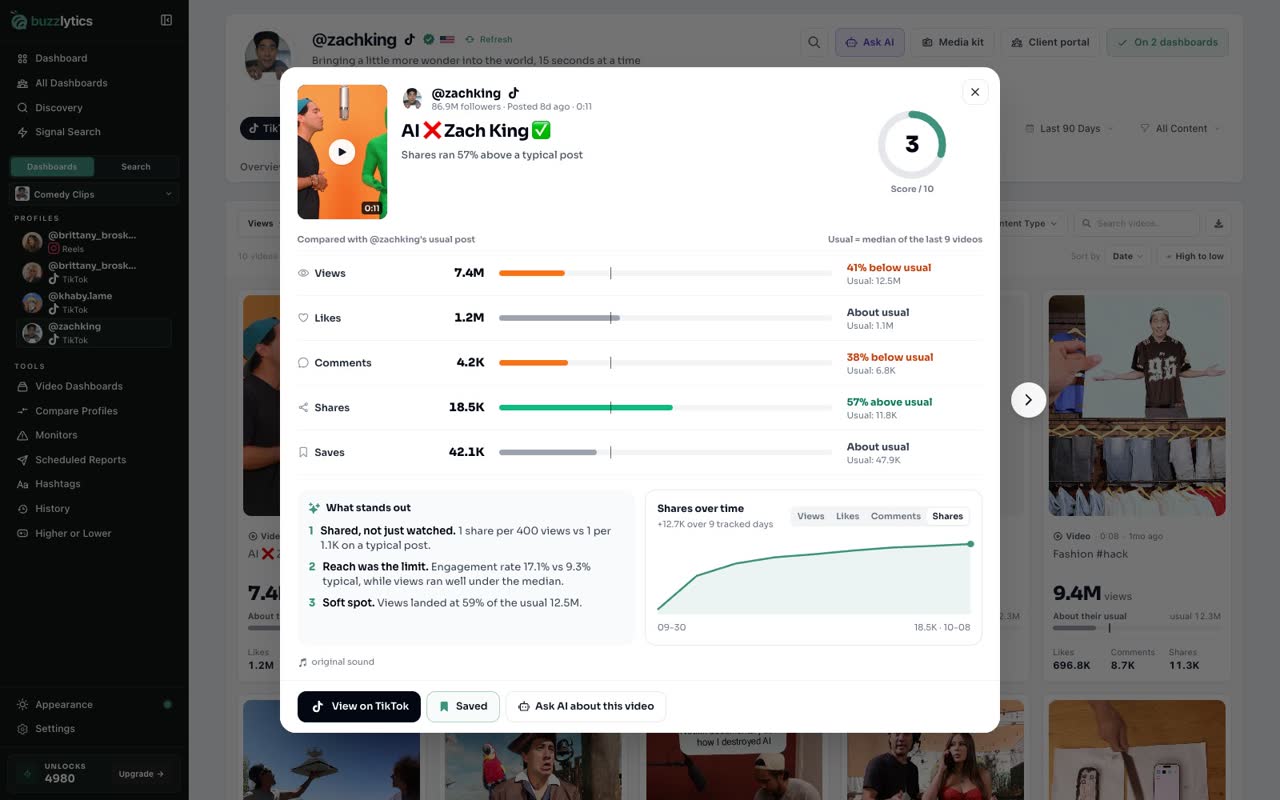
Compared with their usual post
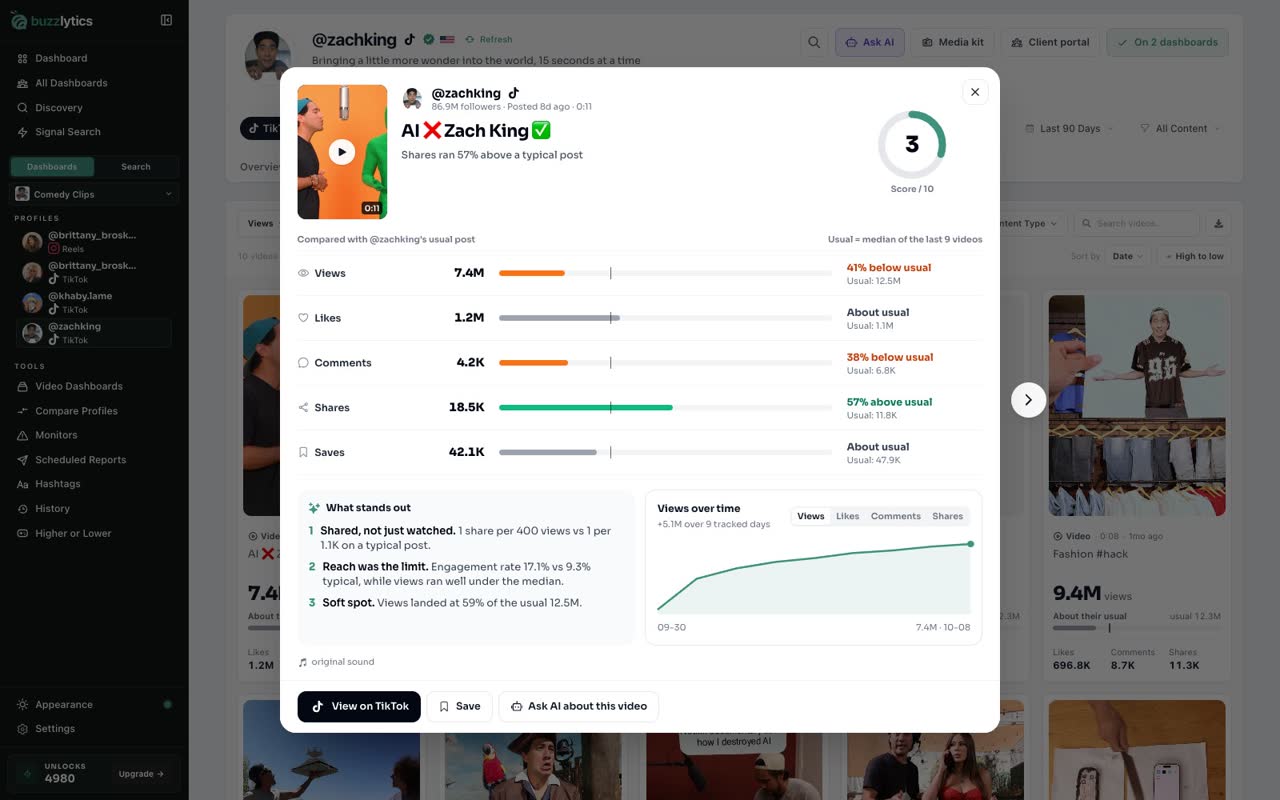
Every number is compared with the creator's usual post, so you can see right away what beat the norm and what fell short.
-
3
What stands out
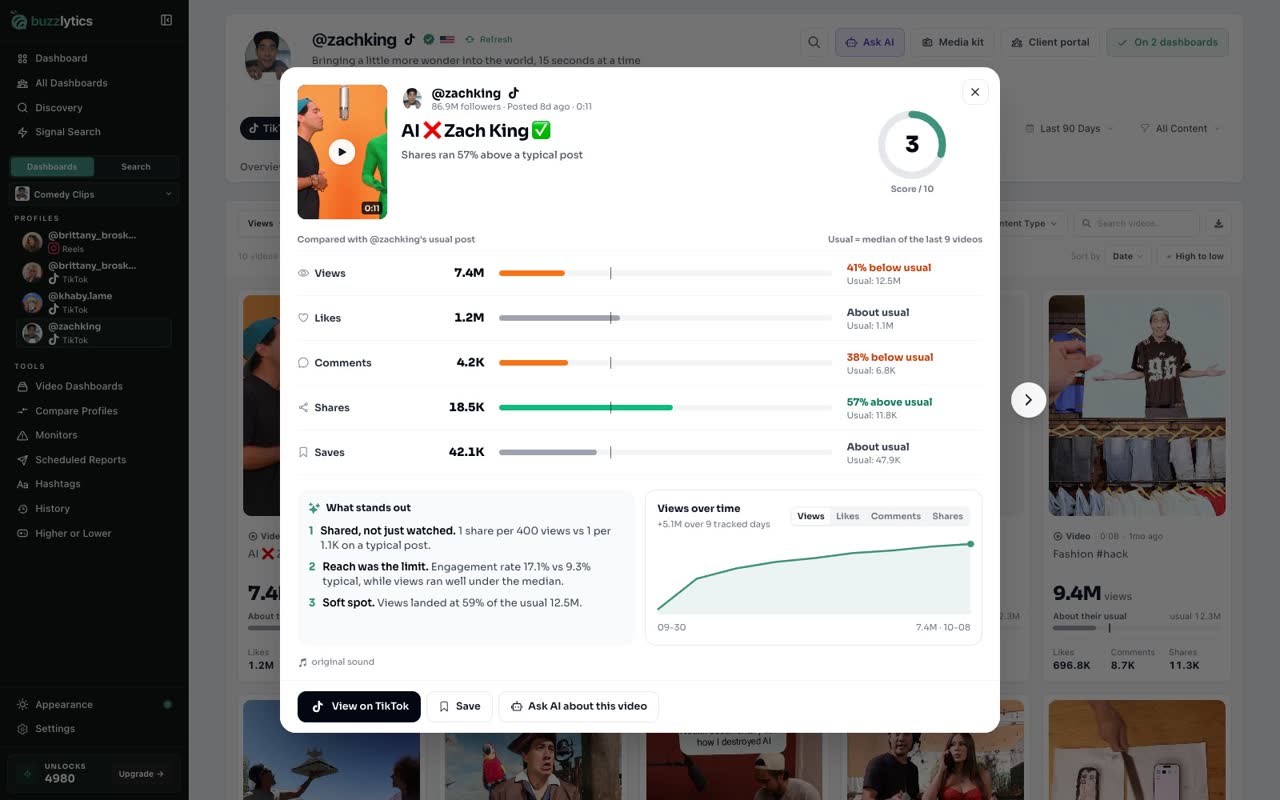
What stands out explains why the video performed the way it did, in plain words.
-
4
Views over time
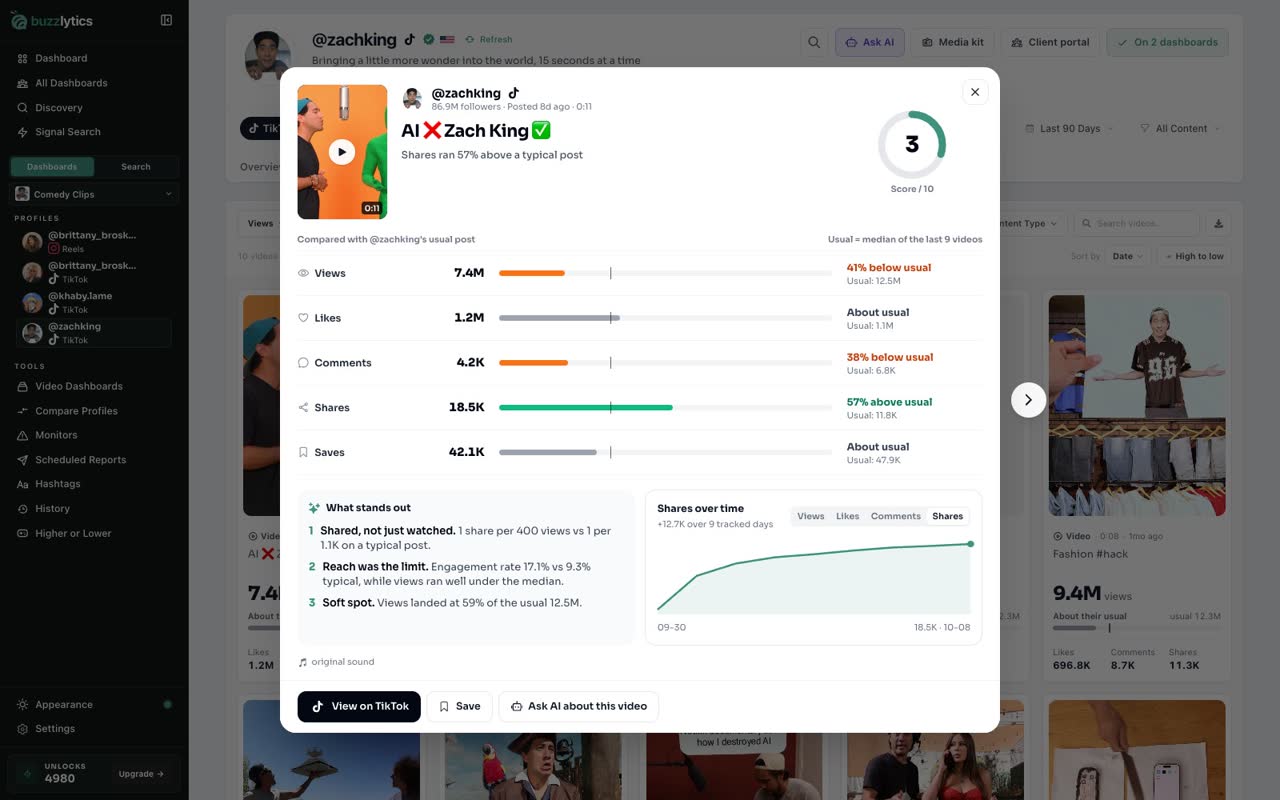
The chart shows how the video grew over the days we tracked it. Switch it to likes, comments or shares.
-
5
Save the video
Click Save to keep tracking this video. Its numbers update every day from now on.
-
6
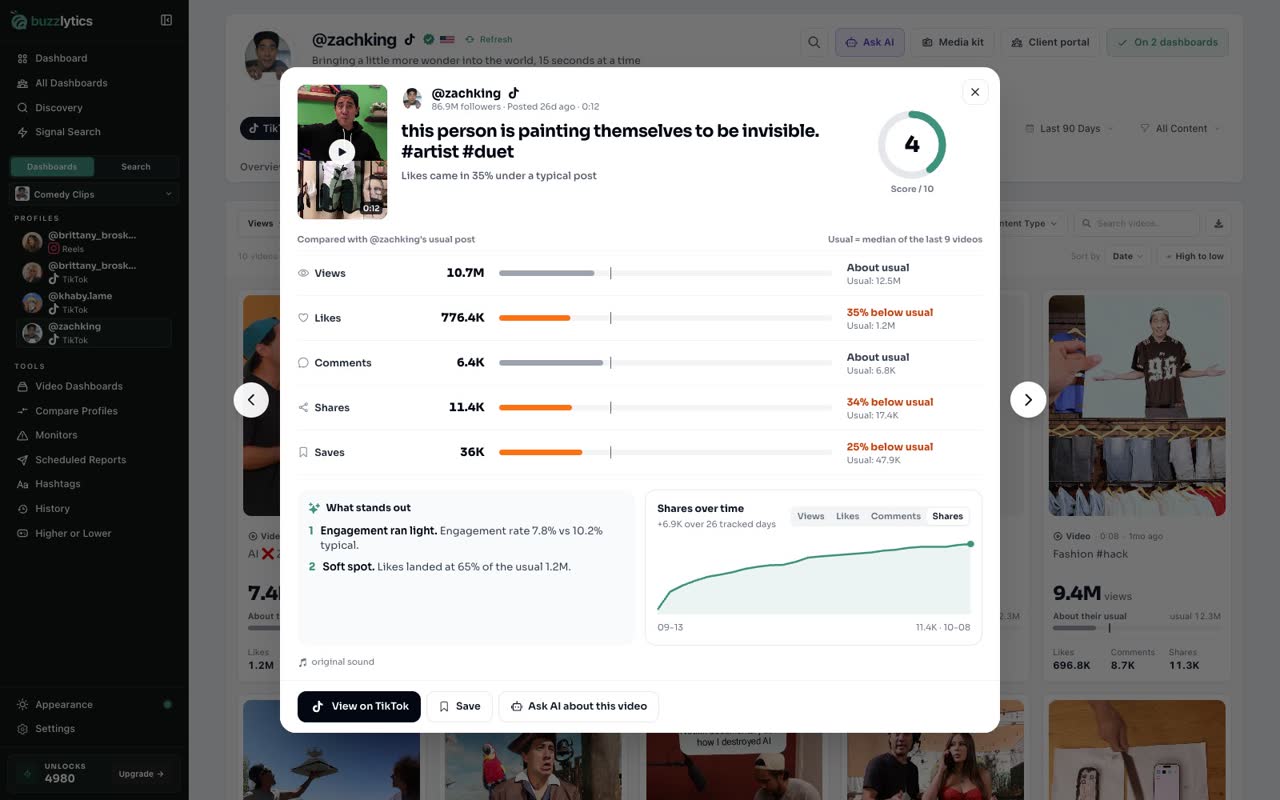
Flip through posts
Use the arrows to move to the next post without closing quick view.
Good to know
- Usual means the median of the creator's recent comparable posts, so one viral hit does not skew the comparison.
- Saved videos keep getting daily updates, so the trend chart fills in over time.
Read the full transcript
In this video, you will open a video in quick view and read what it tells you.
Go to the Videos tab and click any video. It opens in quick view, right on top of the profile.
Every number is compared with the creator's usual post, so you can see right away what beat the norm and what fell short.
What stands out explains why the video performed the way it did, in plain words.
The chart shows how the video grew over the days we tracked it. Switch it to likes, comments or shares.
Click Save to keep tracking this video. Its numbers update every day from now on.
Use the arrows to move to the next post without closing quick view.
Next up, link a creator's other channels.