Settings tour
Find your timezone, preferences, email notifications, theme and password in Settings.
Quick steps
- Open Settings
- Set your timezone
- Choose your preferences
- Pick which emails you get
- Keep your account secure
- Switch to dark mode
Step by step
Prefer reading? Every step shows the screen you’ll see. Click a time to jump the video there.
-
1
Open Settings
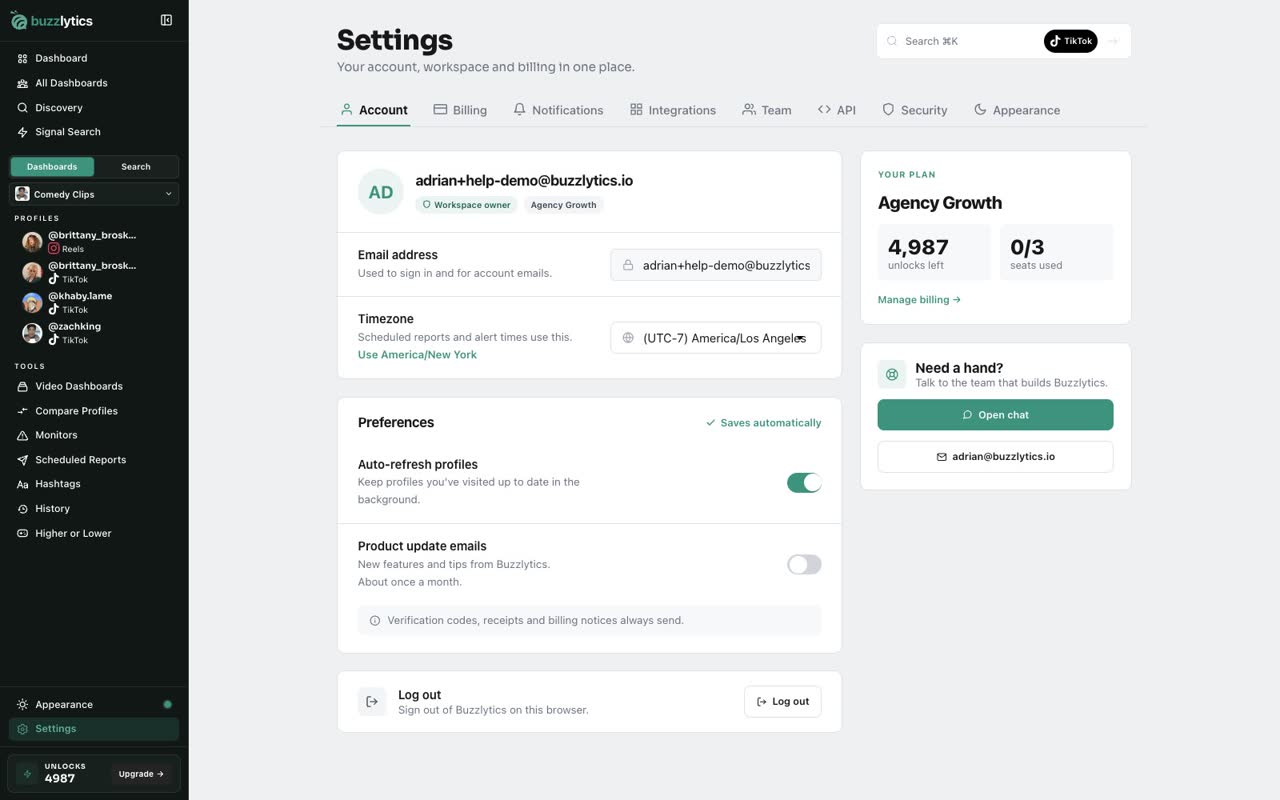
Click Settings at the bottom of the sidebar. Your account, workspace and billing all live here.
-
2
Set your timezone
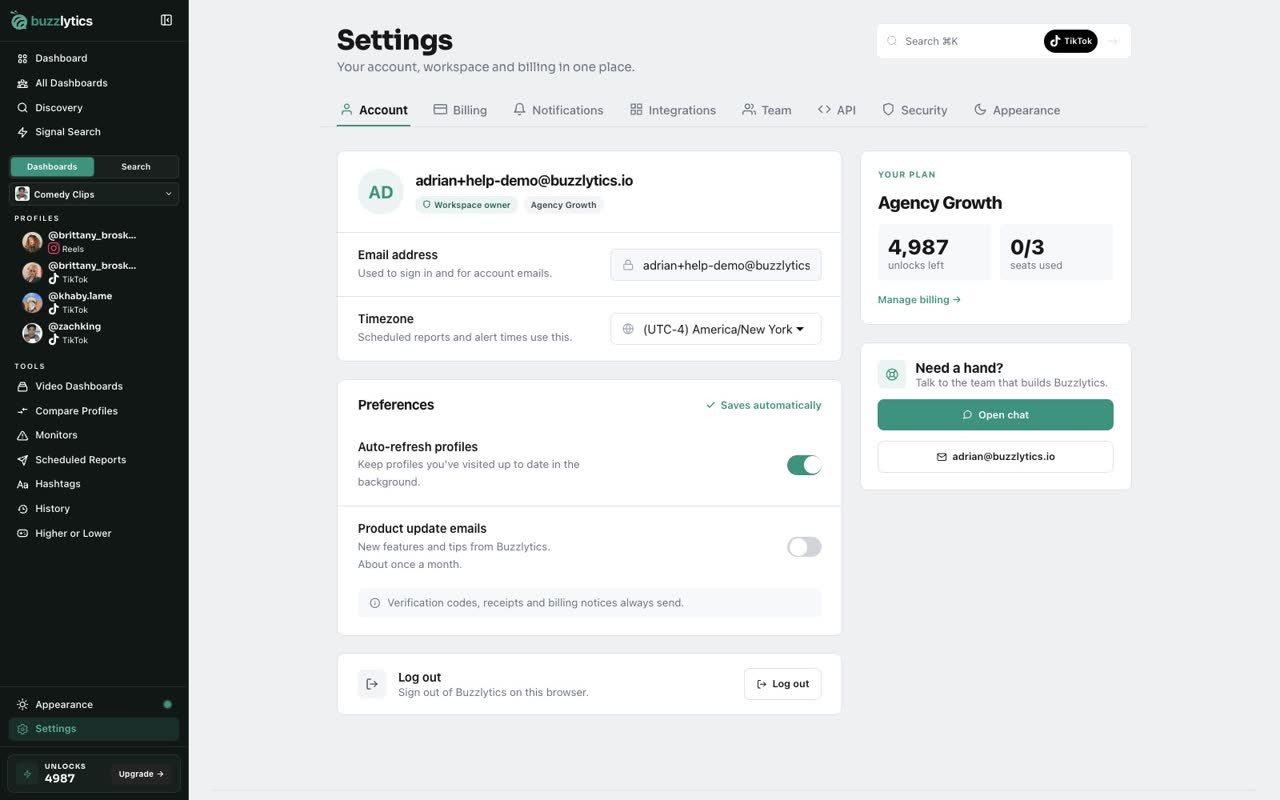
On the Account tab, pick your Timezone. Scheduled reports and alert times use it.
-
3
Choose your preferences
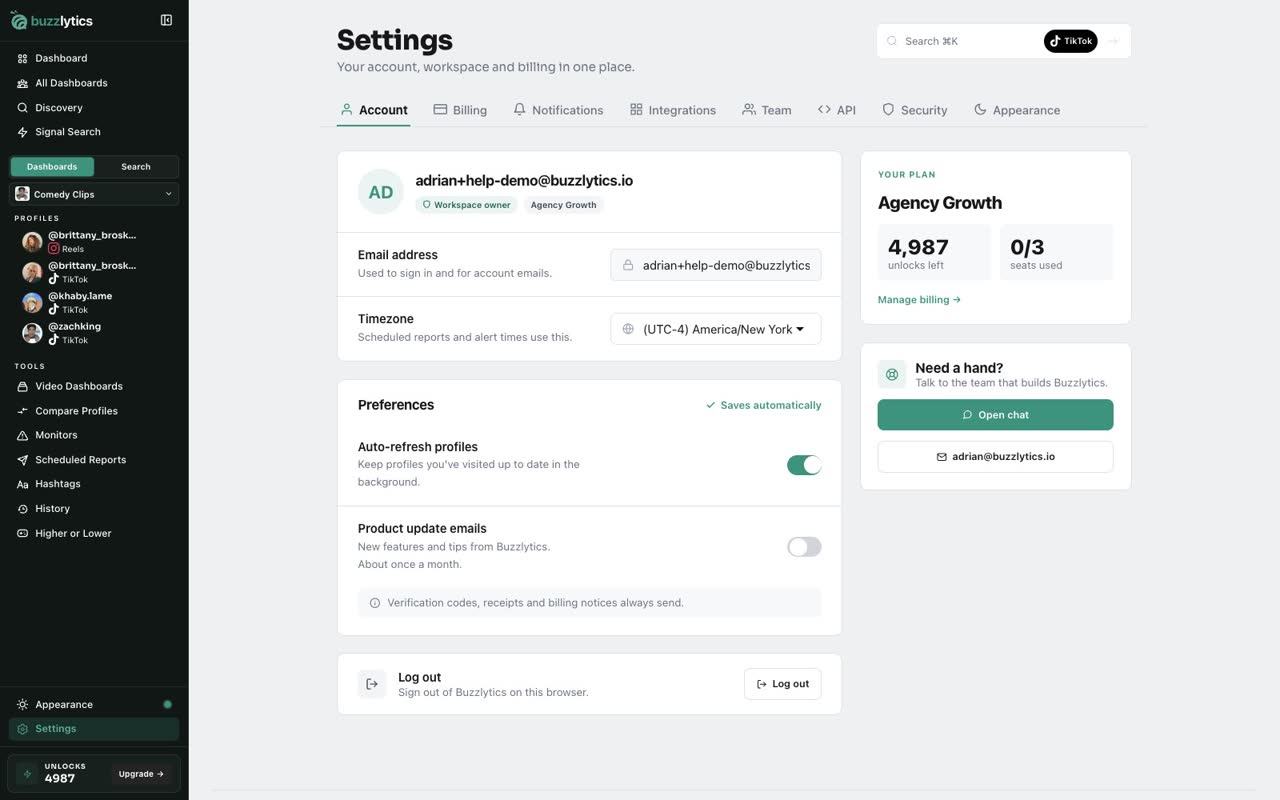
Preferences save automatically. Auto-refresh profiles keeps profiles you have visited up to date, and you can turn product update emails on or off.
-
4
Pick which emails you get
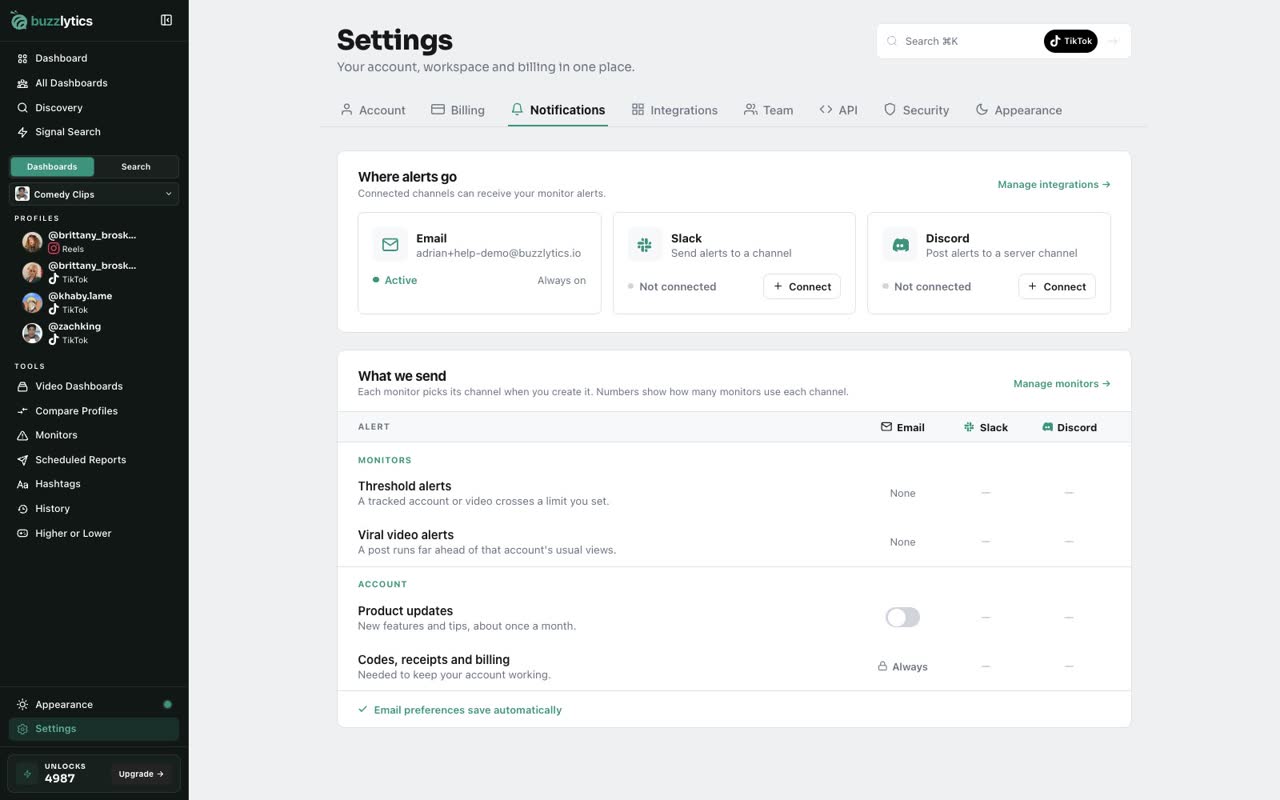
Open Notifications to choose which alert emails you receive, and to see where your monitor alerts go, like Slack or Discord.
-
5
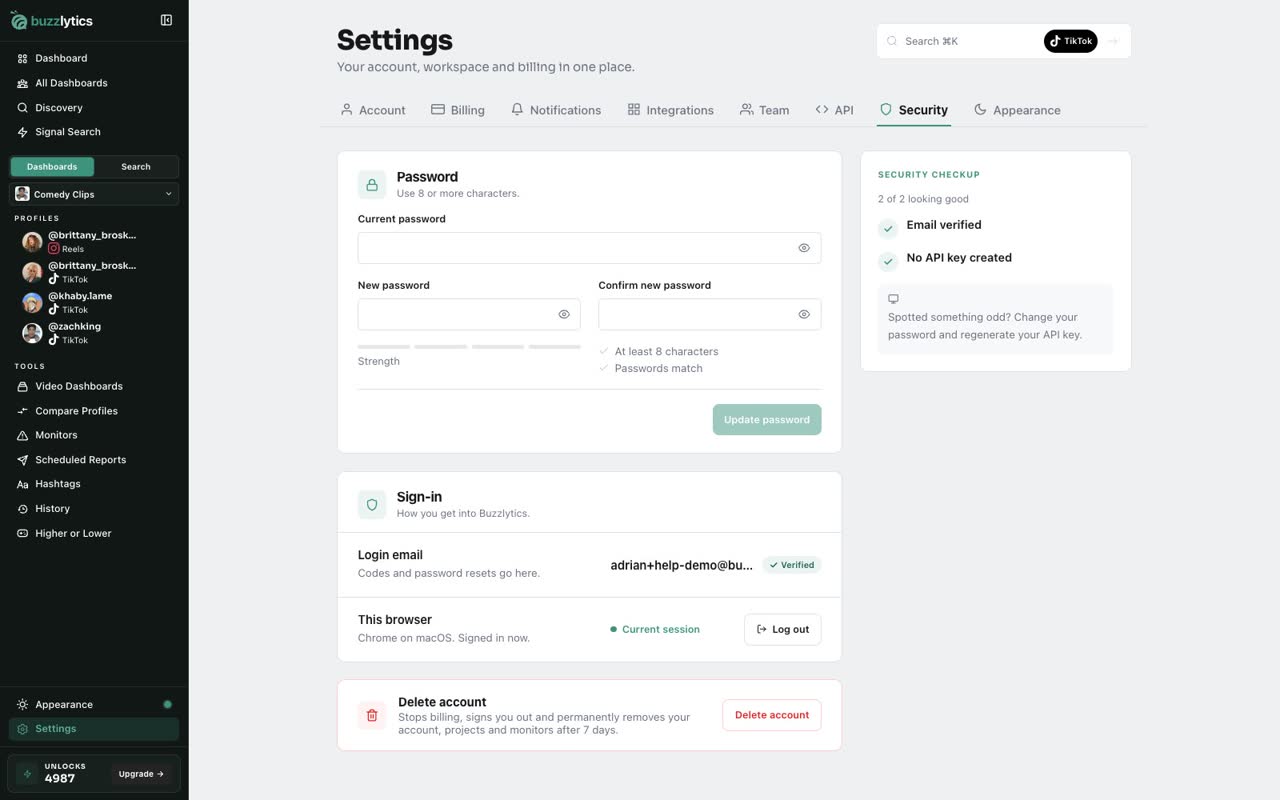
Keep your account secure
Under Security, you can change your password, check your login email, and delete your account if you ever need to.
-
6
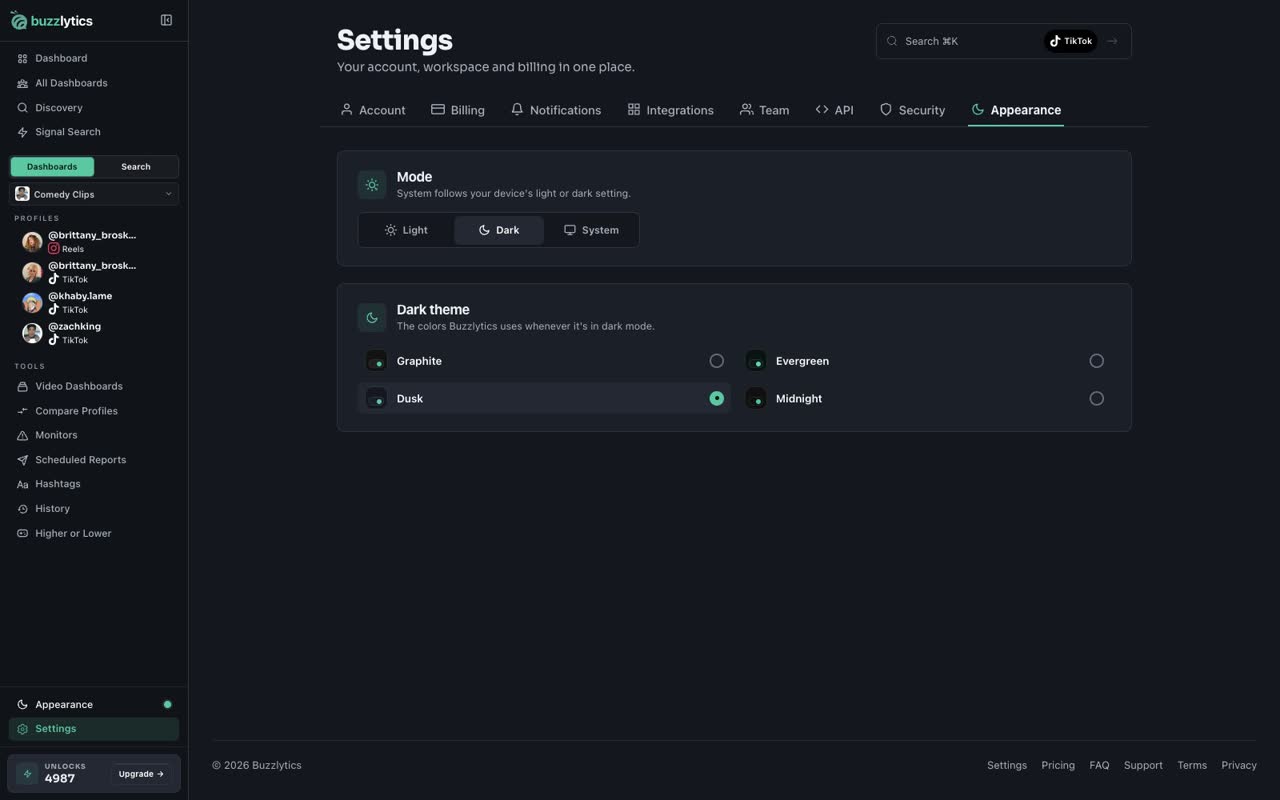
Switch to dark mode
Finally, Appearance sets the look. Choose Light, Dark or System, then pick a dark theme you like.
Good to know
- Scheduled reports and alert times use the timezone in Settings, Account.
- Verification codes, receipts and billing notices always send, whatever you turn off.
- Your theme choice is saved in this browser.
Read the full transcript
In this video, you will take a quick tour of Settings.
Click Settings at the bottom of the sidebar. Your account, workspace and billing all live here.
On the Account tab, pick your Timezone. Scheduled reports and alert times use it.
Preferences save automatically. Auto-refresh profiles keeps profiles you have visited up to date, and you can turn product update emails on or off.
Open Notifications to choose which alert emails you receive, and to see where your monitor alerts go, like Slack or Discord.
Under Security, you can change your password, check your login email, and delete your account if you ever need to.
Finally, Appearance sets the look. Choose Light, Dark or System, then pick a dark theme you like.
Next up, plans explained.