Customize your dashboard
Hide the cards you do not need and drag the rest into the order you like.
Quick steps
- Open Customize dashboard
- Hide what you do not need
- A shorter page
- Drag cards into order
- Bring everything back
Step by step
Prefer reading? Every step shows the screen you’ll see. Click a time to jump the video there.
-
1
Open Customize dashboard
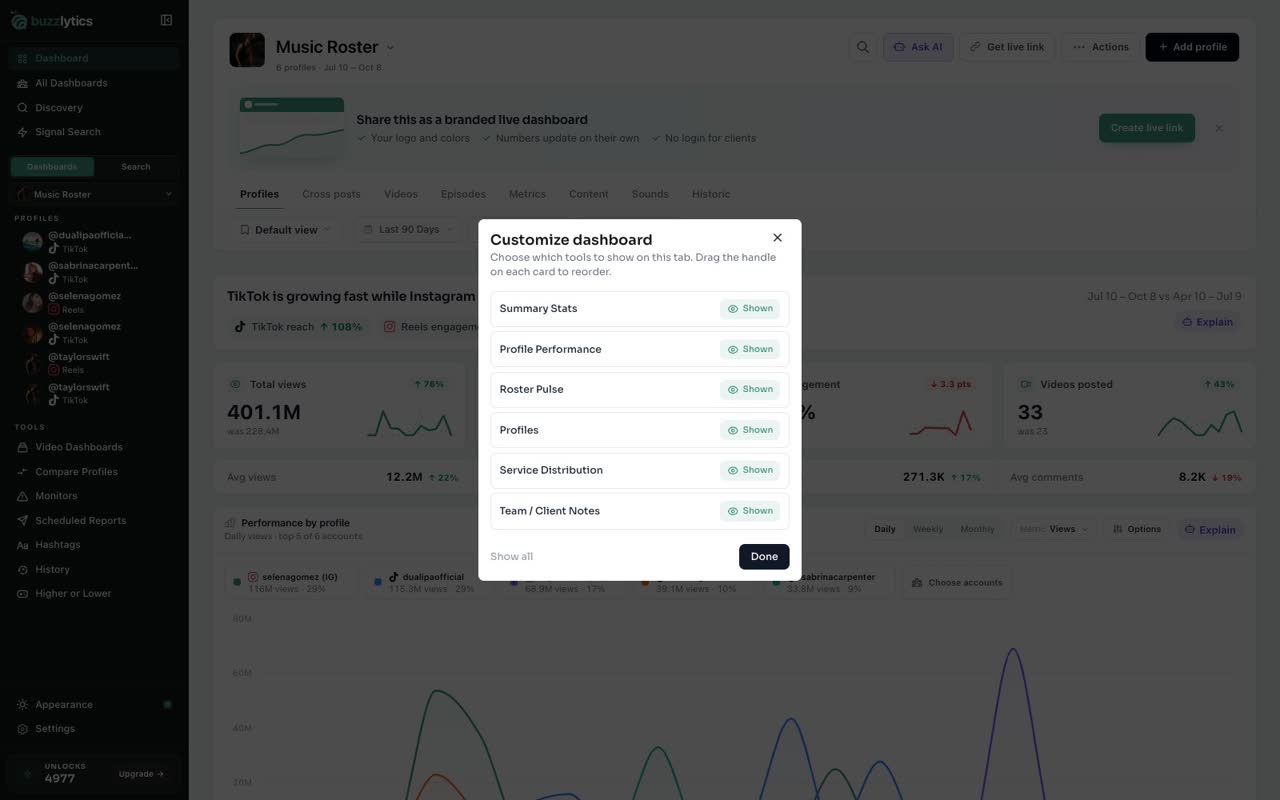
Open Actions and choose Customize dashboard. You see every card on the current tab.
-
2
Hide what you do not need
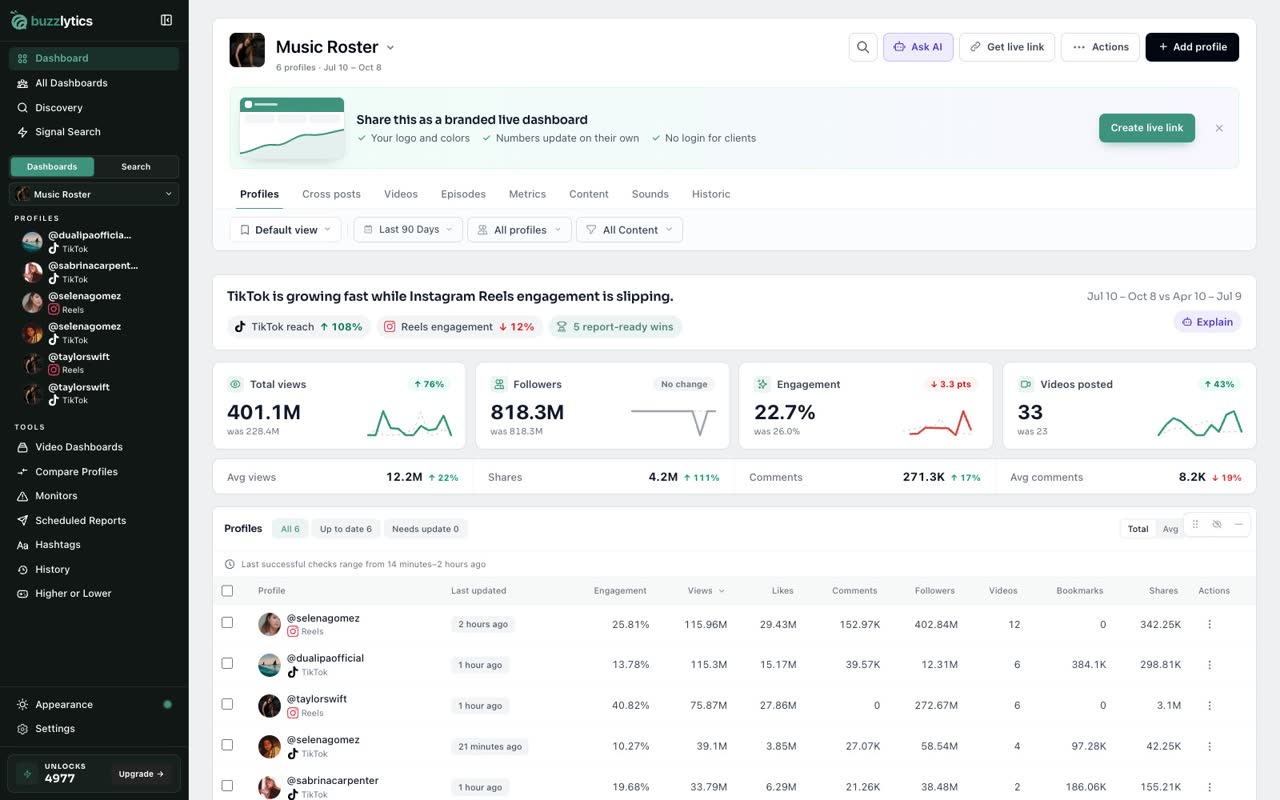
Click Shown next to a card to hide it. Here we hide the performance chart and Roster Pulse.
-
3
A shorter page
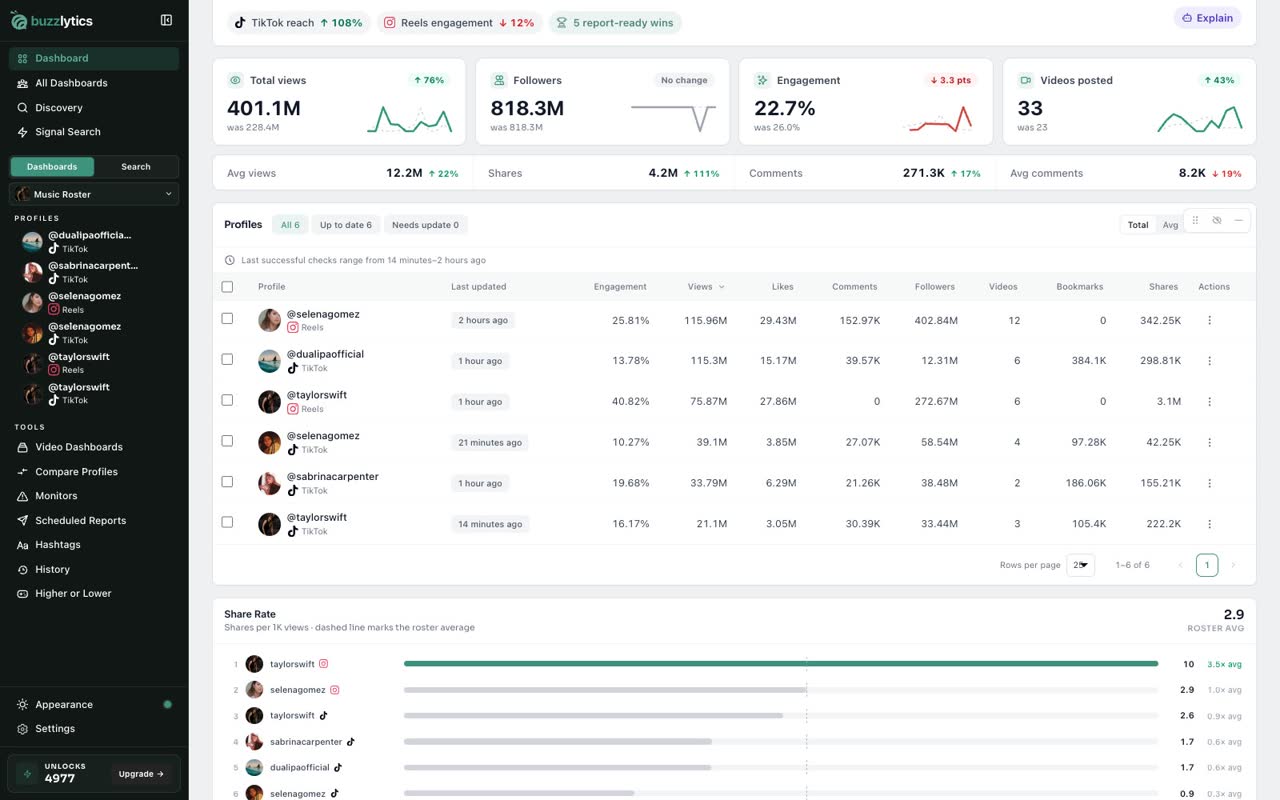
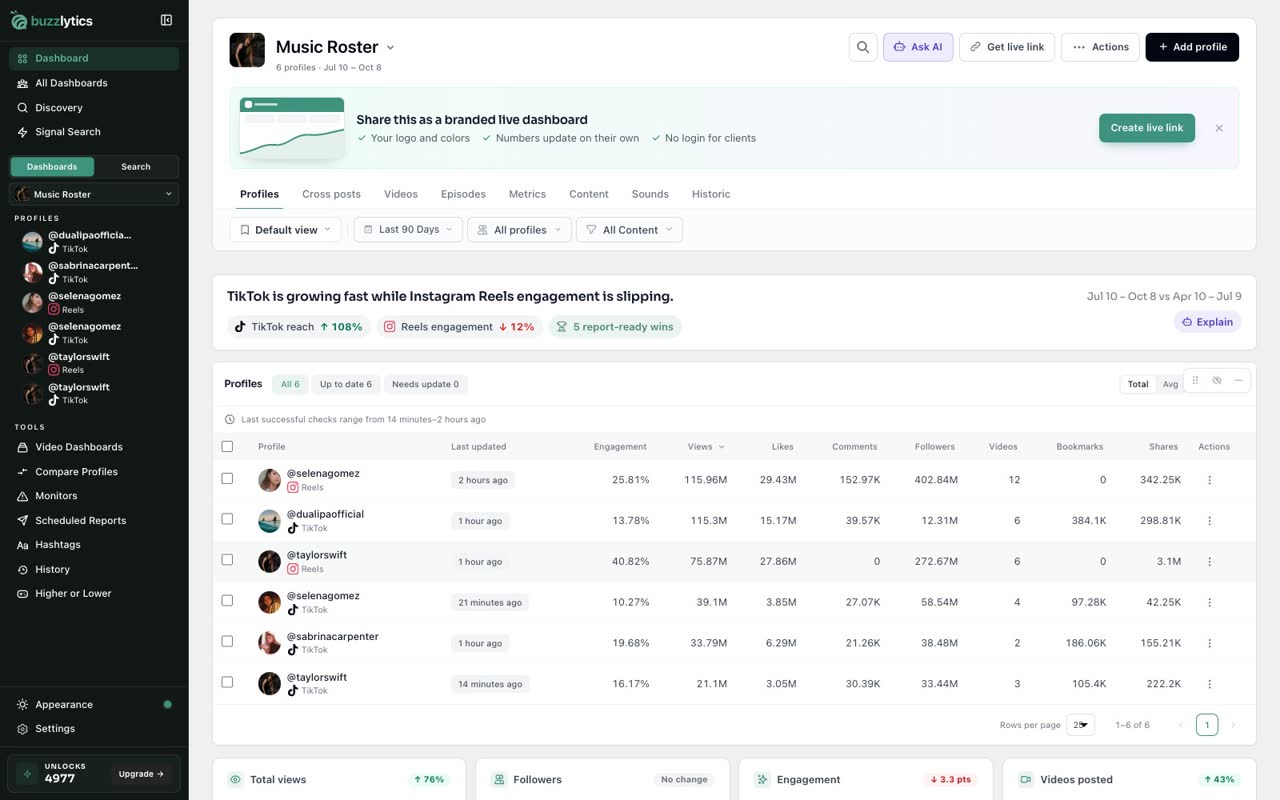
Those cards are gone, so the Profiles table now sits right under your headline numbers.
-
4
Drag cards into order
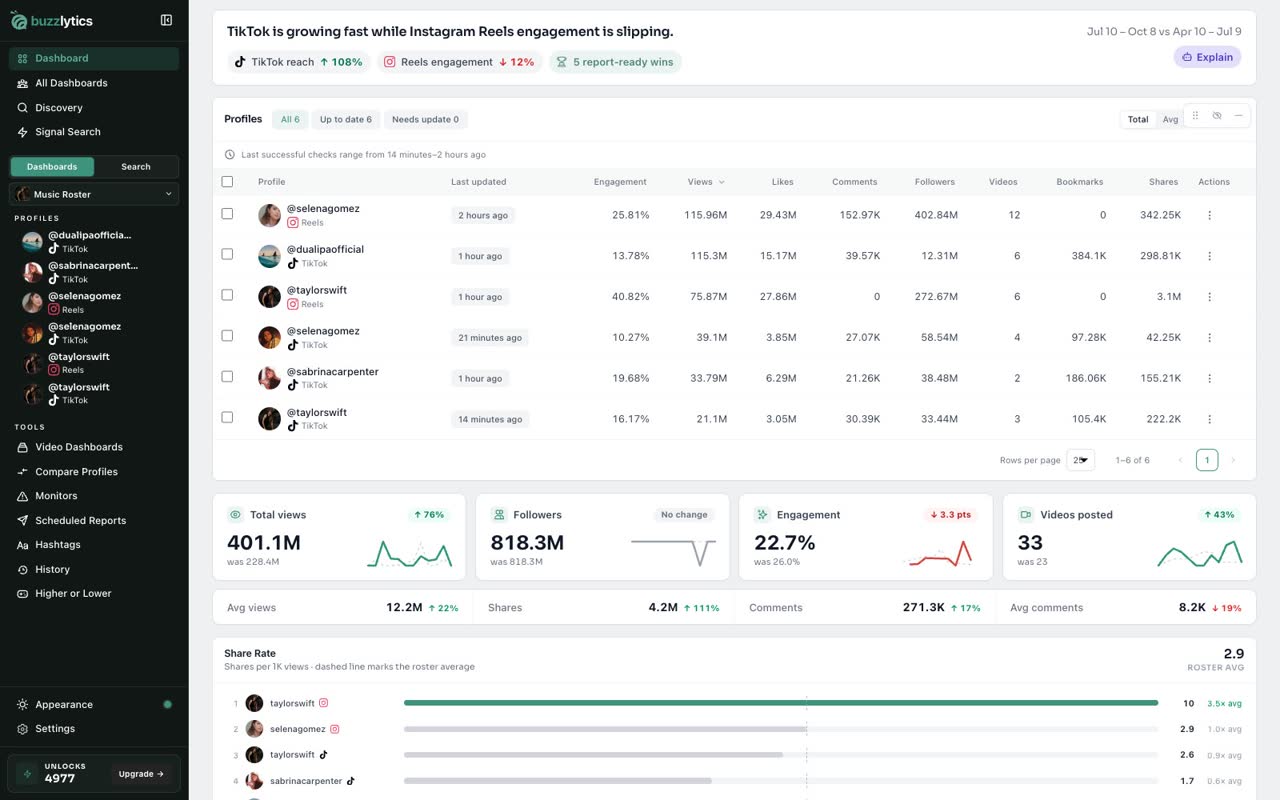
Hover a card and drag the handle in its corner to move it. Here the Profiles table moves to the top.
-
5
Bring everything back
To undo it all, open Customize dashboard again and click Show all.
Good to know
- Each tab has its own layout, so Profiles, Videos and Metrics can look different.
- Hover any card to hide it, minimize it or drag it from the handle in its corner.
- Show all brings back every hidden card on the current tab.
Read the full transcript
In this video, you will hide and reorder the cards on your dashboard.
Open Actions and choose Customize dashboard. You see every card on the current tab.
Click Shown next to a card to hide it. Here we hide the performance chart and Roster Pulse.
Those cards are gone, so the Profiles table now sits right under your headline numbers.
Hover a card and drag the handle in its corner to move it. Here the Profiles table moves to the top.
To undo it all, open Customize dashboard again and click Show all.
Next up, manage all your dashboards.