Export to Google Sheets and Notion
Connect Google Sheets or Notion once, then push any dashboard roster into a new sheet or database.
Quick steps
- Open Integrations
- Connect Google Sheets
- Or connect Notion
- Export from Reports
- Send to Sheets or Notion
- Or download a CSV
Step by step
Prefer reading? Every step shows the screen you’ll see. Click a time to jump the video there.
-
1
Open Integrations
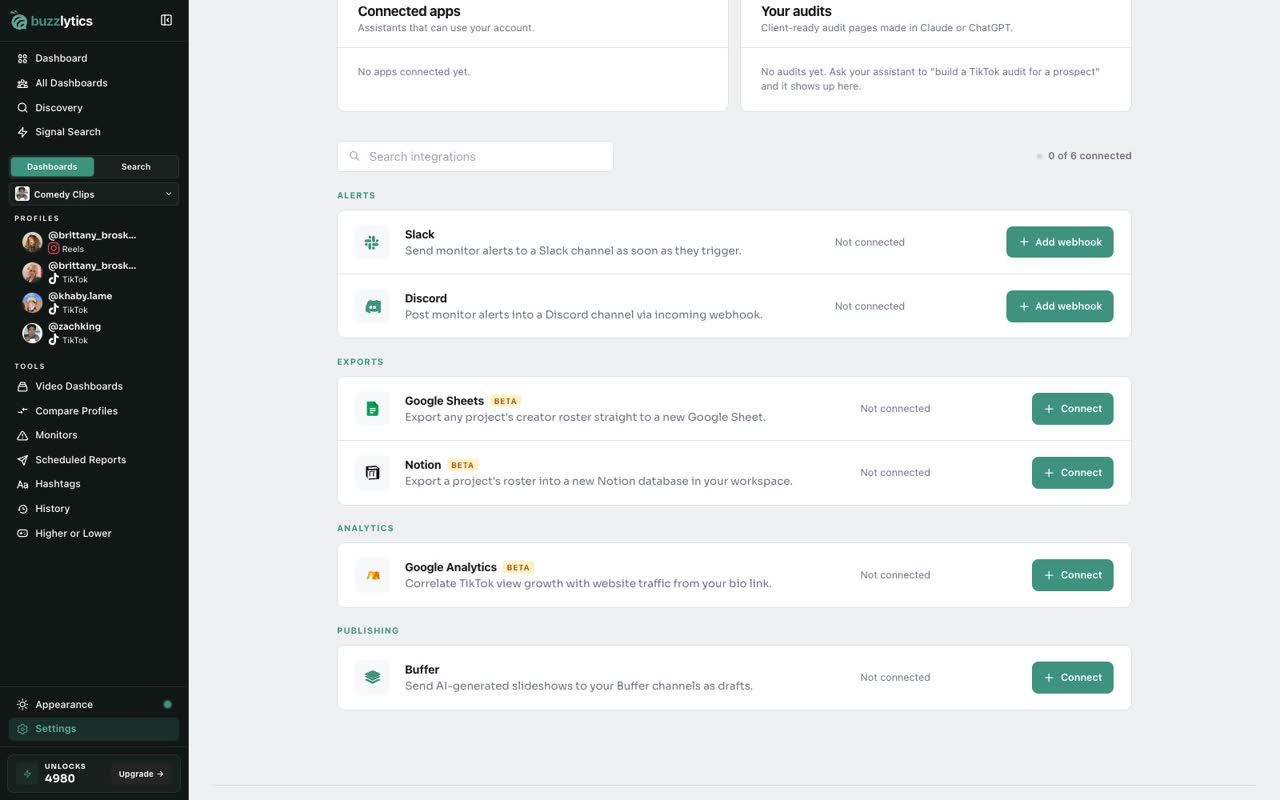
Go to Settings, then Integrations. Google Sheets and Notion sit under Exports.
-
2
Connect Google Sheets
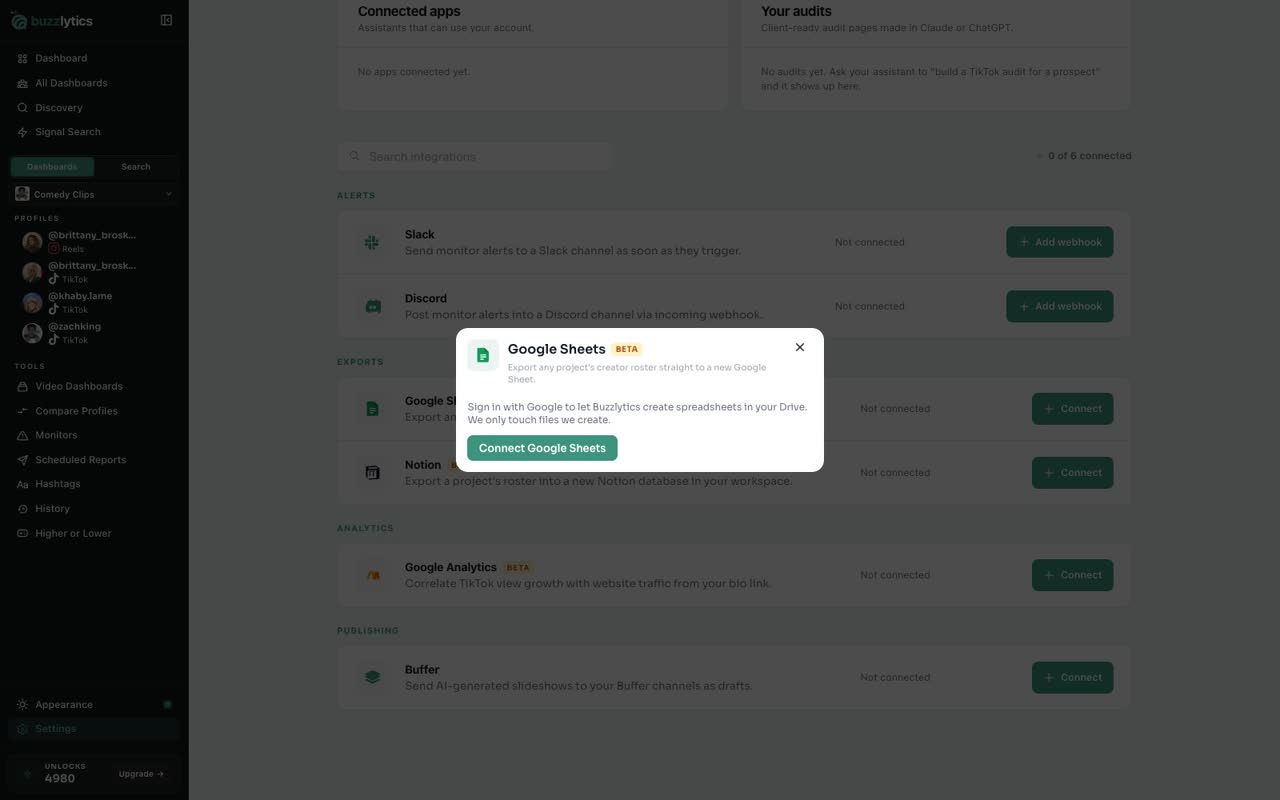
Click Connect on Google Sheets, then sign in with Google. Buzzlytics only touches files it creates.
-
3
Or connect Notion
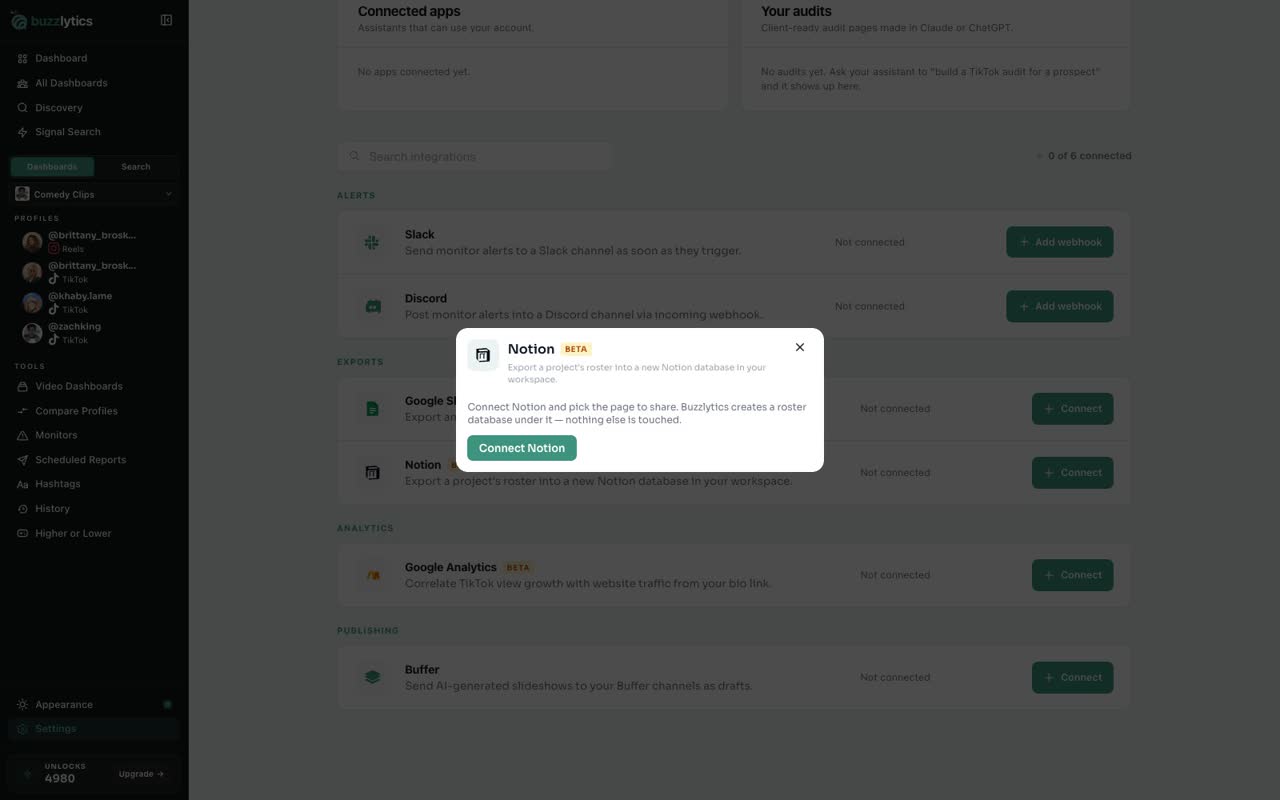
Notion works the same way. Pick the page to share, and exports land under it.
-
4
Export from Reports
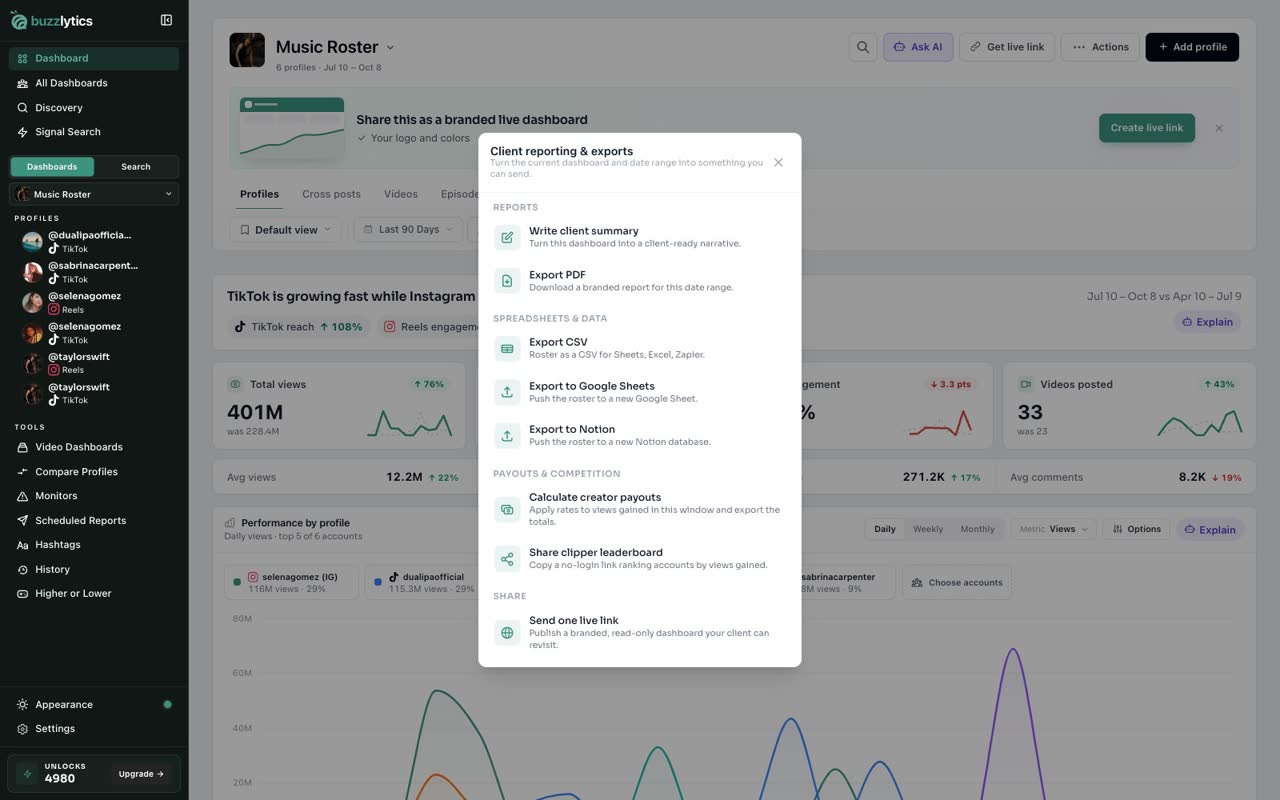
Once connected, open a dashboard and click Actions, then Reports.
-
5
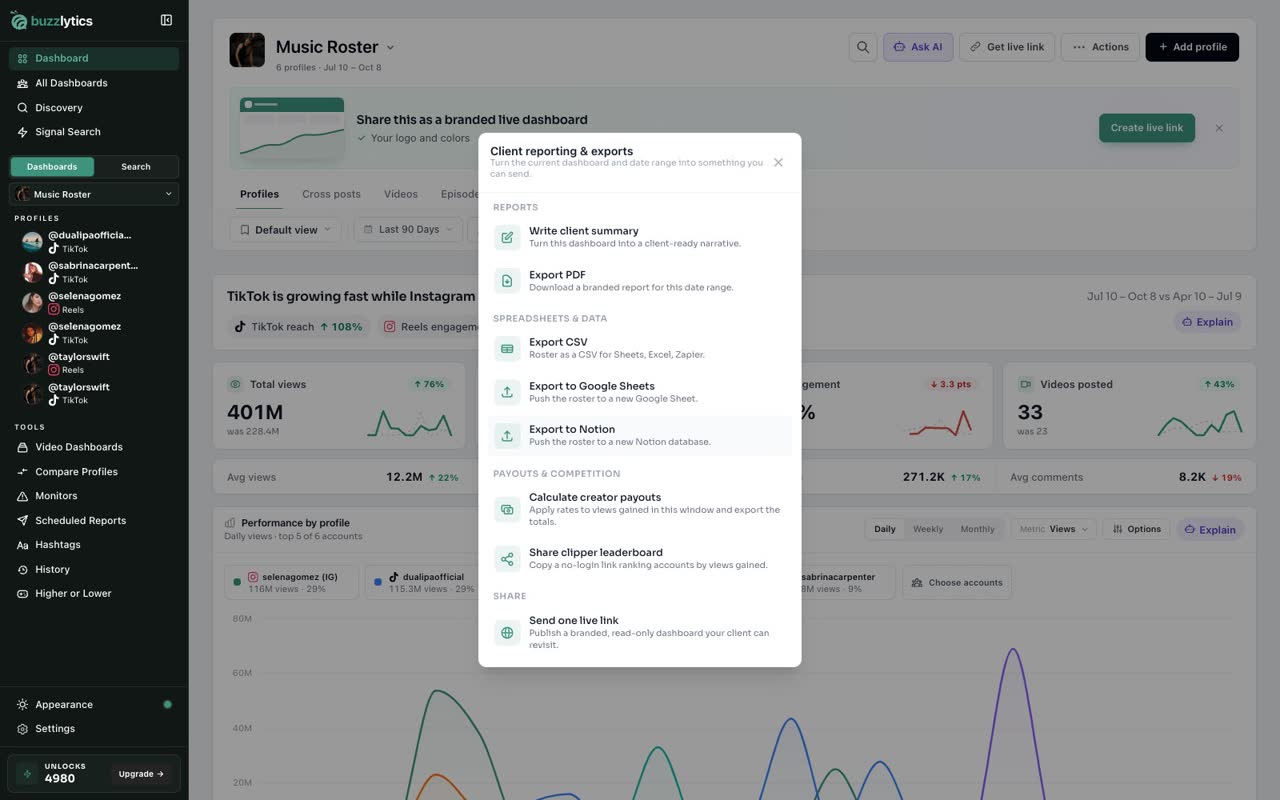
Send to Sheets or Notion
Export to Google Sheets and Export to Notion now appear. Each one creates a new sheet or database with the roster.
-
6
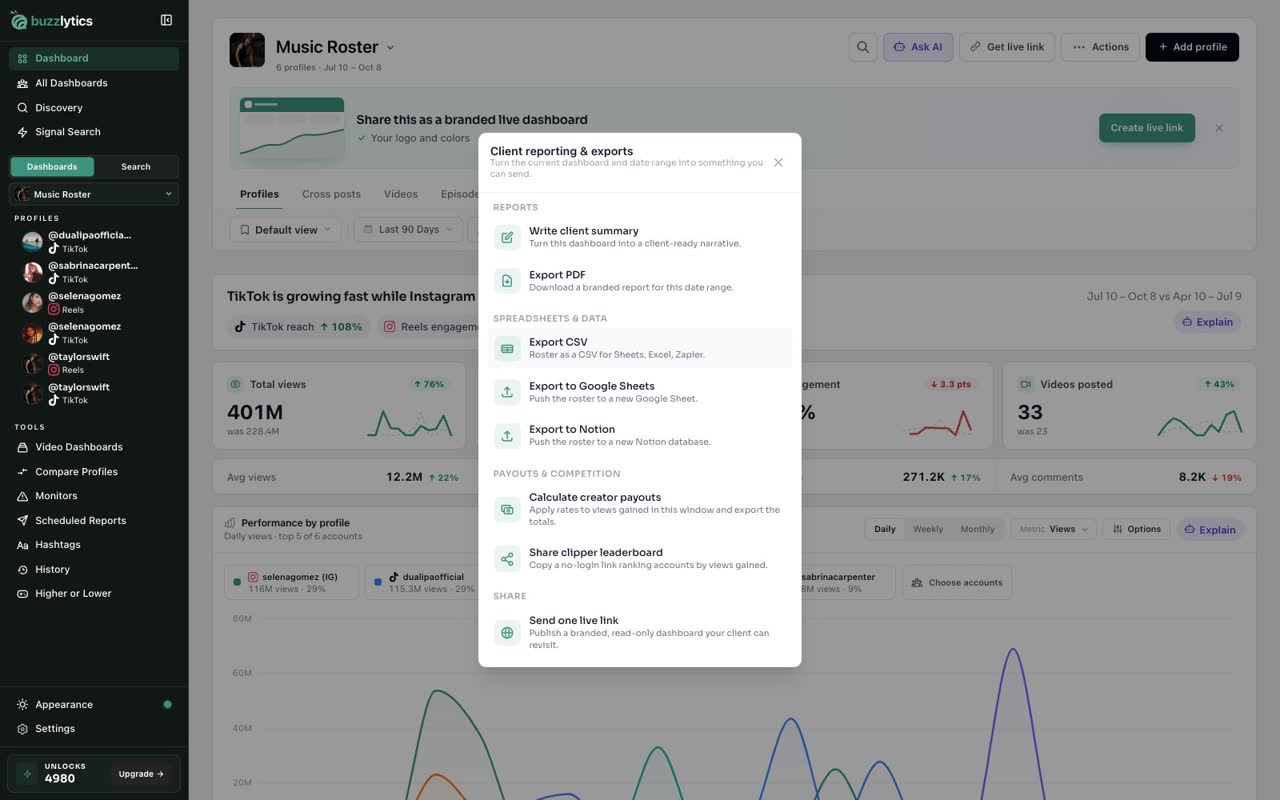
Or download a CSV
Just need a file? Export CSV downloads the same data with no connection at all.
Good to know
- Buzzlytics only creates new files. It never edits your existing sheets or pages.
- Each export makes a fresh sheet or database for the dashboard and date range on screen.
- Disconnect any time from Settings, Integrations.
Read the full transcript
In this video, you will connect Google Sheets or Notion, and find the exports on your dashboard.
Go to Settings, then Integrations. Google Sheets and Notion sit under Exports.
Click Connect on Google Sheets, then sign in with Google. Buzzlytics only touches files it creates.
Notion works the same way. Pick the page to share, and exports land under it.
Once connected, open a dashboard and click Actions, then Reports.
Export to Google Sheets and Export to Notion now appear. Each one creates a new sheet or database with the roster.
Just need a file? Export CSV downloads the same data with no connection at all.
Next up, schedule reports by email or Slack.