Integrations overview
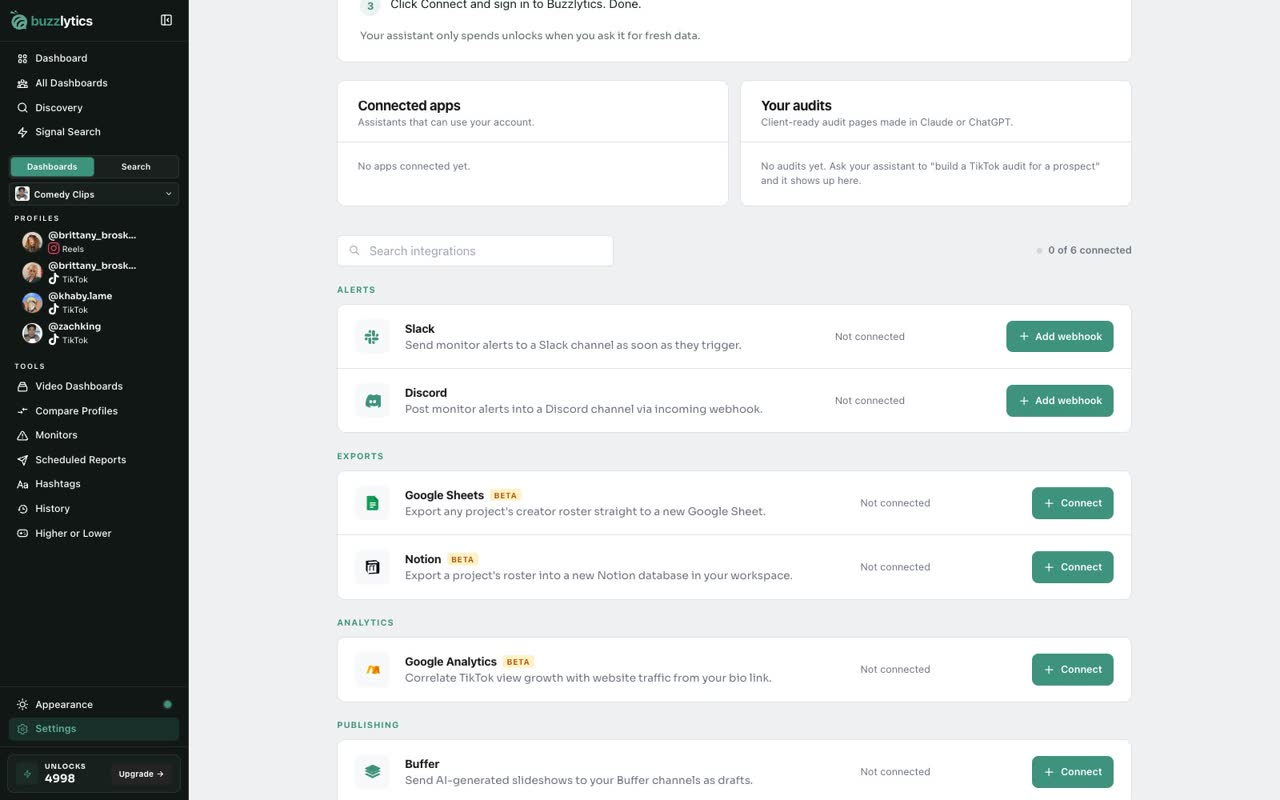
A quick tour of everything Buzzlytics connects to: AI assistants, Slack and Discord alerts, Sheets and Notion exports, Google Analytics and Buffer.
Quick steps
- Open Integrations
- Search or browse
- Alerts
- Exports
- Analytics and publishing
Step by step
Prefer reading? Every step shows the screen you’ll see. Click a time to jump the video there.
-
1
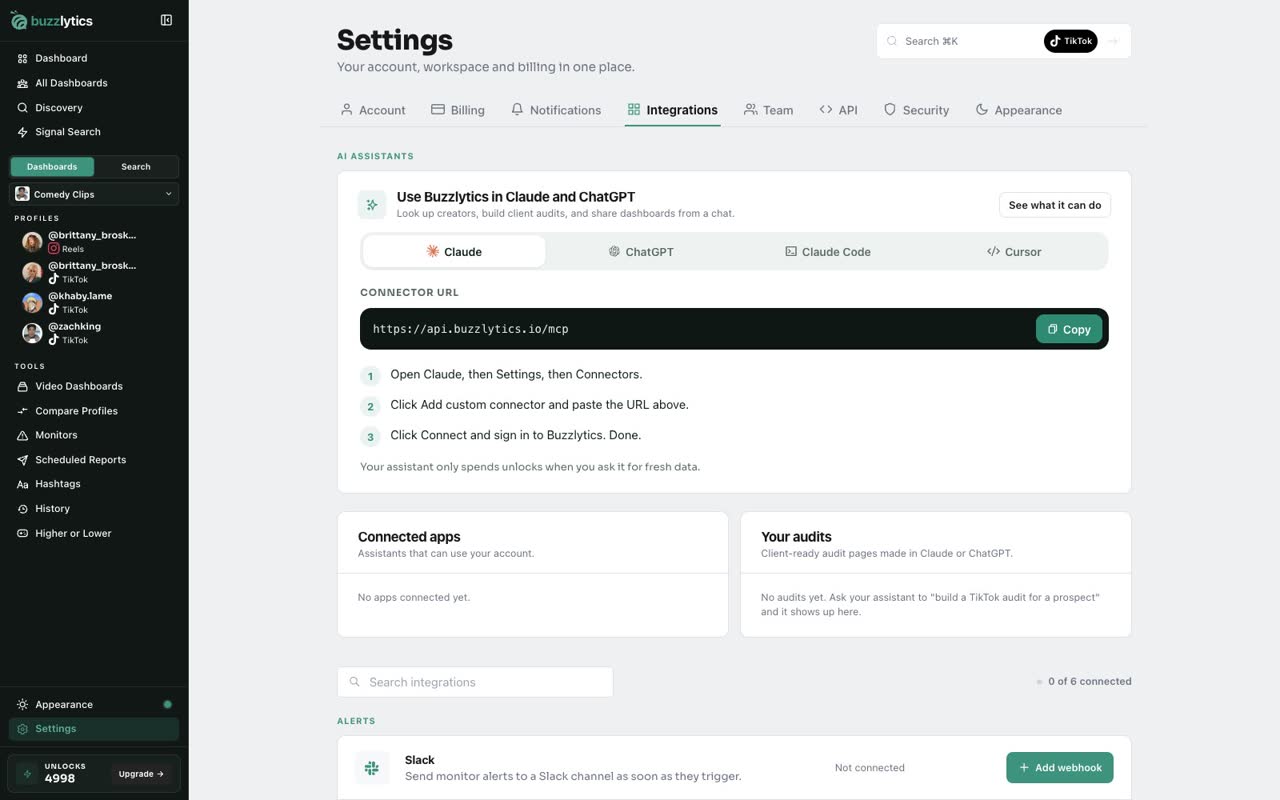
Open Integrations
Open Settings and choose the Integrations tab. Everything you can connect lives here.
-
2
Search or browse
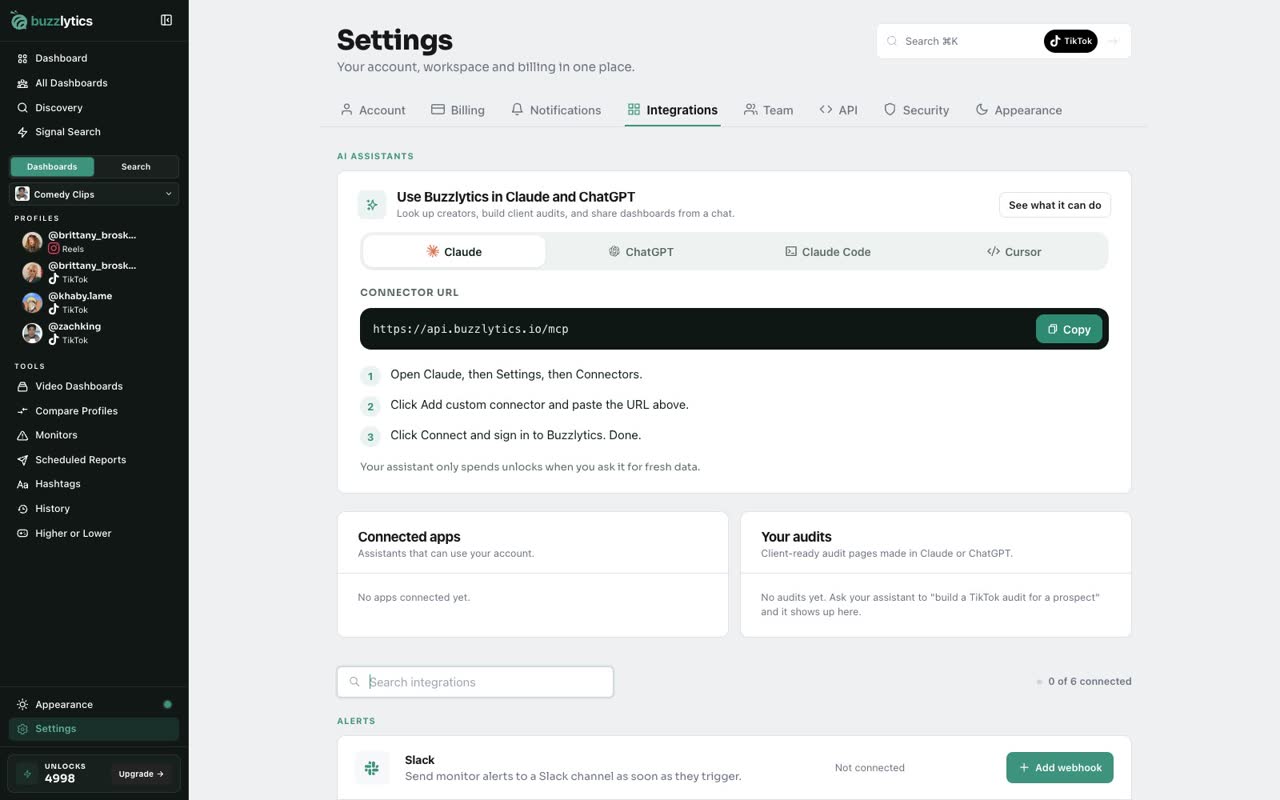
Search for a tool by name, or scroll the list. The counter shows how many are connected.
-
3
Alerts
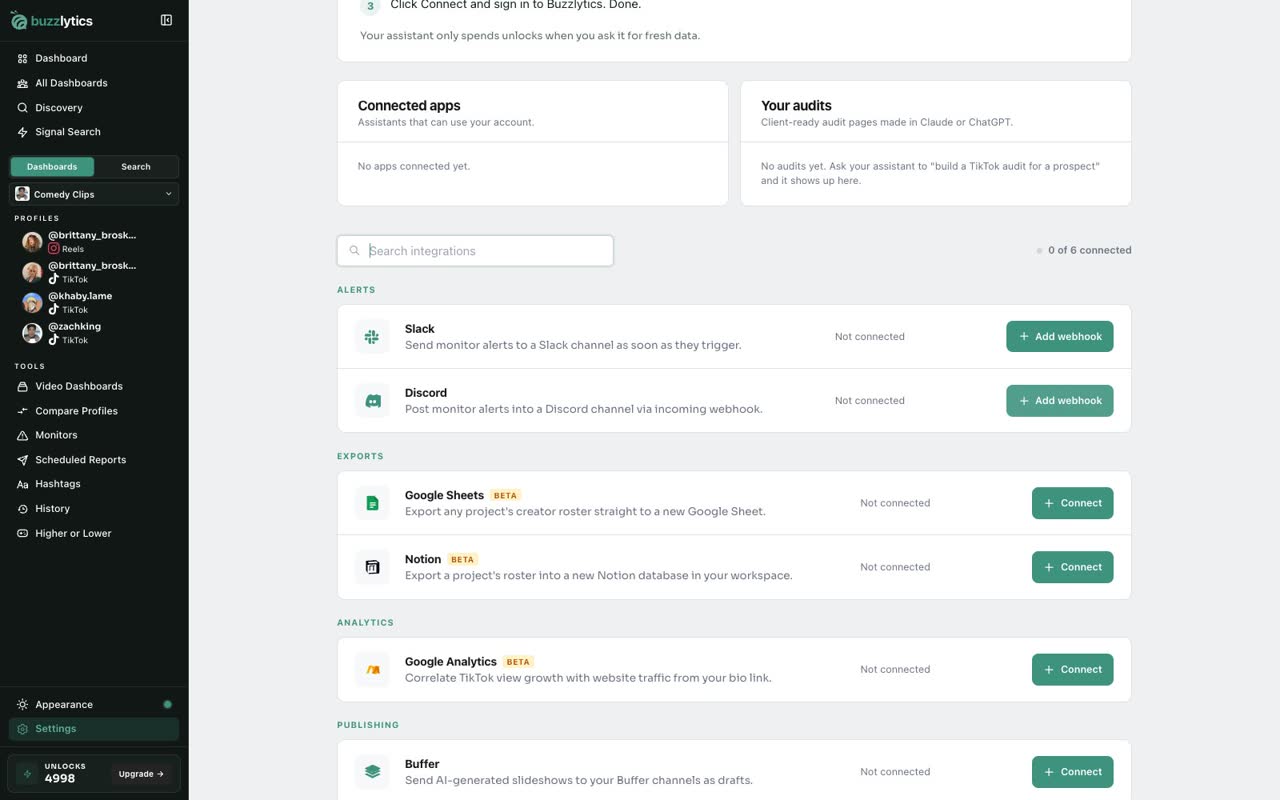
Under Alerts, add a Slack or Discord webhook to send monitor alerts to a team channel.
-
4
Exports
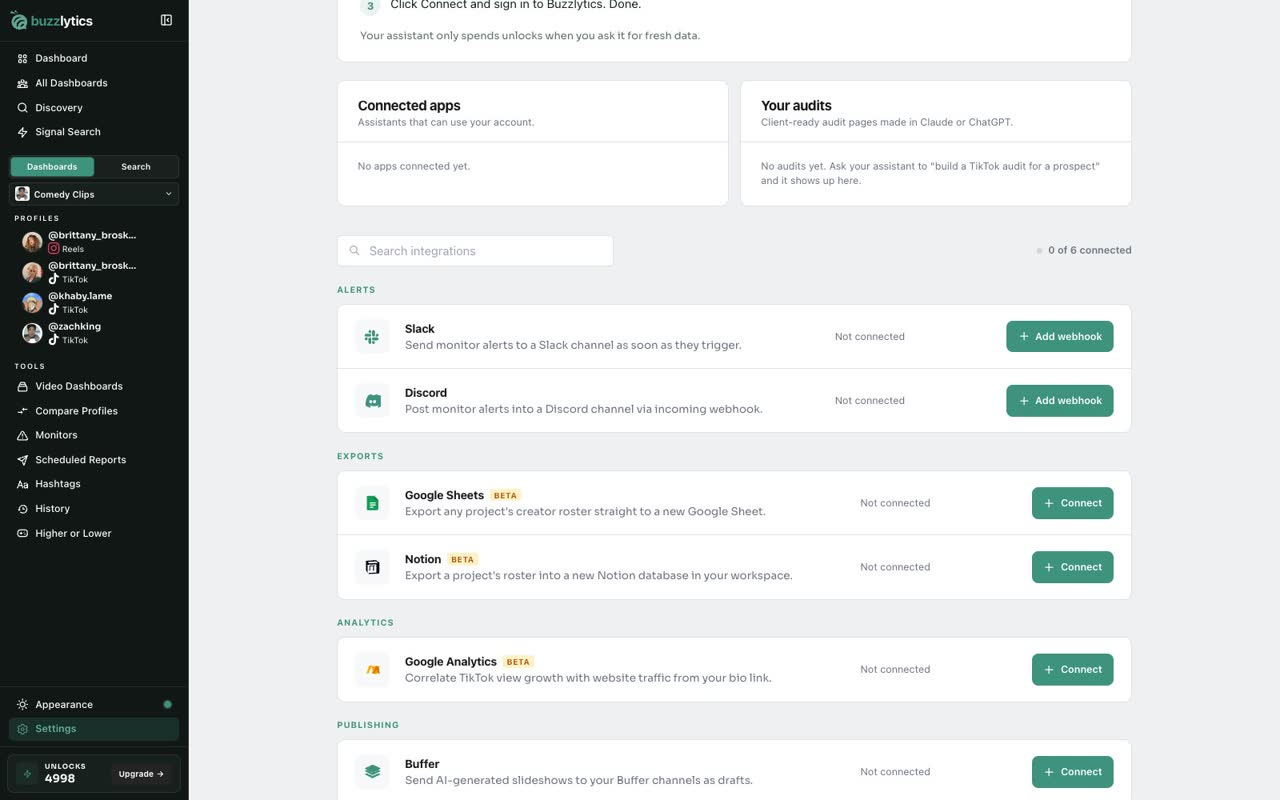
Exports connect Google Sheets and Notion, so you can send a dashboard's roster straight to a sheet or a Notion database.
-
5
Analytics and publishing
Google Analytics links website traffic to a creator's view growth, and Buffer receives your AI slideshows as drafts.
Good to know
- Google Sheets and Notion add export options to a dashboard's Reports menu once connected.
- Google Analytics access is read-only. Buzzlytics never changes your Analytics account.
- On a team, only people with Manage integrations can connect or remove integrations.
Read the full transcript
In this video, you will take a quick tour of the integrations Buzzlytics connects to.
Open Settings and choose the Integrations tab. Everything you can connect lives here.
Search for a tool by name, or scroll the list. The counter shows how many are connected.
Under Alerts, add a Slack or Discord webhook to send monitor alerts to a team channel.
Exports connect Google Sheets and Notion, so you can send a dashboard's roster straight to a sheet or a Notion database.
Google Analytics links website traffic to a creator's view growth, and Buffer receives your AI slideshows as drafts.
Next up, aPI access.