Episodes for clip pages
Group clips by the episode, stream or game they came from and see total views per source across every platform.
Quick steps
- Open the Episodes tab
- Pick what you clip
- Let captions do the work
- See totals per episode
- Add one yourself
Step by step
Prefer reading? Every step shows the screen you’ll see. Click a time to jump the video there.
-
1
Open the Episodes tab
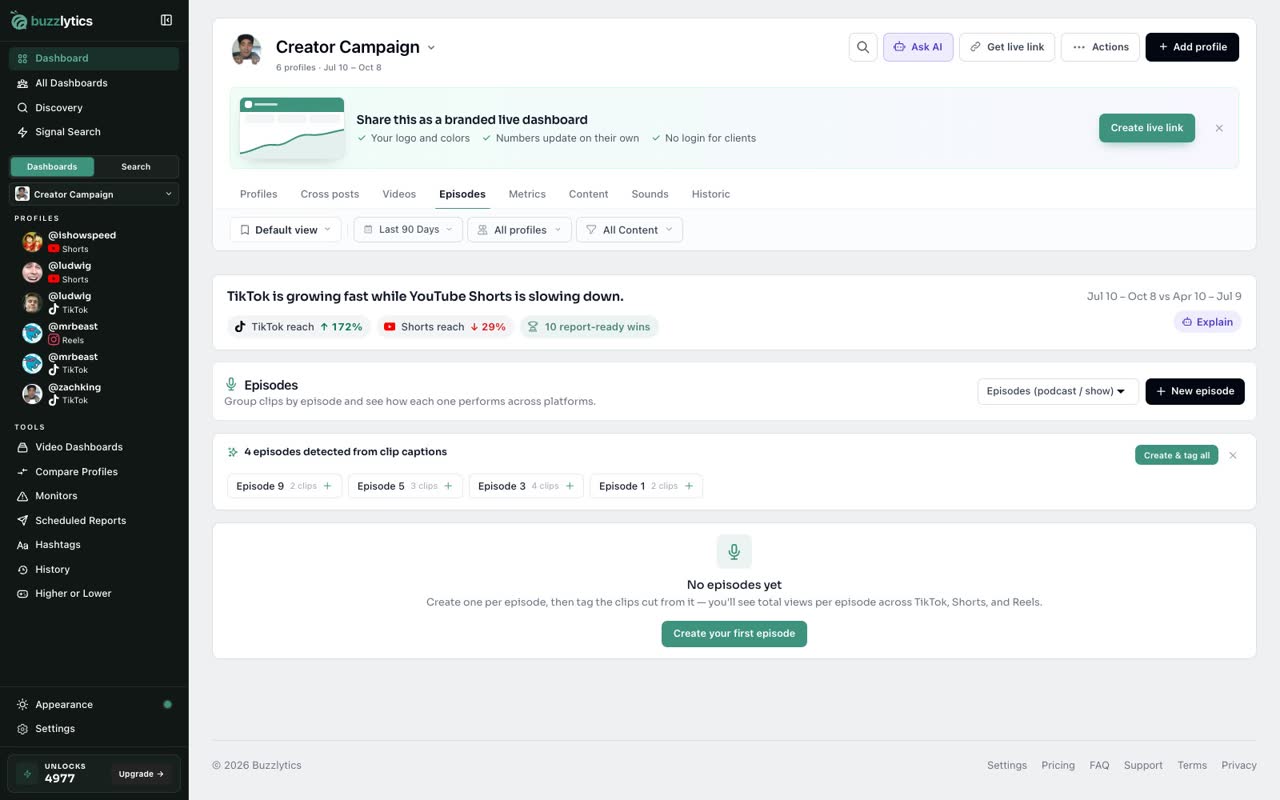
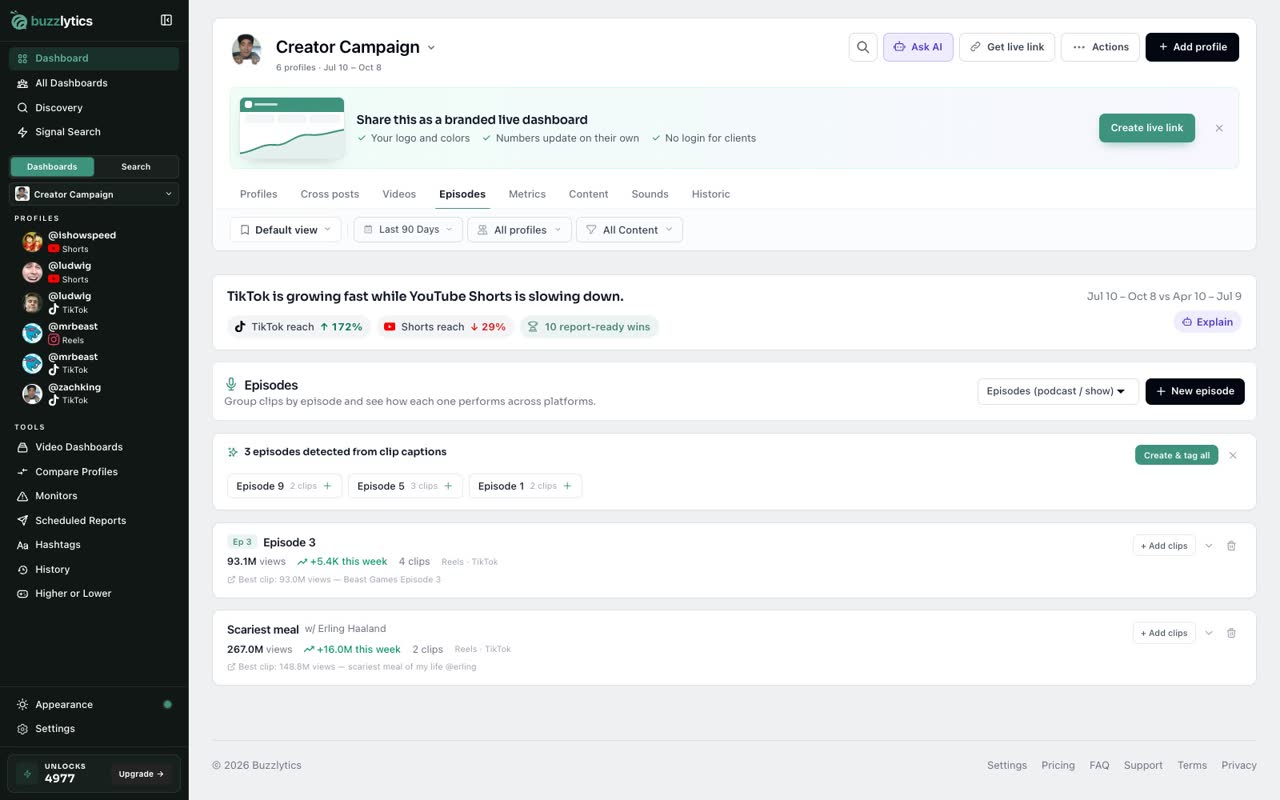
On a dashboard of clip pages, open the Episodes tab. It groups clips by the episode or stream they were cut from.
-
2
Pick what you clip
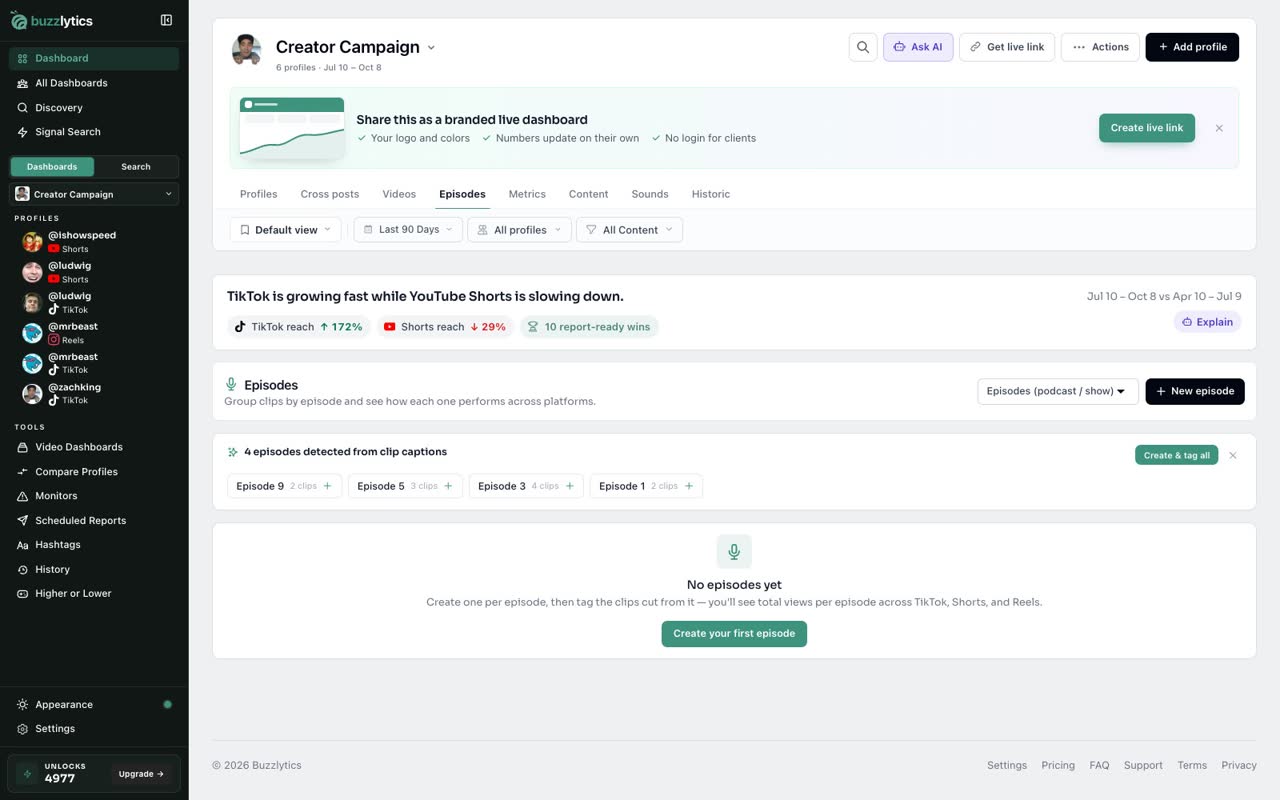
Use this picker to call them Episodes, Streams, Sermons, Games or Songs. The tab name follows.
-
3
Let captions do the work
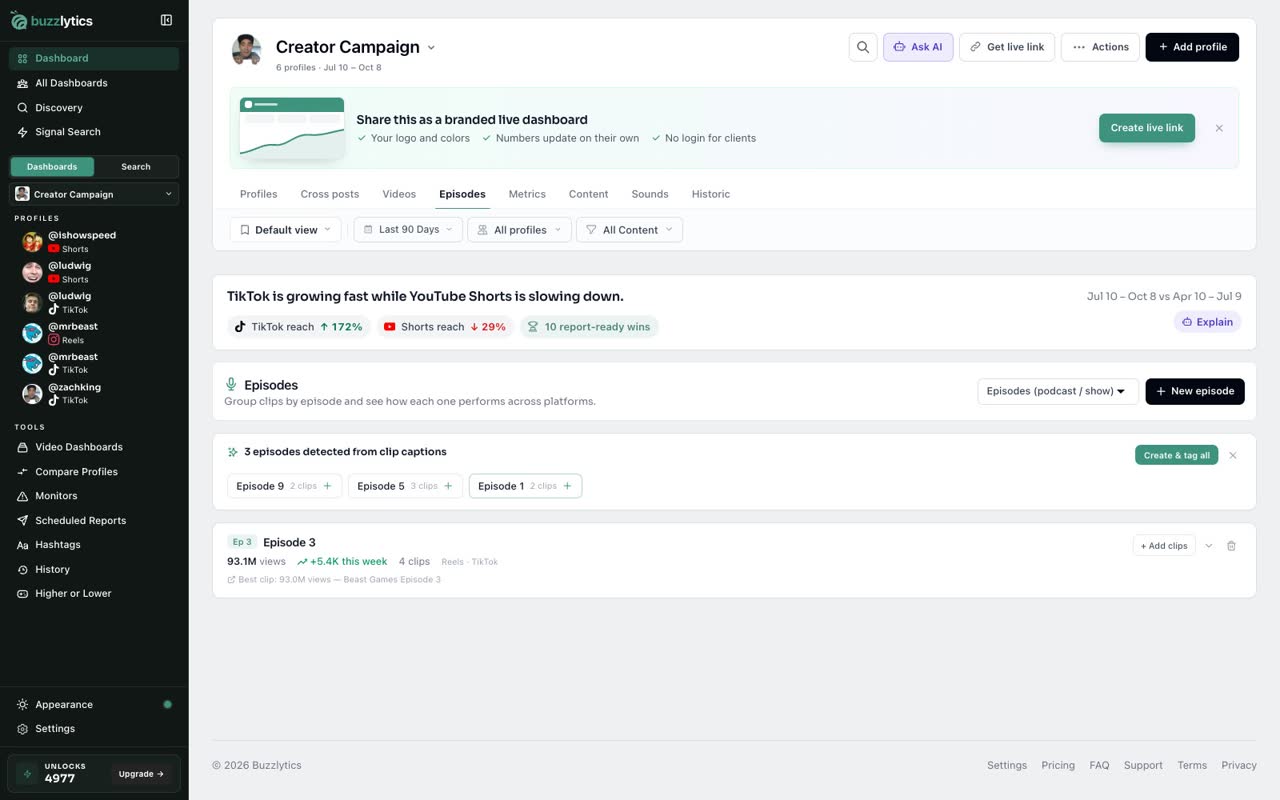
Buzzlytics spots episode numbers in clip captions. Click a suggestion to create that episode and tag its clips, or use Create & tag all.
-
4
See totals per episode
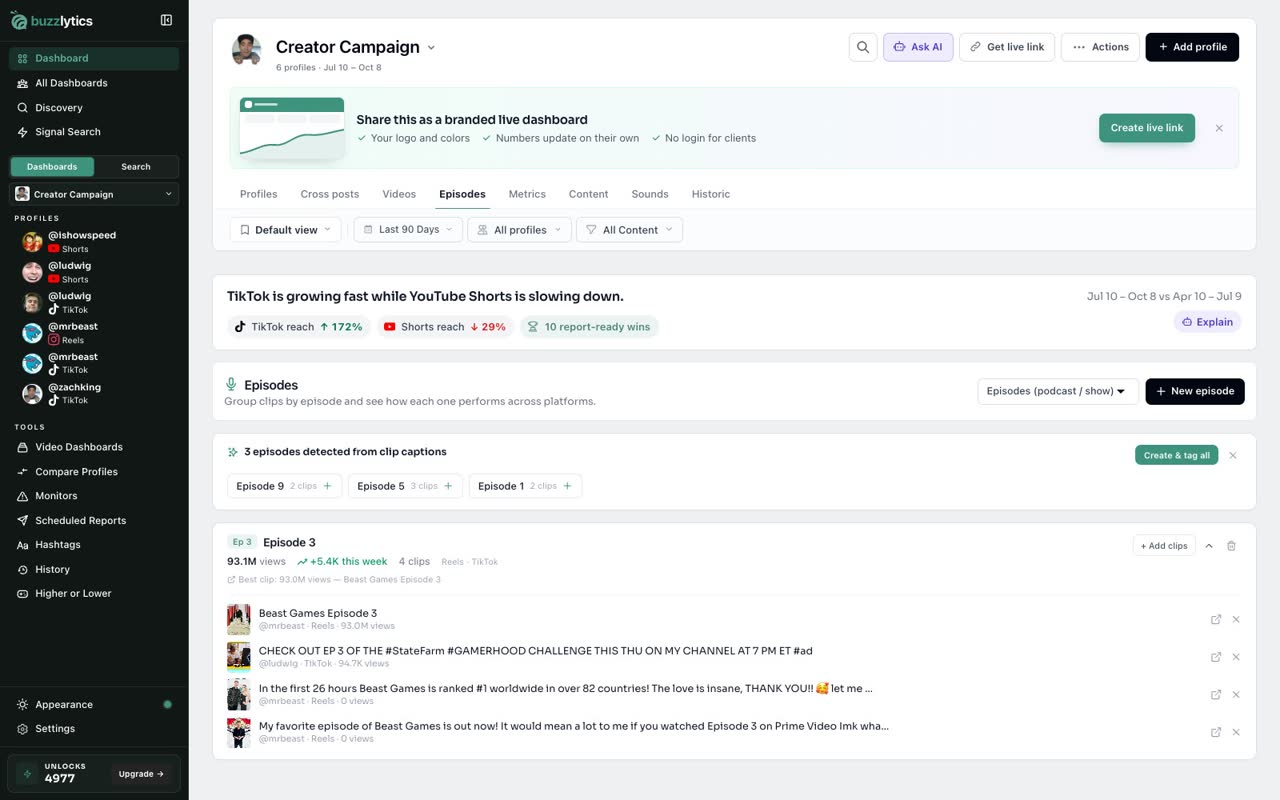
Each episode adds up views across TikTok, Shorts and Reels, and shows its best clip. Expand it to see every clip.
-
5
Add one yourself
You can also click New episode, give it a title and a guest, then use Add clips to tag the clips by hand.
Good to know
- Use the picker to call them Episodes, Streams, Sermons, Games or Songs. The tab name follows.
- If captions mention a number like "ep 142", Buzzlytics suggests episodes for you. Create & tag all builds them in one click.
- Deleting an episode only removes the grouping. The clips stay tracked.
Read the full transcript
In this video, you will group clips by the episode they were cut from.
On a dashboard of clip pages, open the Episodes tab. It groups clips by the episode or stream they were cut from.
Use this picker to call them Episodes, Streams, Sermons, Games or Songs. The tab name follows.
Buzzlytics spots episode numbers in clip captions. Click a suggestion to create that episode and tag its clips, or use Create & tag all.
Each episode adds up views across TikTok, Shorts and Reels, and shows its best clip. Expand it to see every clip.
You can also click New episode, give it a title and a guest, then use Add clips to tag the clips by hand.
That's it. You're ready to go.