Read a creator profile
Open any creator and read their highlights, account stats, videos, metrics and AI analysis in one place.
Quick steps
- The profile header
- Highlights at a glance
- Account stats
- Browse every video
- Metrics
- Analysis
- Change the date range
Step by step
Prefer reading? Every step shows the screen you’ll see. Click a time to jump the video there.
-
1
The profile header
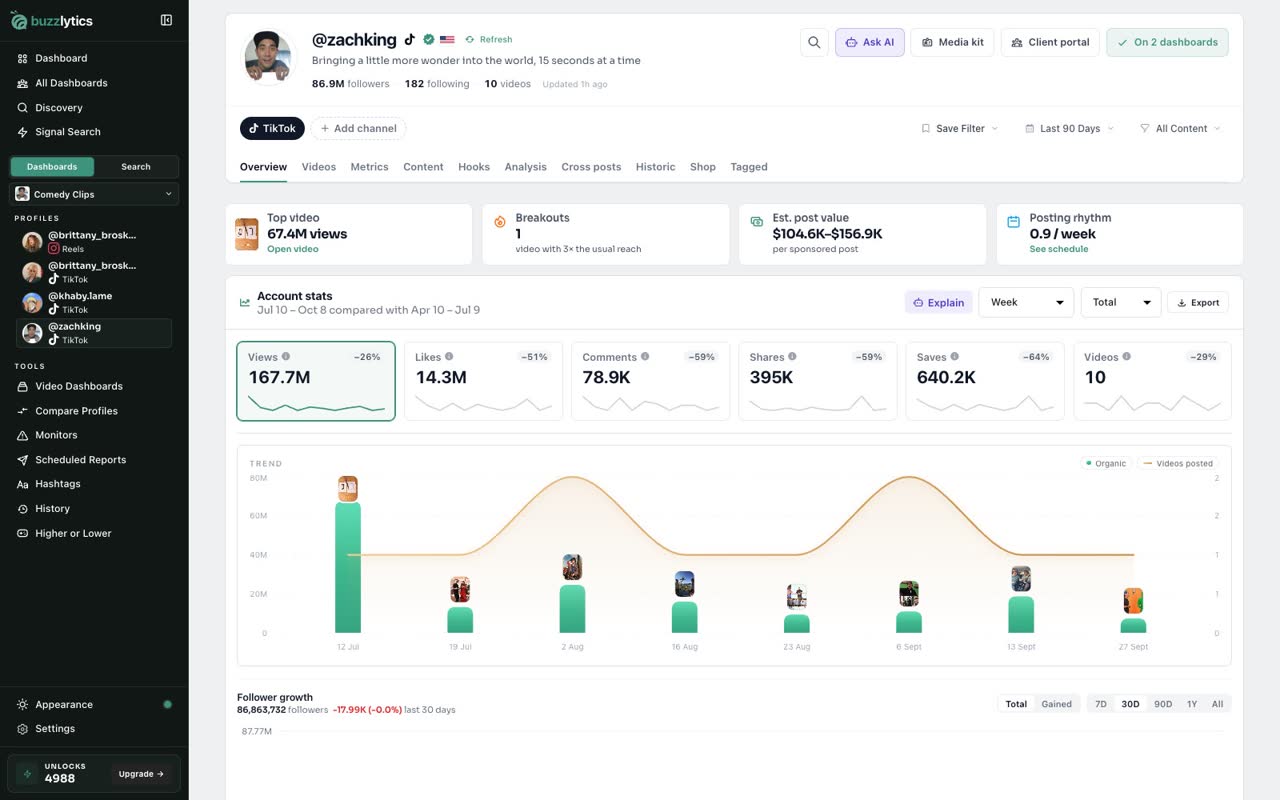
Every profile starts with the basics: followers, videos, and when the numbers were last updated.
-
2
Highlights at a glance
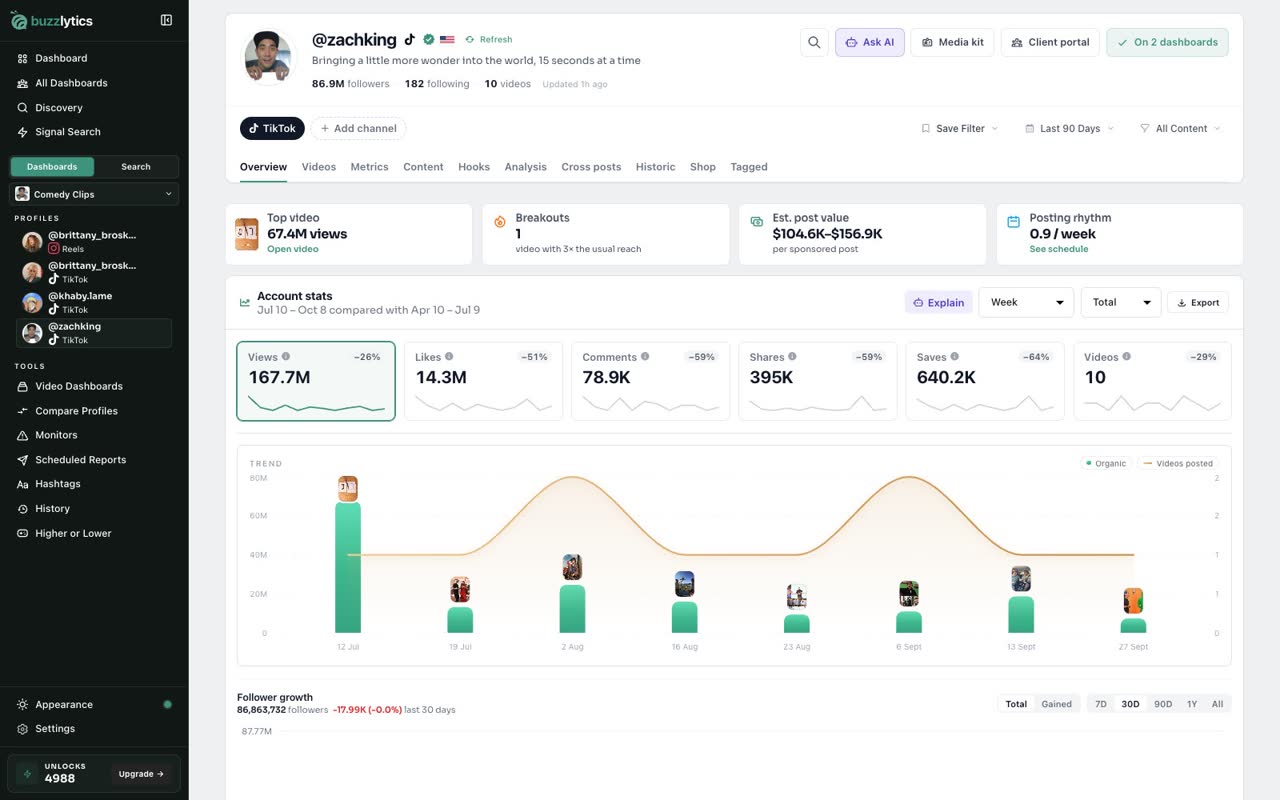
The Overview tab opens with highlights, like their top video, breakout posts and an estimated price per sponsored post.
-
3
Account stats
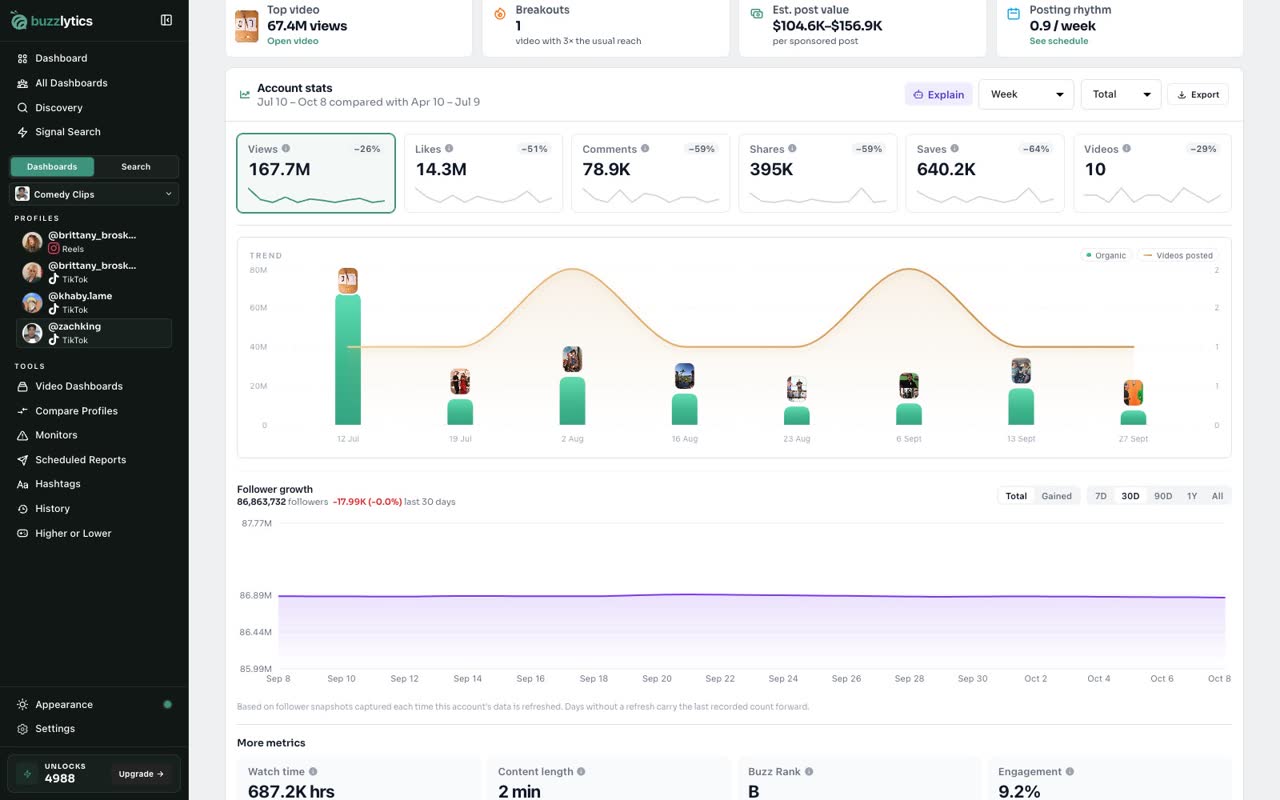
Account stats compares this period with the one before it, and the trend chart shows which posts drove the views.
-
4
Browse every video
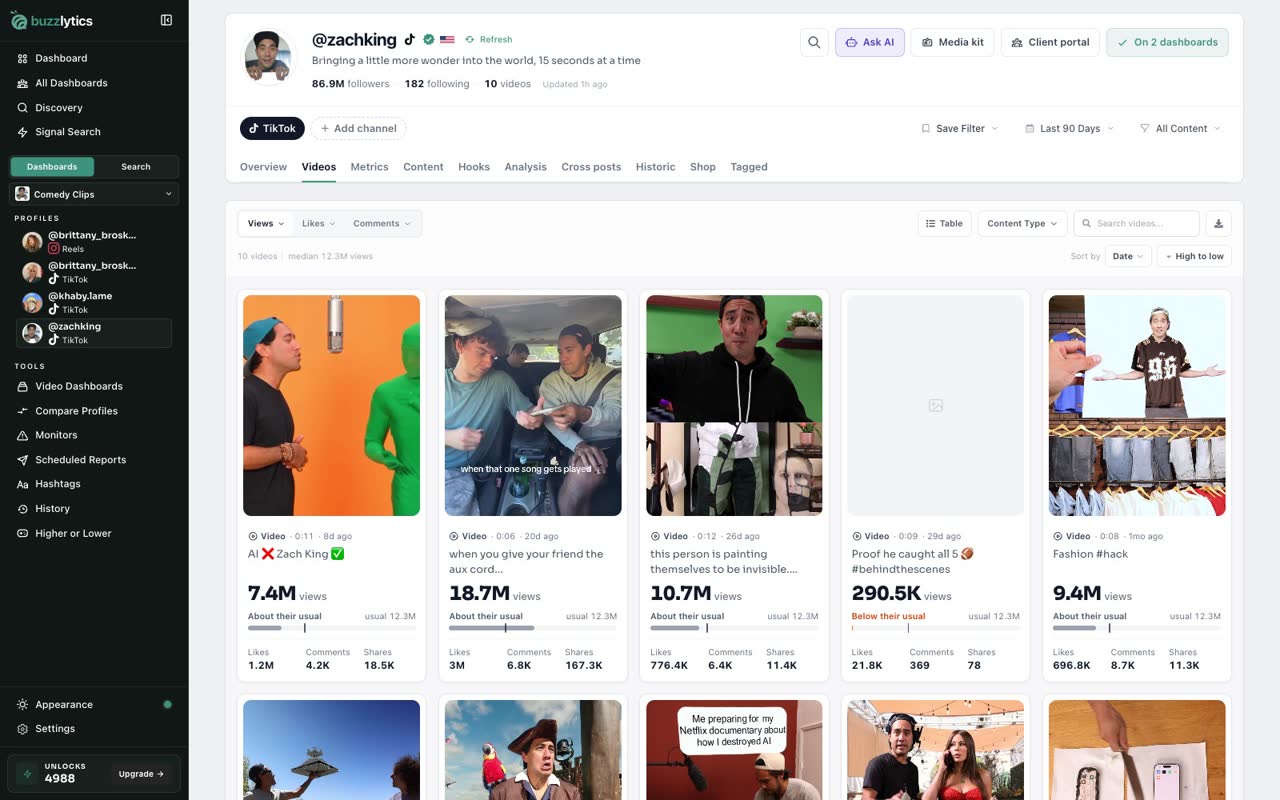
Open the Videos tab to see every post, with its views and how it compares to their usual.
-
5
Metrics
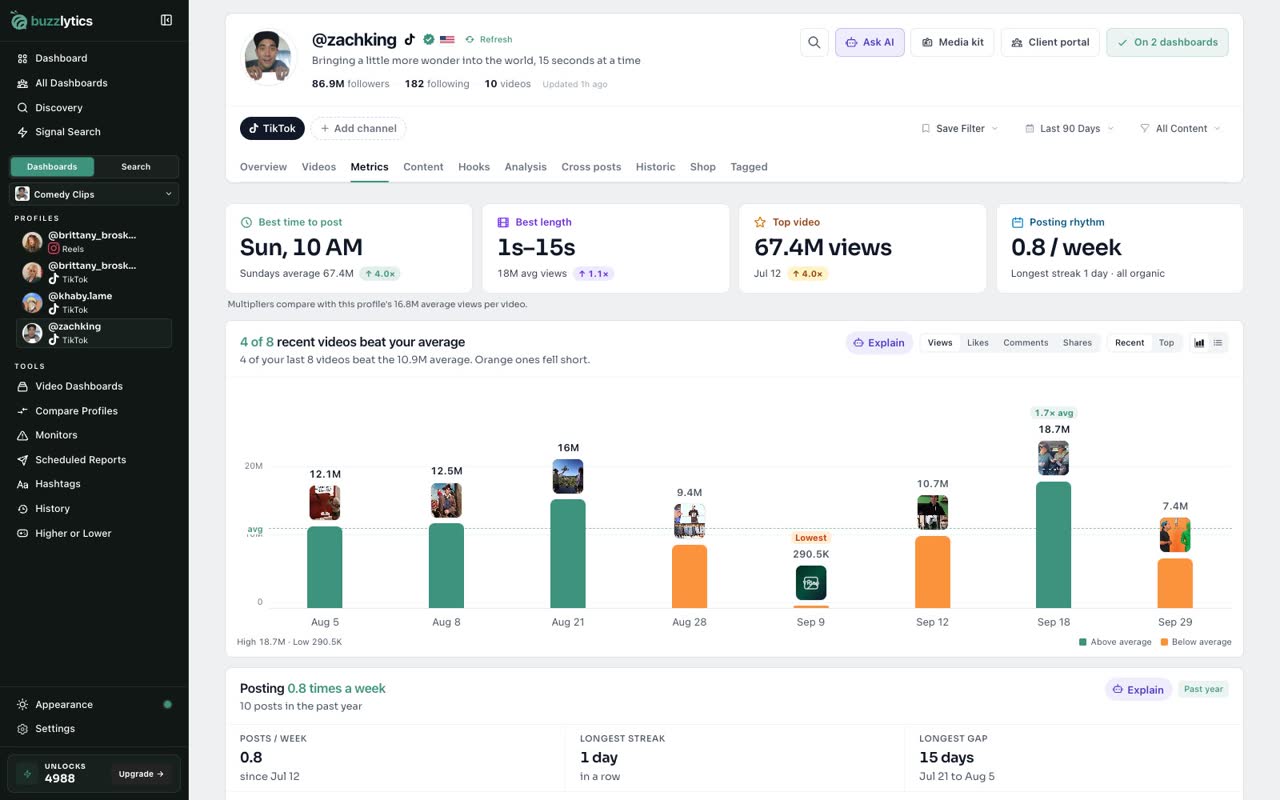
Metrics shows the best time to post, the best video length, and which recent videos beat their average.
-
6
Analysis
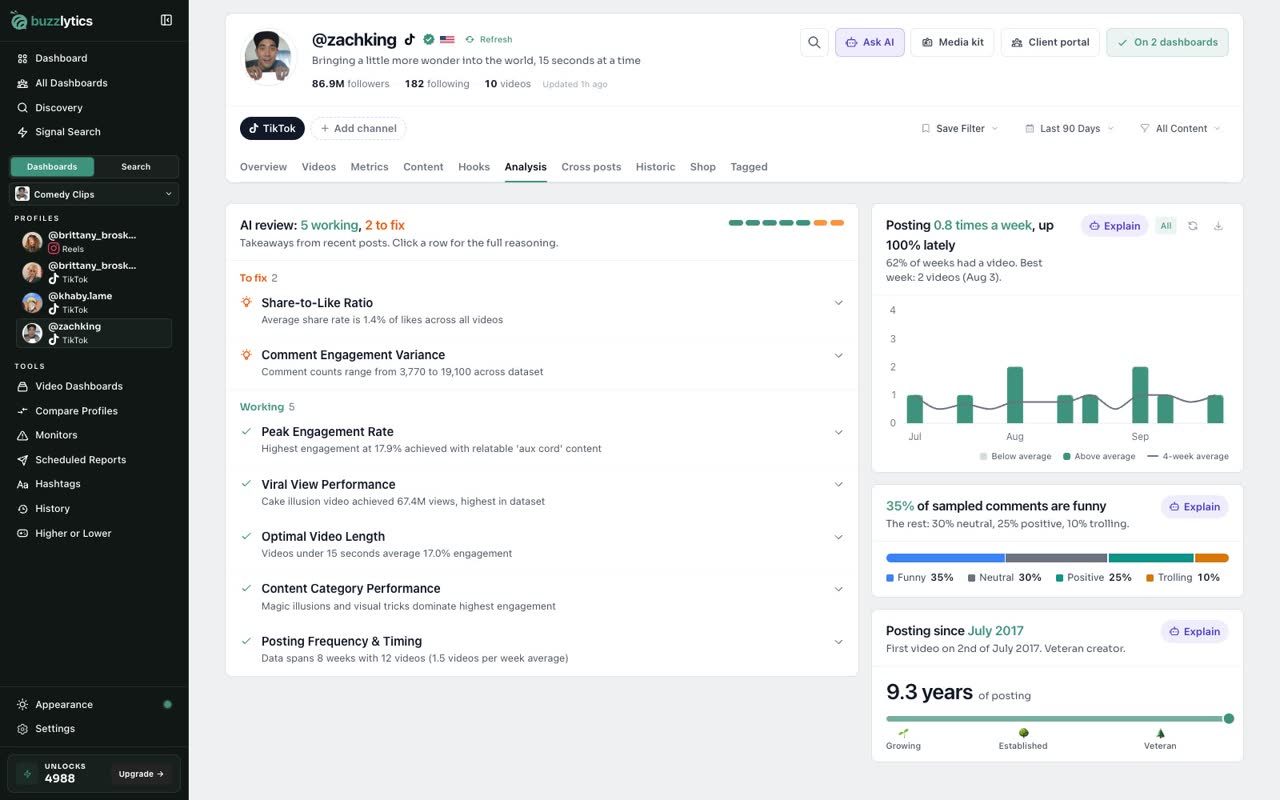
Analysis gives you an AI review of what is working and what to fix, plus what the comments are saying.
-
7
Change the date range
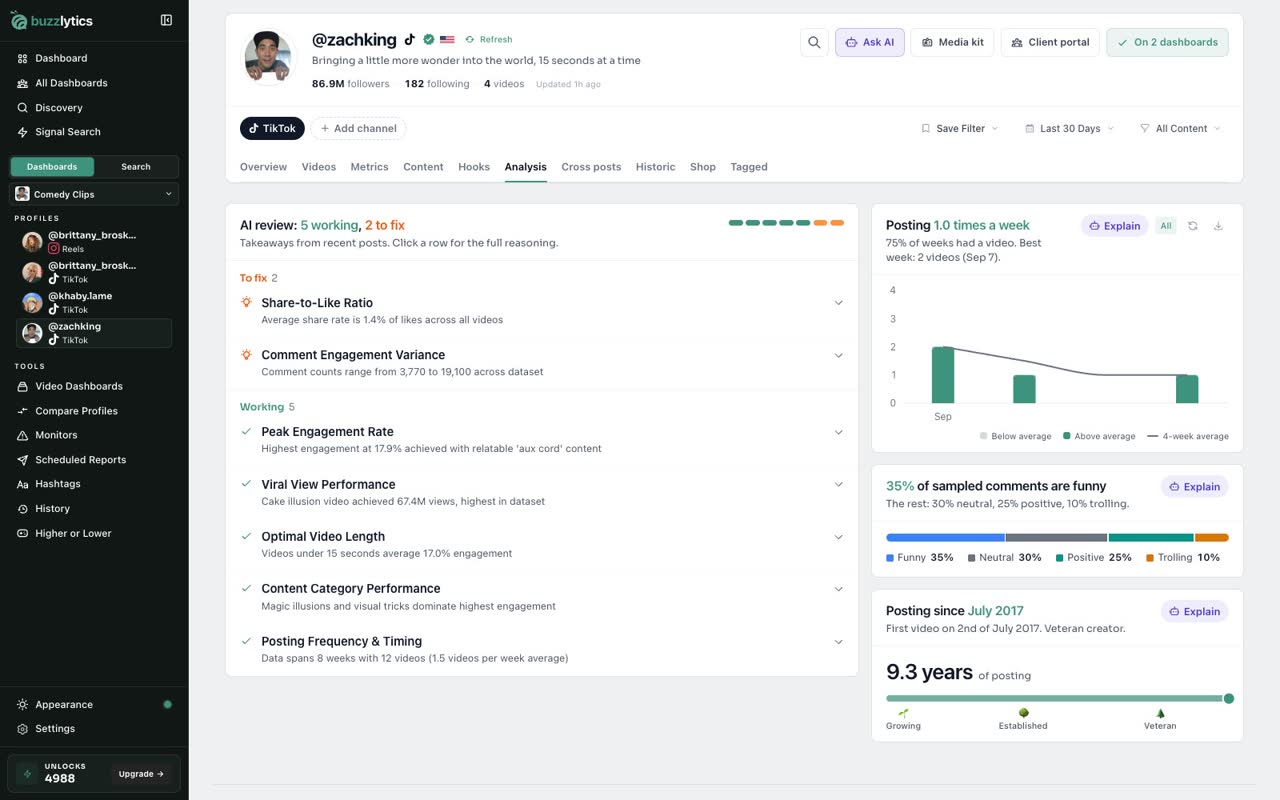
Use the date filter at the top to change the period. Every tab updates to match.
Good to know
- Opening a profile nobody on your account has looked up yet uses 1 unlock. Profiles already on your dashboards are free to open.
- Click Refresh next to the handle to pull new videos and follower changes. A refresh uses 1 unlock.
- The date filter applies to every tab, so set it once and read the whole profile for that period.
Read the full transcript
In this video, you will take a tour of a creator profile and what each tab tells you.
Every profile starts with the basics: followers, videos, and when the numbers were last updated.
The Overview tab opens with highlights, like their top video, breakout posts and an estimated price per sponsored post.
Account stats compares this period with the one before it, and the trend chart shows which posts drove the views.
Open the Videos tab to see every post, with its views and how it compares to their usual.
Metrics shows the best time to post, the best video length, and which recent videos beat their average.
Analysis gives you an AI review of what is working and what to fix, plus what the comments are saying.
Use the date filter at the top to change the period. Every tab updates to match.
Next up, video quick view.