Prospect audits from Claude or ChatGPT
Ask Claude or ChatGPT to audit a prospect and get a client-ready page with real numbers, then find and manage it in Settings.
Quick steps
- Ask your assistant
- Find it in Your audits
- Open the audit
- Numbers against competitors
- Moves to make
- Delete when you are done
Step by step
Prefer reading? Every step shows the screen you’ll see. Click a time to jump the video there.
-
1
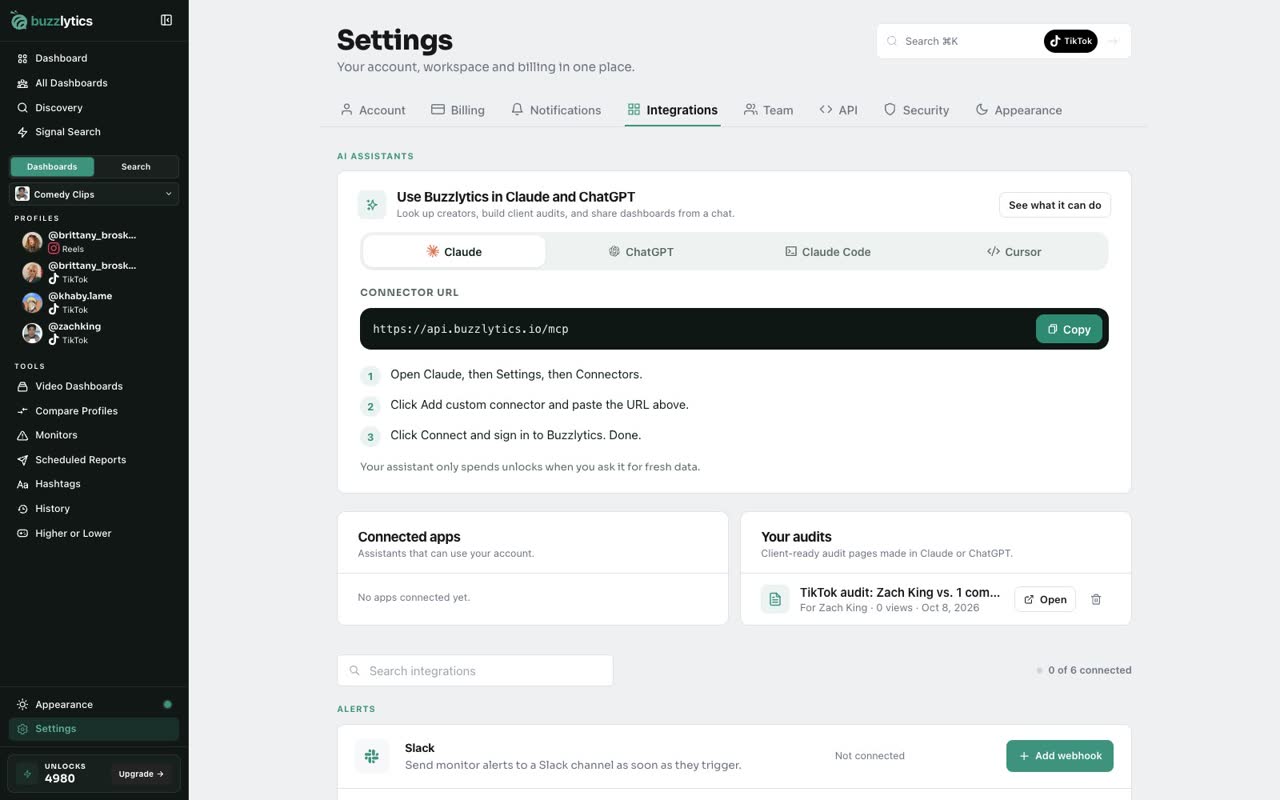
Ask your assistant
With Buzzlytics connected, ask Claude or ChatGPT to audit a prospect. It pulls the real numbers and writes the page for you.
-
2
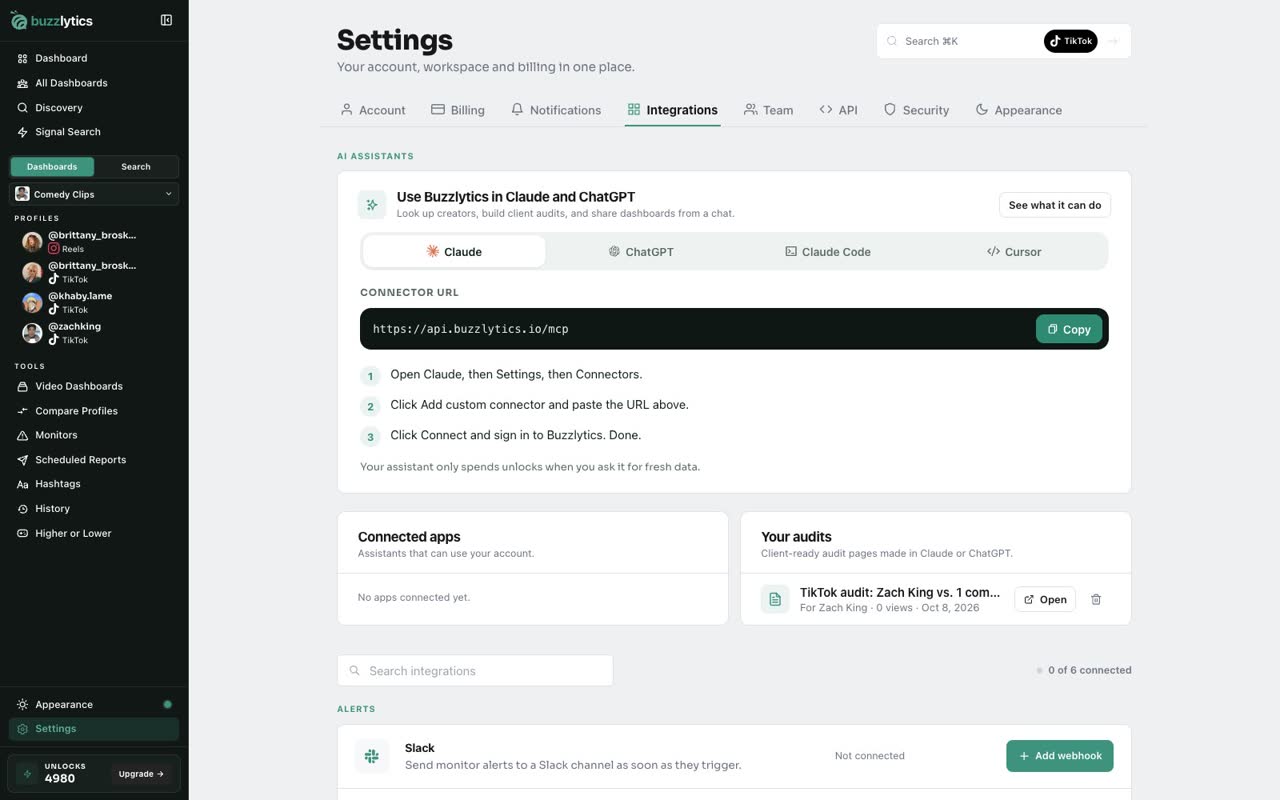
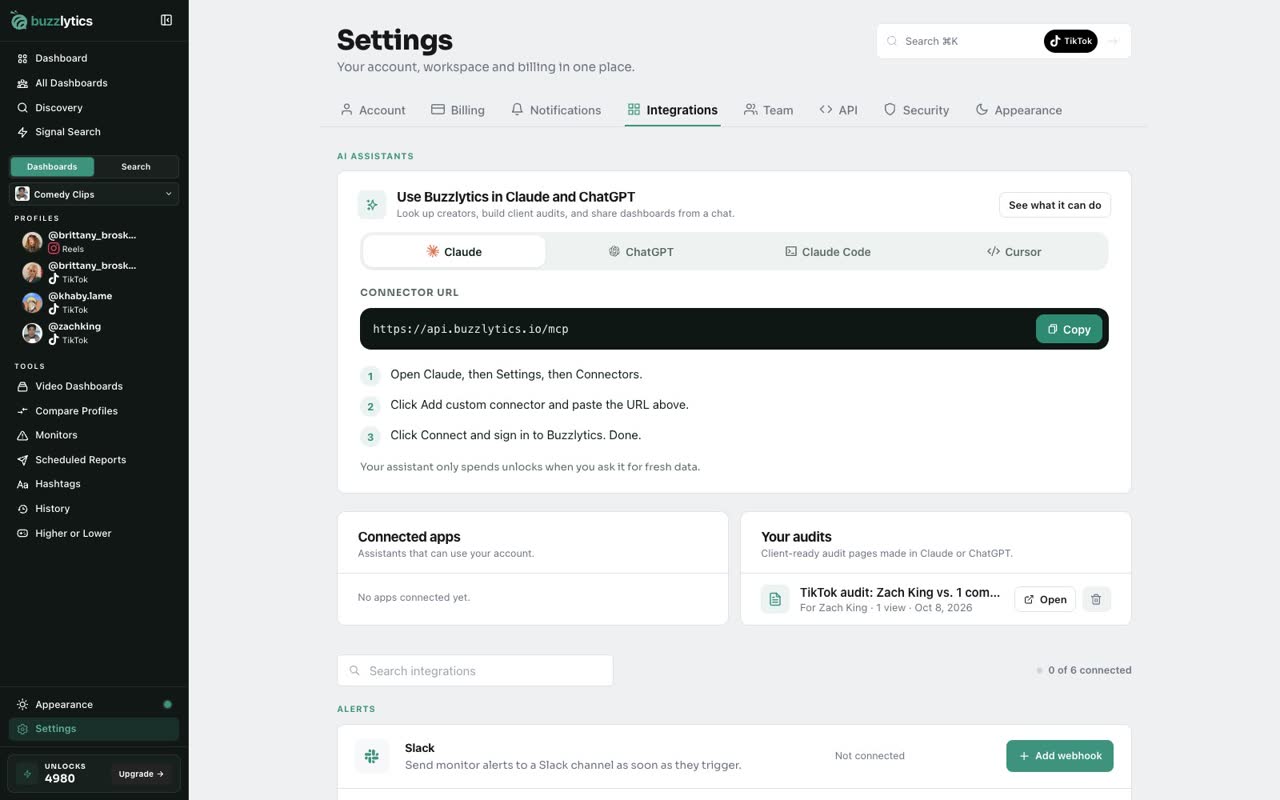
Find it in Your audits
Every audit lands in Settings, Integrations, under Your audits, with who it is for and how many views it has.
-
3
Open the audit
Click Open to see the page. Anyone with the link can view it, no login needed.
-
4
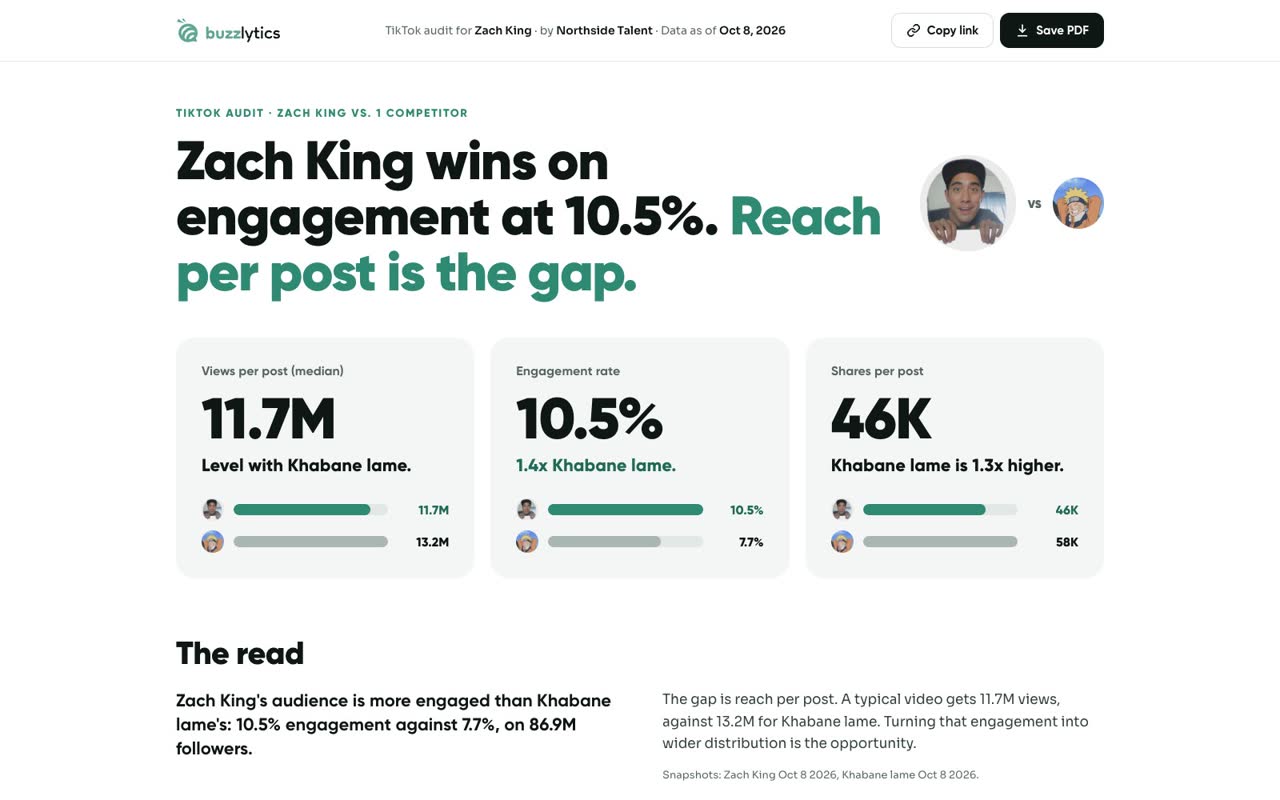
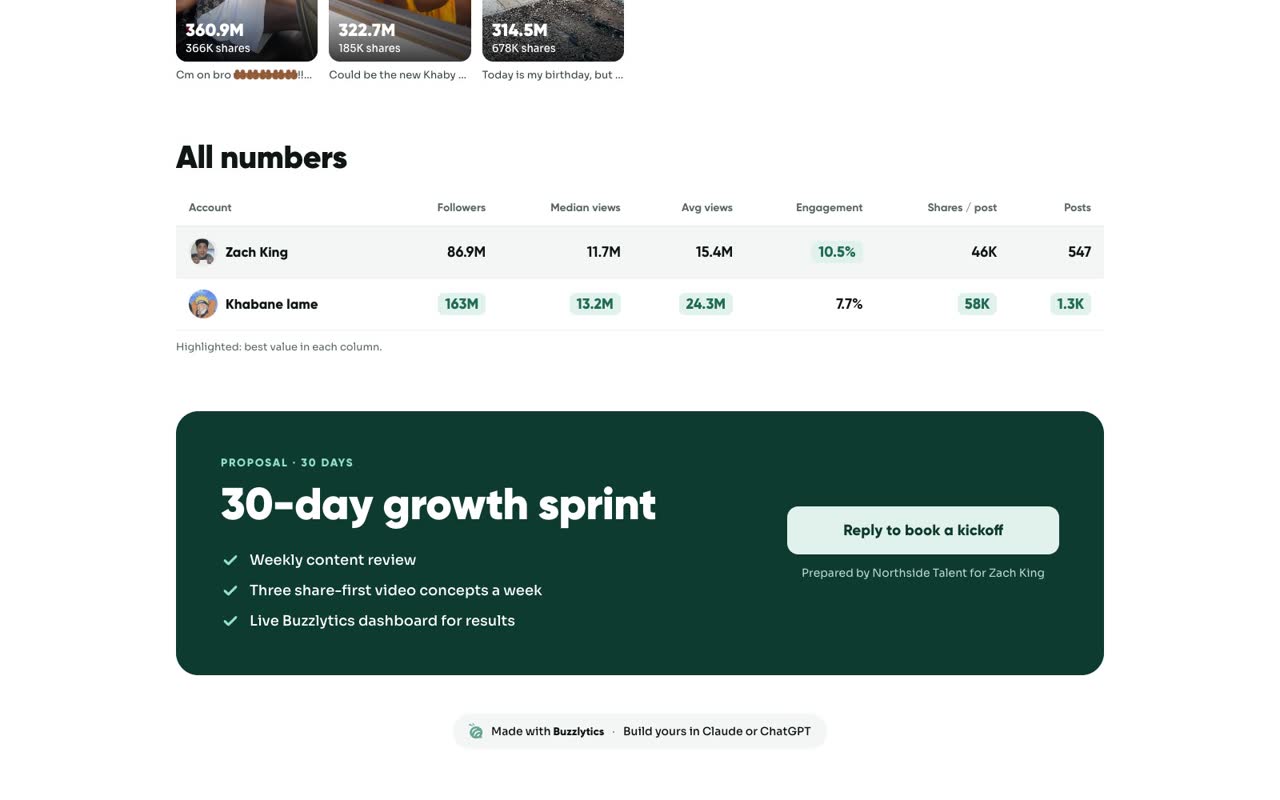
Numbers against competitors
The verdict and summary come from real Buzzlytics data, compared side by side with the competitors you asked about.
-
5
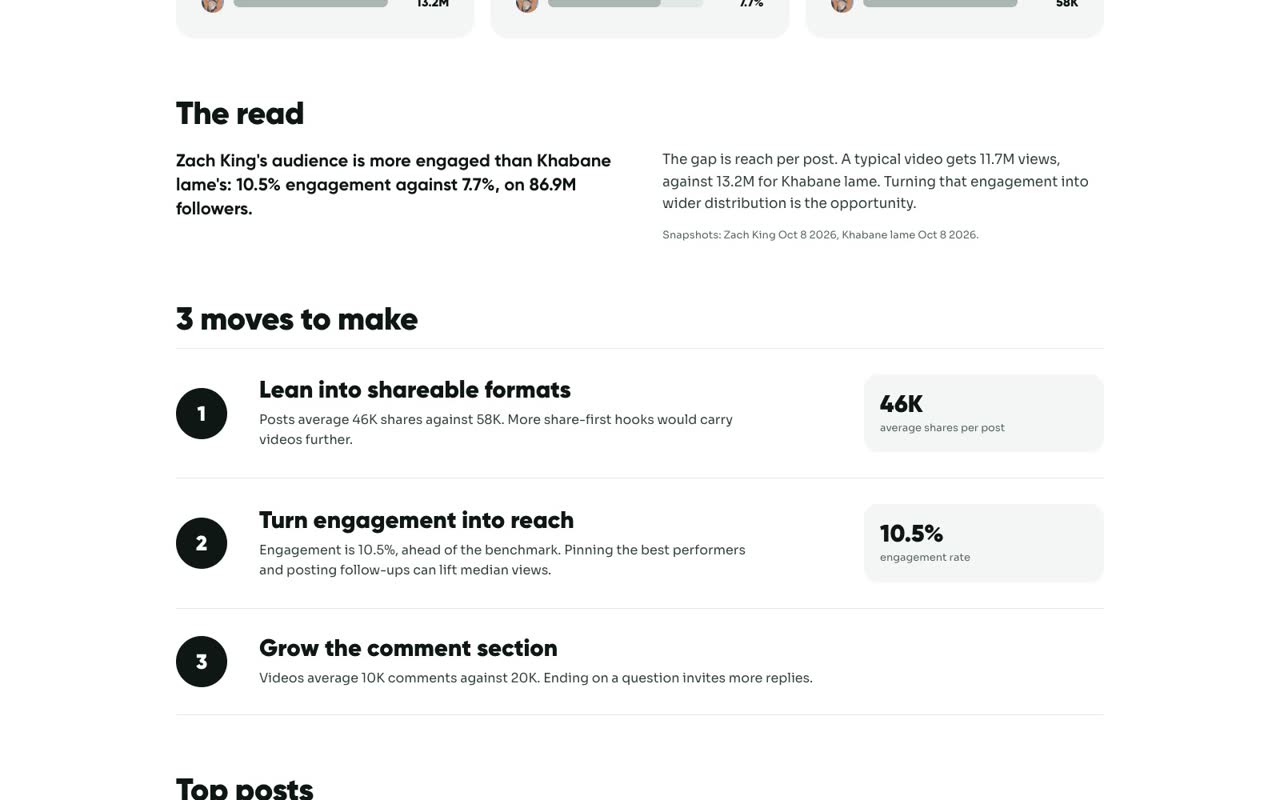
Moves to make
Then come the opportunities, each backed by a number, plus a proposal and a reply button.
-
6
Delete when you are done
Back in Your audits, the trash icon deletes an audit, and its link stops working right away.
Good to know
- Ask something like: build a TikTok audit for this prospect against two competitors. The assistant gives you the link.
- Free plans can make 3 audits a month. Paid plans are unlimited.
- Delete an audit in Settings, Integrations, Your audits, and the link stops working right away.
Read the full transcript
In this video, you will see the audit pages your AI assistant makes, and where to manage them.
With Buzzlytics connected, ask Claude or ChatGPT to audit a prospect. It pulls the real numbers and writes the page for you.
Every audit lands in Settings, Integrations, under Your audits, with who it is for and how many views it has.
Click Open to see the page. Anyone with the link can view it, no login needed.
The verdict and summary come from real Buzzlytics data, compared side by side with the competitors you asked about.
Then come the opportunities, each backed by a number, plus a proposal and a reply button.
Back in Your audits, the trash icon deletes an audit, and its link stops working right away.
Next up, invite your team.