Notification settings
See where your alerts go, which monitors use each channel, and which emails Buzzlytics sends you.
Quick steps
- Open Notifications
- Where alerts go
- What we send
- Product update emails
- Always sent
Step by step
Prefer reading? Every step shows the screen you’ll see. Click a time to jump the video there.
-
1
Open Notifications
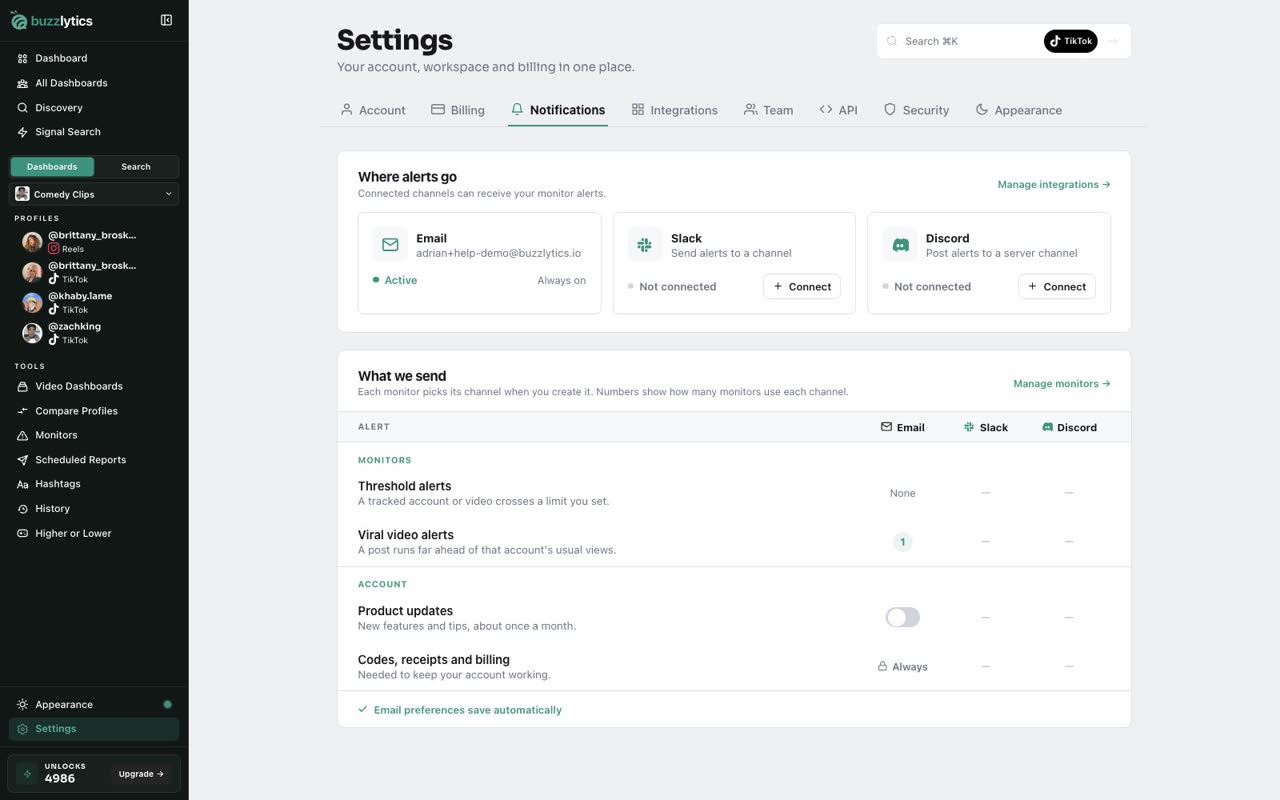
Open Settings and choose the Notifications tab.
-
2
Where alerts go
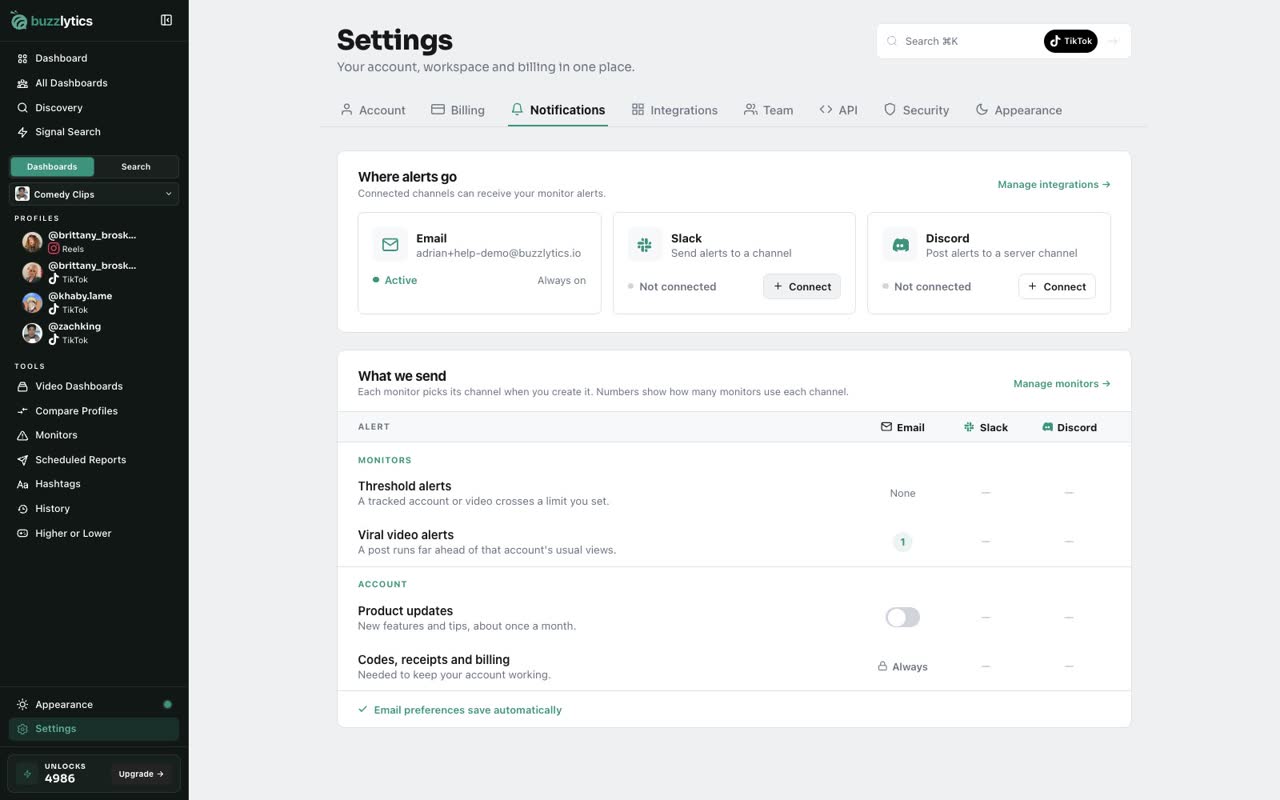
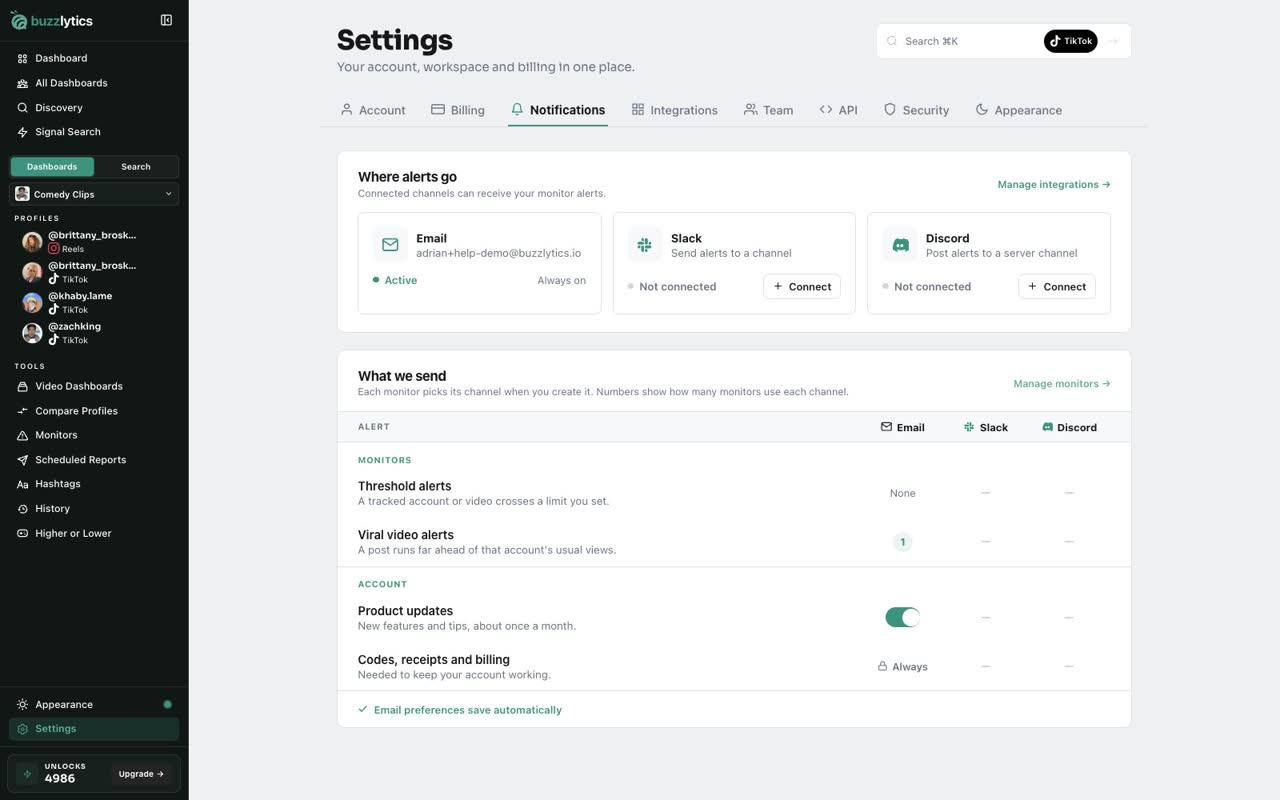
Where alerts go lists your channels. Email is always on, and Slack or Discord show up once you connect them.
-
3
What we send
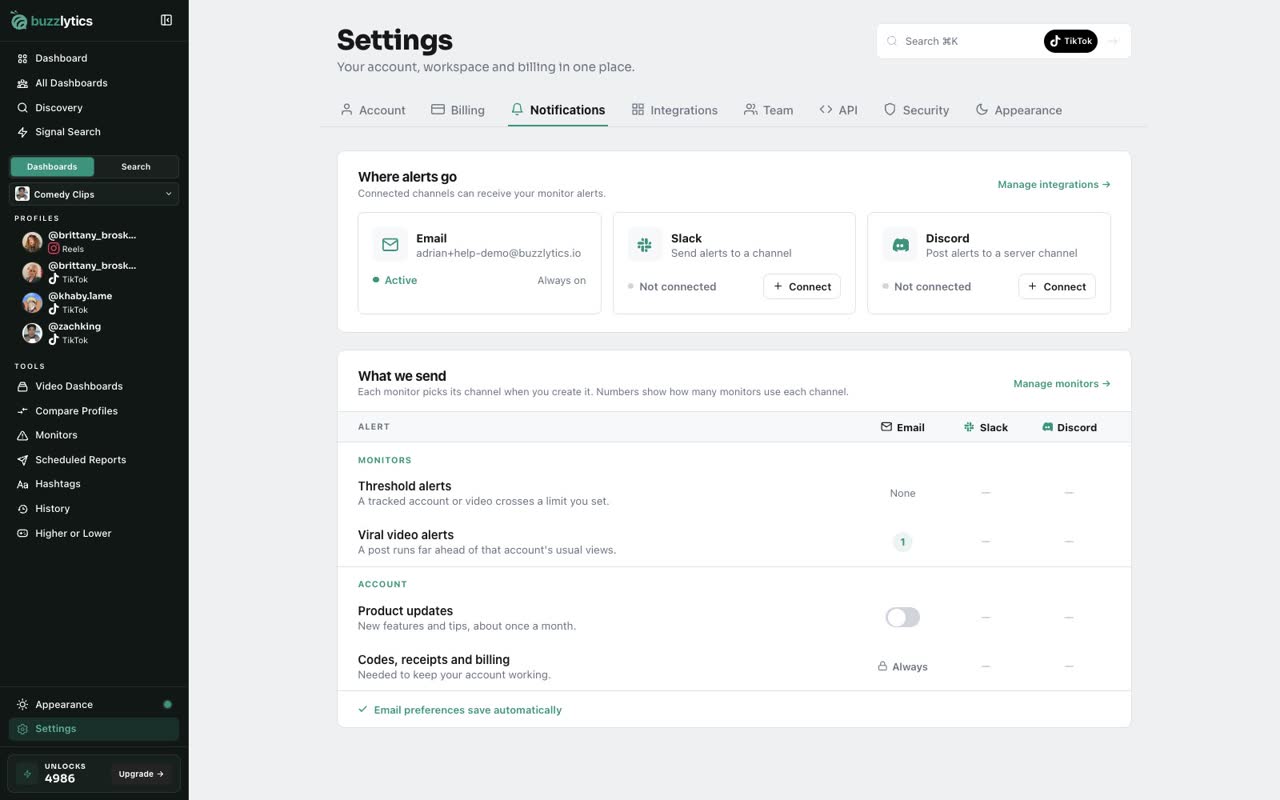
What we send shows how many monitors use each channel. Here, one breakout monitor emails viral video alerts.
-
4
Product update emails
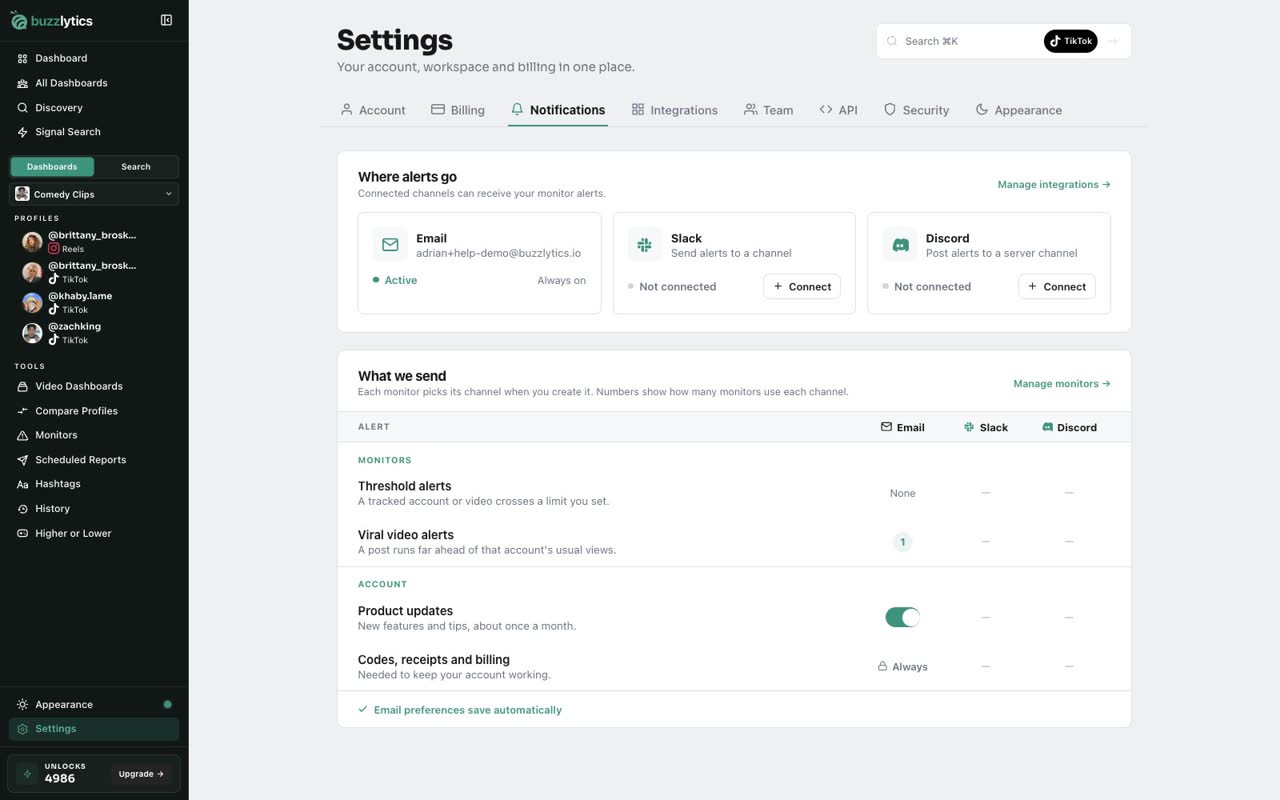
Turn Product updates on or off with the switch. It saves automatically.
-
5
Always sent
Codes, receipts and billing emails are always sent, because your account needs them to keep working.
Good to know
- Each monitor picks its own channel when you create it. This page shows the totals.
- Once Slack or Discord is connected, Send test posts a test message to that channel.
- Codes, receipts and billing emails are always sent, so your account keeps working.
Read the full transcript
In this video, you will see where your alerts go and choose which emails you get.
Open Settings and choose the Notifications tab.
Where alerts go lists your channels. Email is always on, and Slack or Discord show up once you connect them.
What we send shows how many monitors use each channel. Here, one breakout monitor emails viral video alerts.
Turn Product updates on or off with the switch. It saves automatically.
Codes, receipts and billing emails are always sent, because your account needs them to keep working.
Next up, ask AI about your dashboard.