Auto-import new posts
Connect a creator account to a Video Dashboard and every new post they publish is added for you.
Quick steps
- Find Auto-import
- Connect an account
- Choose what to import
- Review the connection
- Connect and enable
- Pause or disconnect any time
Step by step
Prefer reading? Every step shows the screen you’ll see. Click a time to jump the video there.
-
1
Find Auto-import
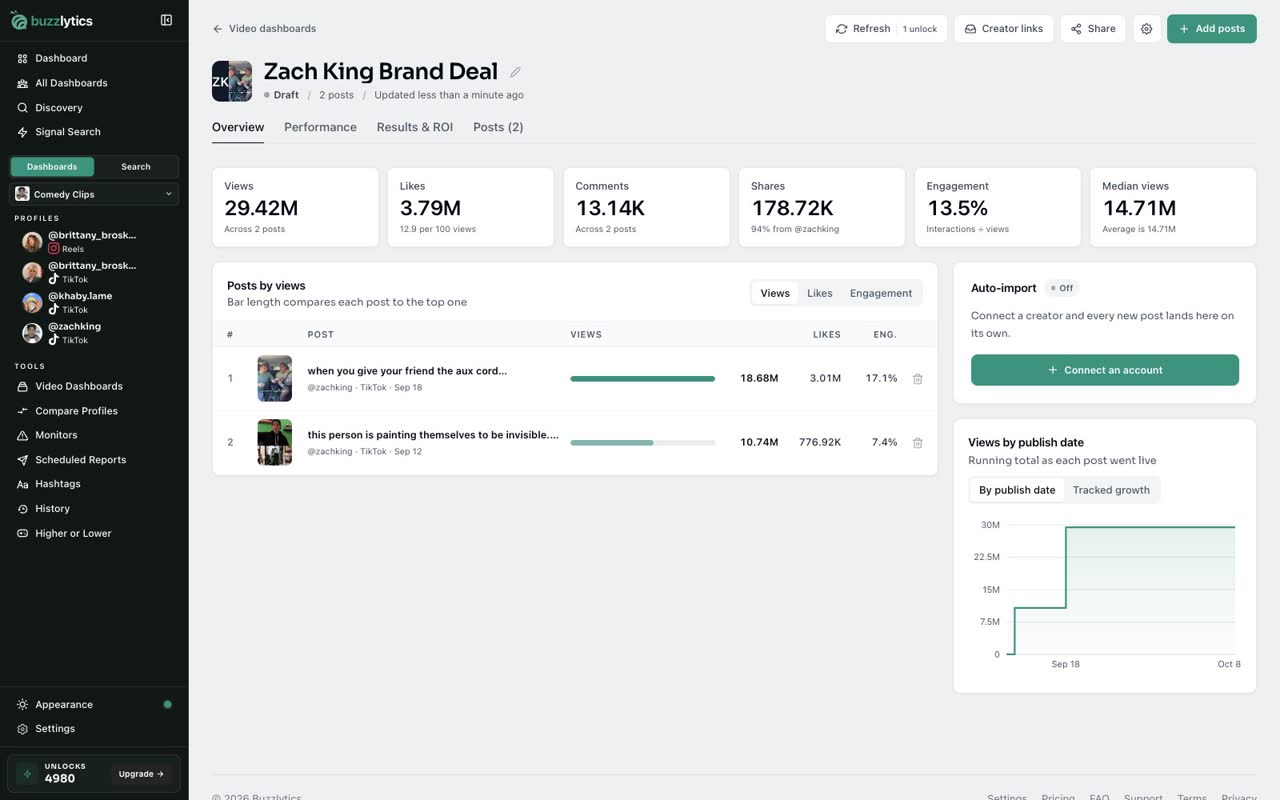
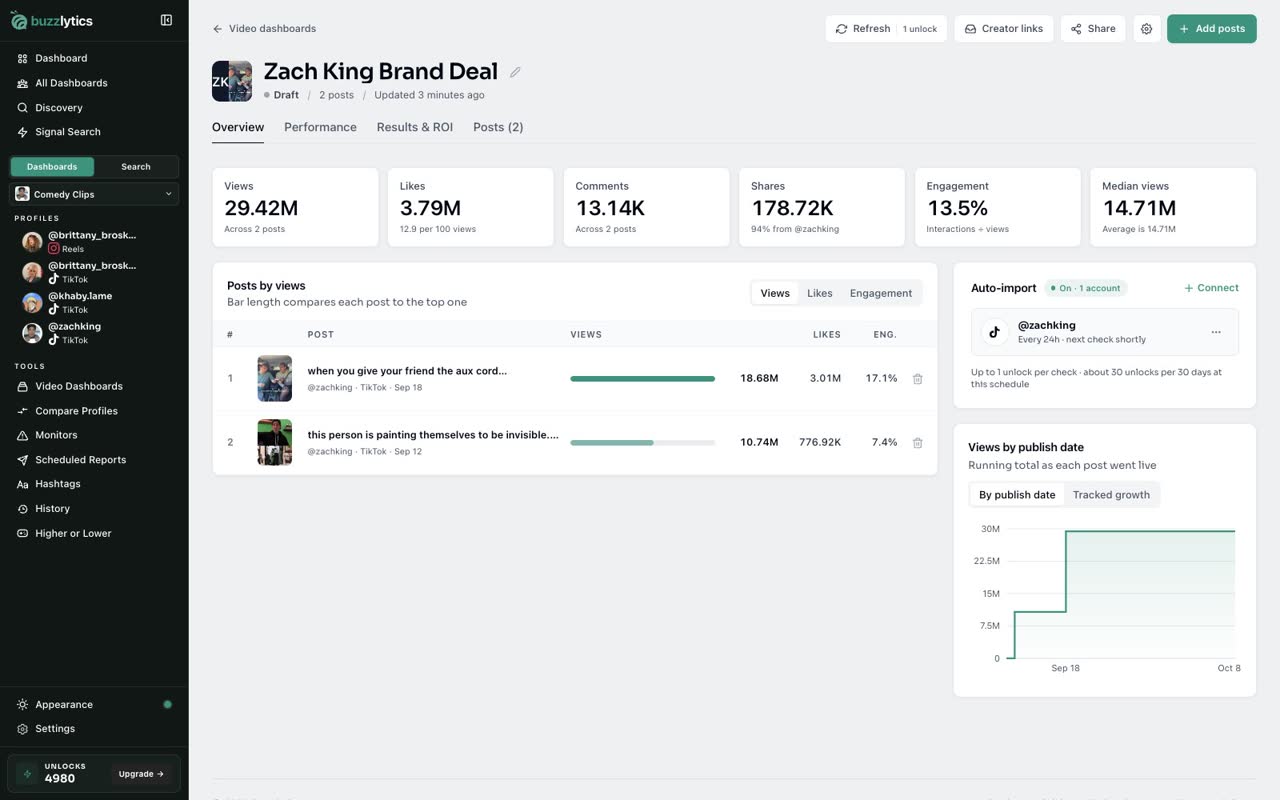
Open your Video Dashboard. On the Overview tab, the Auto-import panel shows which creators are connected.
-
2
Connect an account
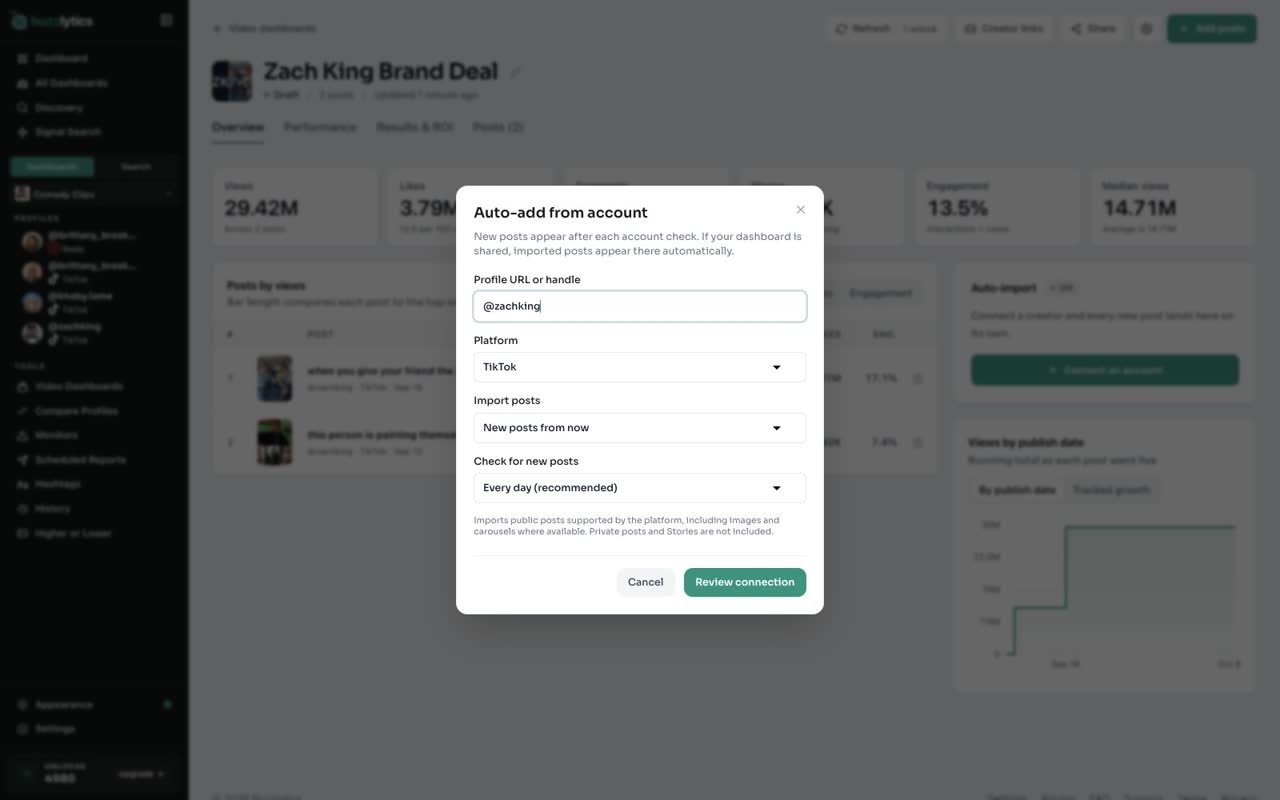
Click Connect an account, then type the creator's handle or profile link and pick the platform.
-
3
Choose what to import
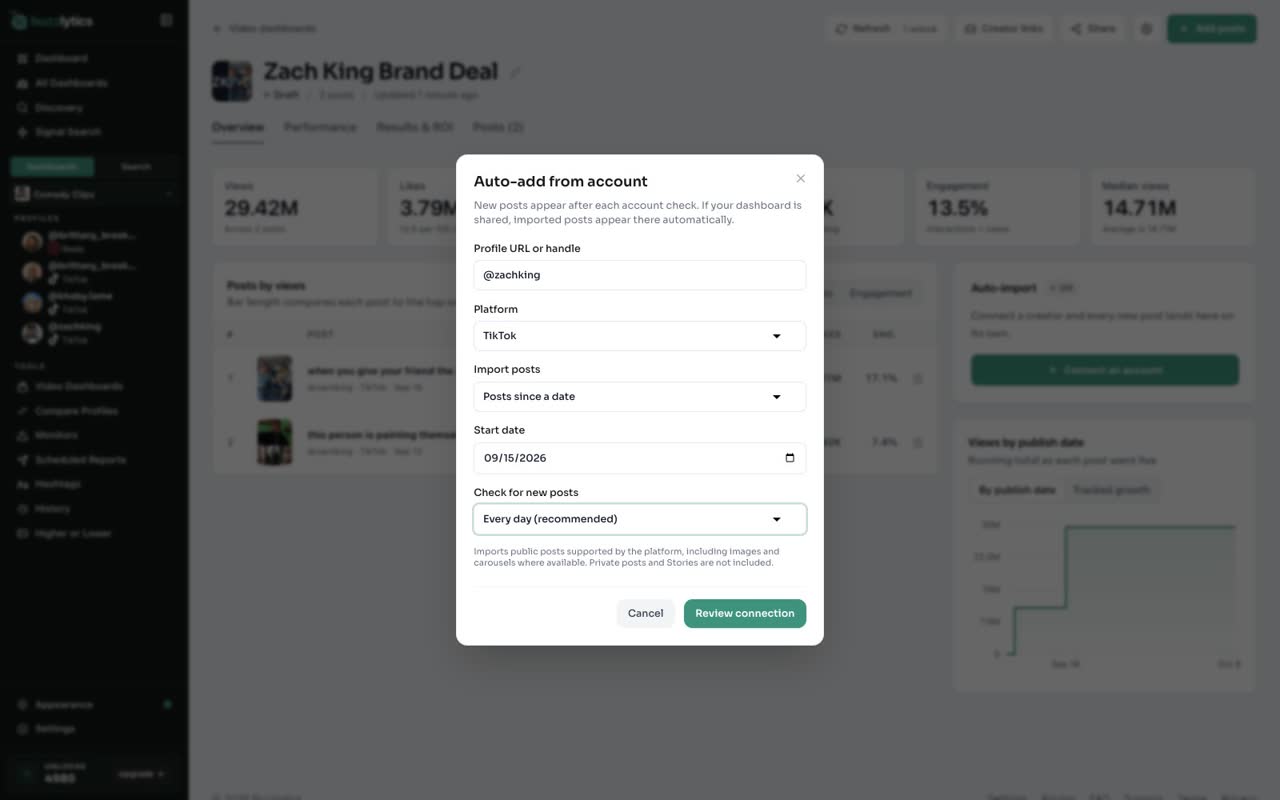
Under Import posts, choose Posts since a date and set the campaign start date. Then pick how often to check for new posts.
-
4
Review the connection
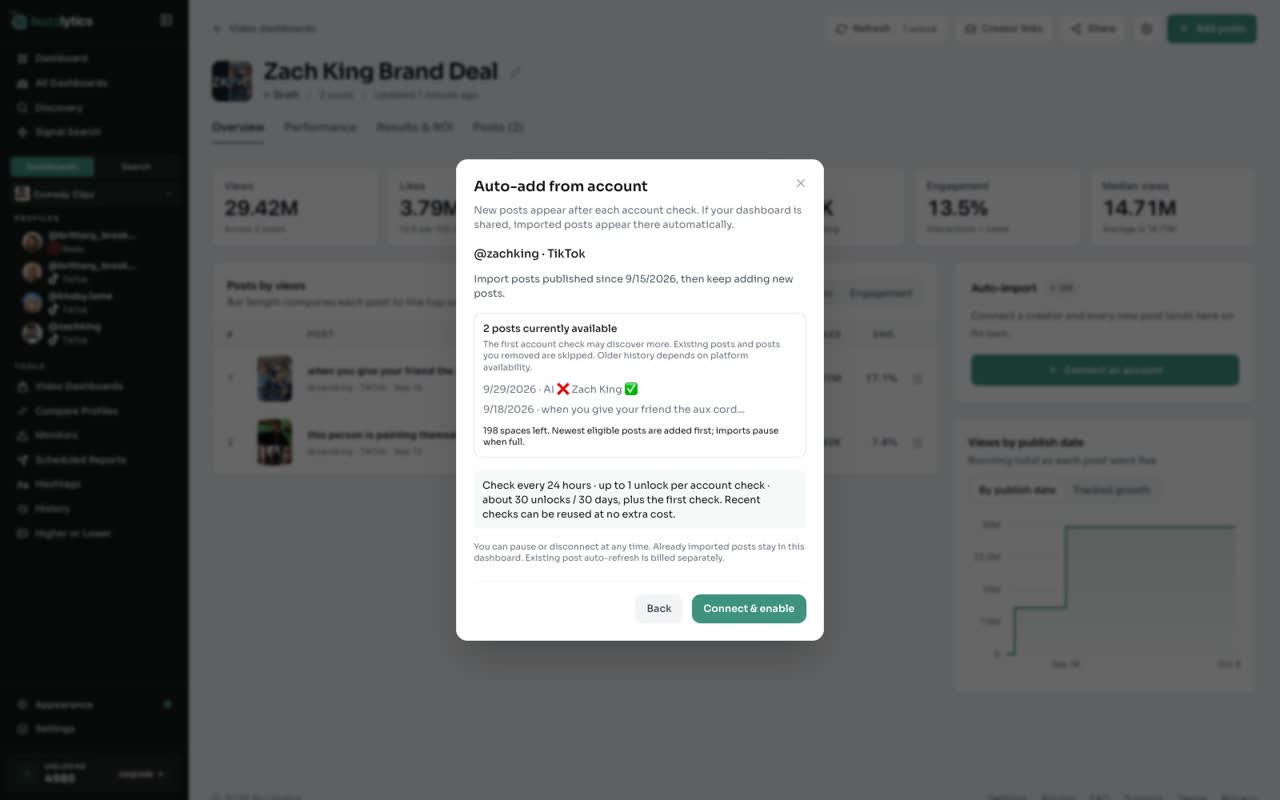
Click Review connection. You see how many posts are available now, and roughly how many unlocks the checks will use.
-
5
Connect and enable
Click Connect and enable. The first check starts right away, and new posts keep arriving on your schedule.
-
6
Pause or disconnect any time
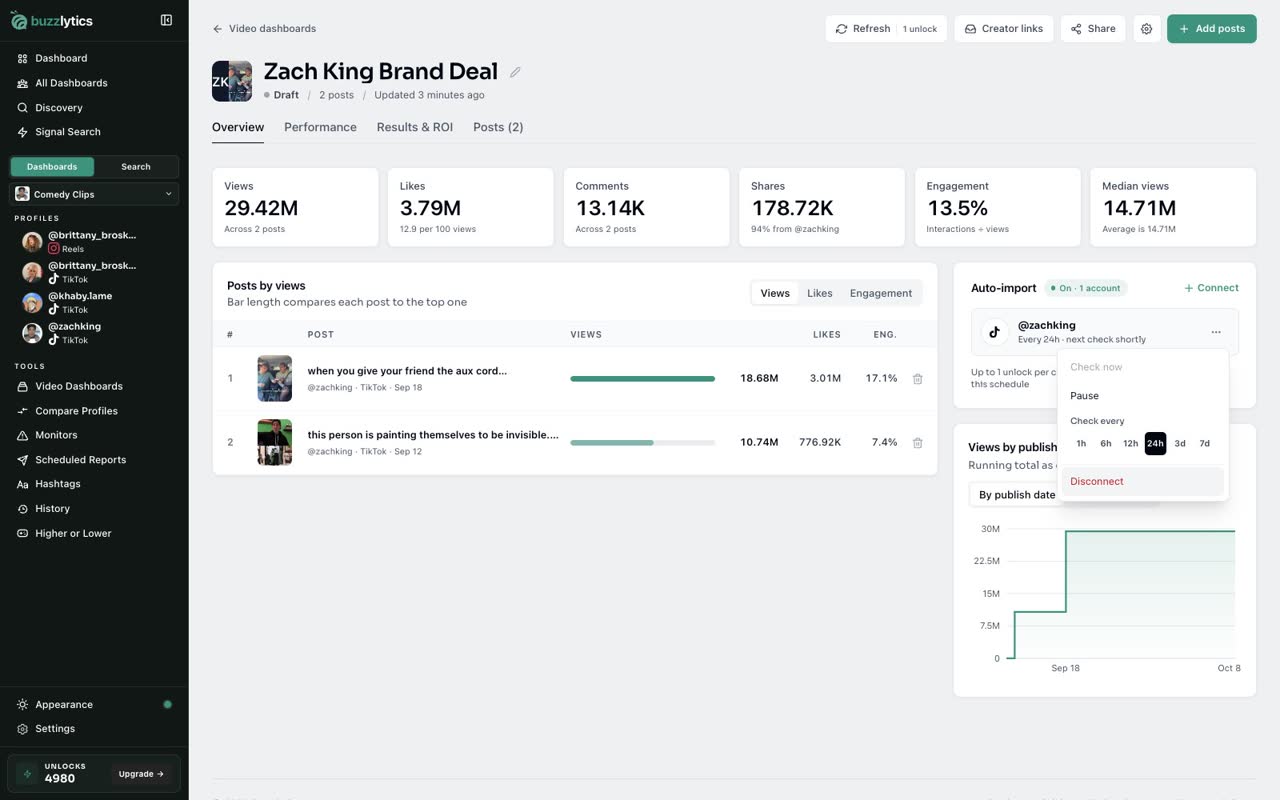
Use the menu next to the account to check now, pause, or disconnect. Posts already imported stay in the dashboard.
Good to know
- Each account check uses up to 1 unlock. A daily check is about 30 unlocks a month.
- Only public posts are imported. Private posts and Stories are not included.
- Disconnecting keeps every post that was already imported.
Read the full transcript
In this video, you will connect a creator so their new posts land in your Video Dashboard on their own.
Open your Video Dashboard. On the Overview tab, the Auto-import panel shows which creators are connected.
Click Connect an account, then type the creator's handle or profile link and pick the platform.
Under Import posts, choose Posts since a date and set the campaign start date. Then pick how often to check for new posts.
Click Review connection. You see how many posts are available now, and roughly how many unlocks the checks will use.
Click Connect and enable. The first check starts right away, and new posts keep arriving on your schedule.
Use the menu next to the account to check now, pause, or disconnect. Posts already imported stay in the dashboard.
Next up, let creators submit their posts.